Mocking is an essential part of unit testing, and the Mockito library makes it easy to write clean and intuitive unit tests for your Java code.
Get started with mocking and improve your application tests using our Mockito guide:
Handling concurrency in an application can be a tricky process with many potential pitfalls. A solid grasp of the fundamentals will go a long way to help minimize these issues.
Get started with understanding multi-threaded applications with our Java Concurrency guide:
Spring 5 added support for reactive programming with the Spring WebFlux module, which has been improved upon ever since. Get started with the Reactor project basics and reactive programming in Spring Boot:
Since its introduction in Java 8, the Stream API has become a staple of Java development. The basic operations like iterating, filtering, mapping sequences of elements are deceptively simple to use.
But these can also be overused and fall into some common pitfalls.
To get a better understanding on how Streams work and how to combine them with other language features, check out our guide to Java Streams:
Explore Spring Boot 3 and Spring 6 in-depth through building a full REST API with the framework:
Yes, Spring Security can be complex, from the more advanced functionality within the Core to the deep OAuth support in the framework.
I built the security material as two full courses - Core and OAuth, to get practical with these more complex scenarios. We explore when and how to use each feature and code through it on the backing project.
You can explore the course here:
All Access is finally out, with all of my Spring courses. Learn JUnit is out as well, and Learn Maven is coming fast. And, of course, quite a bit more affordable. Finally.
>> GET THE COURSE
Spring Data JPA is a great way to handle the complexity of JPA with the powerful simplicity of Spring Boot.
Get started with Spring Data JPA through the guided reference course:
Refactor Java code safely — and automatically — with OpenRewrite.
Refactoring big codebases by hand is slow, risky, and easy to put off. That’s where OpenRewrite comes in. The open-source framework for large-scale, automated code transformations helps teams modernize safely and consistently.
Each month, the creators and maintainers of OpenRewrite at Moderne run live, hands-on training sessions — one for newcomers and one for experienced users. You’ll see how recipes work, how to apply them across projects, and how to modernize code with confidence.
Join the next session, bring your questions, and learn how to automate the kind of work that usually eats your sprint time.
1. Introduction
IntelliJ IDEA is a popular IDE, but its high RAM usage can slow down performance, especially when working on large projects. Moreover, excessive memory consumption may lead to system lag or crashes, which affects productivity. This issue becomes more noticeable when running multiple applications alongside IntelliJ, as they compete for system resources. In such cases, we can decrease IntelliJ IDEA RAM usage to ensure a smoother development experience.
In this tutorial, we’ll learn how to decrease IntelliJ IDEA’s RAM usage by optimizing its settings.
2. Optimize IntelliJ RAM Settings
By default, IntelliJ allocates a significant amount of memory. We can optimize it based on our system’s capabilities. To do this, we can navigate to Help and select Change Memory Settings:
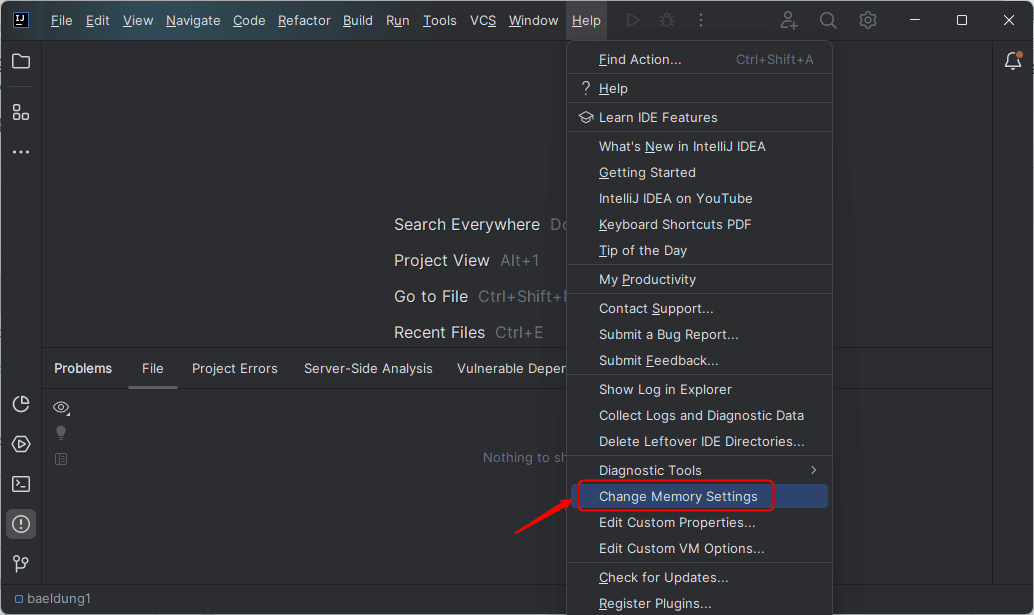
IntelliJ IDEA’s default Maximum Heap Size (Xmx) value is 2048 MiB (2 GB). However, we can increase or decrease it based on our system’s available memory and project requirements.
Since a lower heap size can prevent excessive RAM usage while keeping the IDE functional, reducing it can help optimize performance. Therefore, we decrease IntelliJ’s RAM usage to 1 GB by setting the Maximum Heap Size (Xmx) to 1024 MiB:
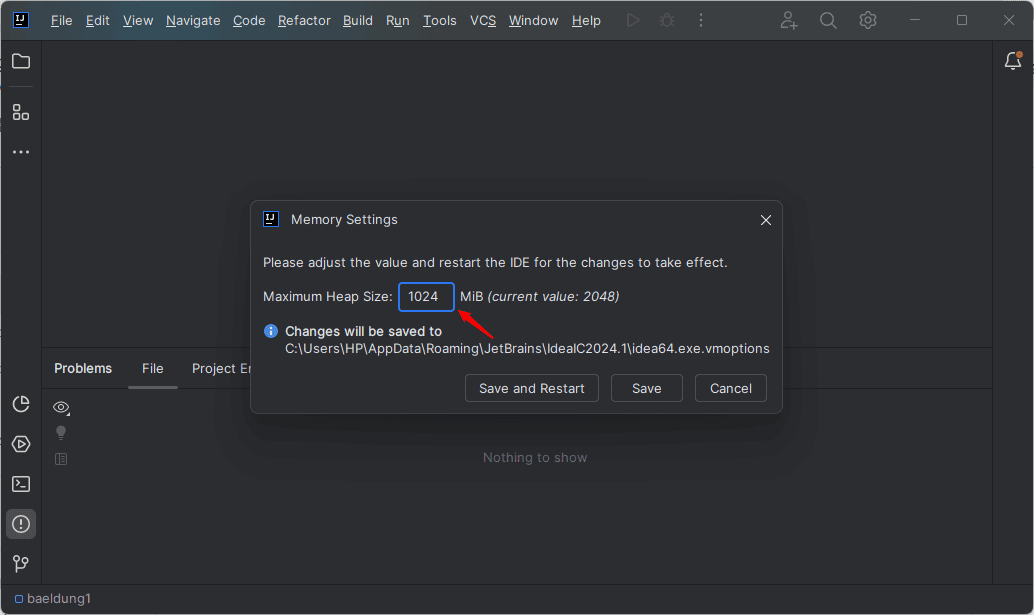
After specifying the desired Heap size, we click the Save and Restart button for changes to take effect.
3. Disable Unused Plugins
IntelliJ comes with many pre-installed plugins that we may not need for our workflow, and these unused plugins can consume system resources. Keeping unnecessary plugins enabled can lead to higher RAM usage, slower performance, and longer startup times. We can free up memory and improve the overall responsiveness of the IDE by disabling or removing unused plugins.
Let’s navigate to File, Settings, and Plugins, then switch to the Installed tab to manage plugins:
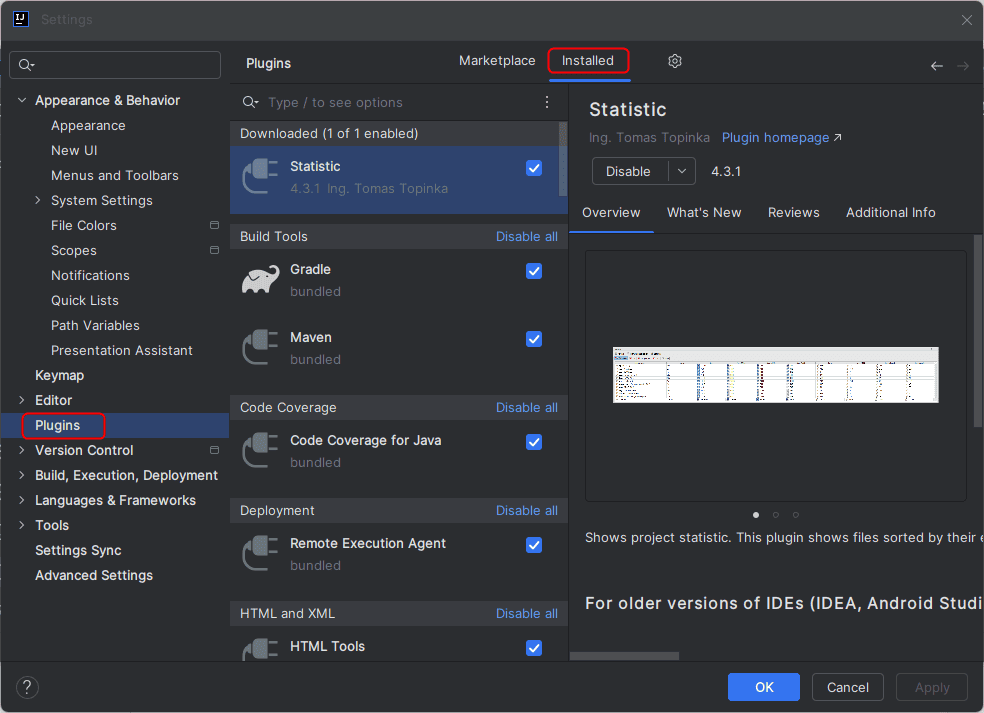
Finally, we can identify and disable unused plugins to reduce IntelliJ’s RAM usage. To apply the changes, we simply restart IntelliJ.
4. Optimize Garbage Collection
Java applications use Garbage Collection (GC) to manage memory by automatically reclaiming unused objects. Adjusting GC settings can help optimize IntelliJ’s performance, especially when working on large projects. We can configure parameters like the garbage collector type and heap allocation strategy to reduce memory overhead and improve responsiveness. These adjustments help IntelliJ run more efficiently without unnecessary pauses or slowdowns.
To optimize the Garbage Collection, we can navigate to Help and then Edit Custom VM Options:
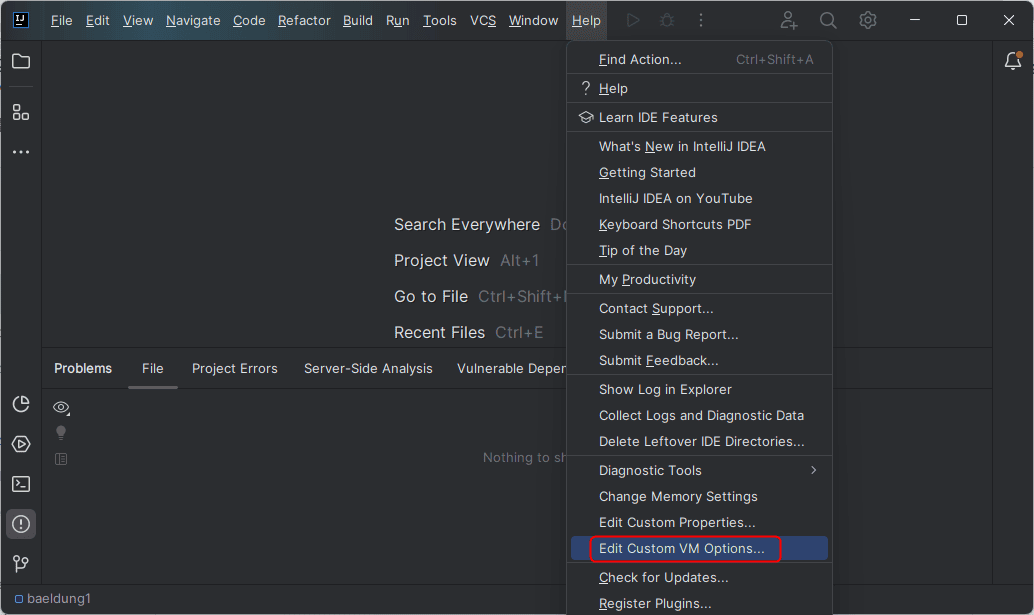
We specify the G1 Garbage Collector to optimize performance for large heap sizes and reduce pause times. Additionally, we set -XX:SoftRefLRUPolicyMSPerMB=50 to control the lifetime of soft references, which ensures efficient memory usage:
-XX:+UseG1GC
-XX:SoftRefLRUPolicyMSPerMB=50
Finally, we save and restart IntelliJ to ensure better memory management and reduce unnecessary RAM usage.
5. Enable Power Save Mode
If we’re working on simple code editing, Power Save Mode can help reduce background tasks like inspections and indexing, which consume system resources. Enabling this mode lowers CPU and memory usage, making IntelliJ run more efficiently on low-end machines or when multitasking. However, disabling certain background processes may also limit features like real-time code analysis and suggestions.
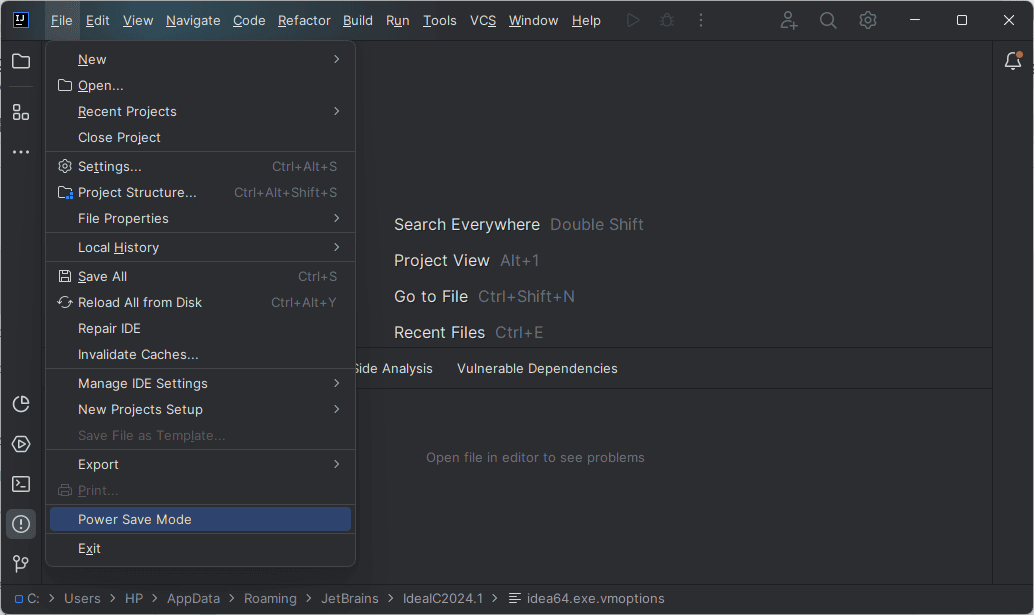
To activate power save mode, we navigate to File and click on the Power Save Mode:
When we enable Power Save Mode in IntelliJ IDEA, the status bar at the bottom of the IDE displays a notification indicating that Power Save Mode is On:
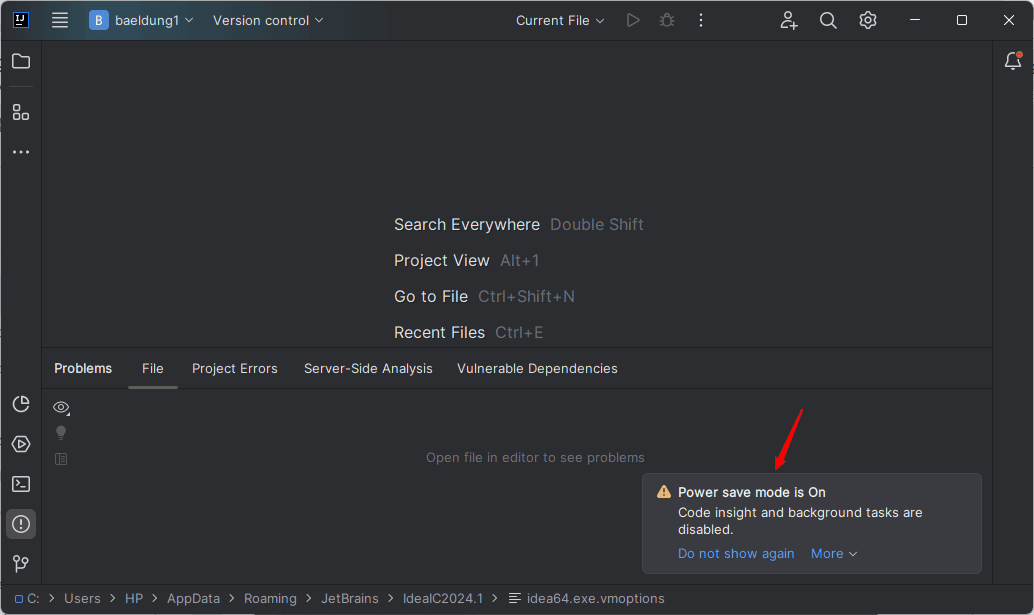
We can disable it anytime by clicking on this notification or navigating to File > Power Save Mode again. This mode reduces memory usage and enhances performance for basic coding tasks.
6. Disable Unused Code Inspections
We can disable unused code inspections to reduce computational load since IntelliJ performs real-time code analysis, which consumes RAM. We can manage this by navigating to File > Settings > Editor > Inspections:
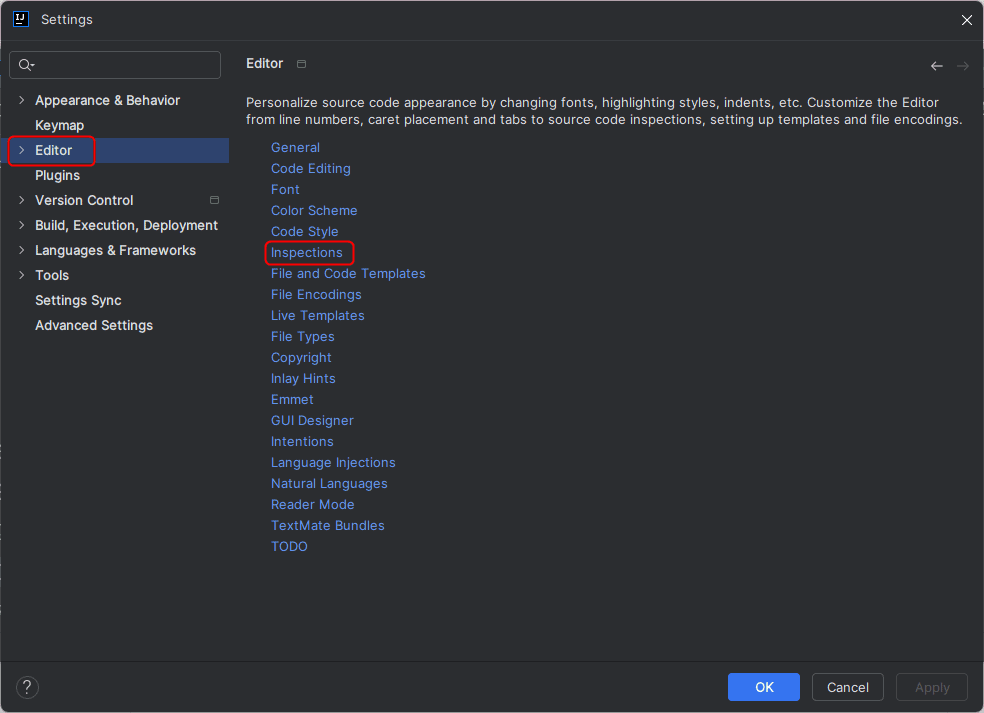
Let’s uncheck inspections we rarely use, and apply the changes:

We can disable new inspections by default to stop IntelliJ from enabling them after updates, which helps reduce RAM usage.
These optimizations help decrease IntelliJ IDEA’s RAM usage, improve performance, and ensure a smoother development experience. Moreover, closing unnecessary files and projects can further free up memory. Since having multiple projects open increases RAM consumption, we can close unused files by clicking the X on tabs and remove unnecessary projects.
7. Using IntelliJ IDEA Remotely
If our local machine struggles to run IntelliJ smoothly due to limited resources, we can use remote development options to enhance performance and productivity.
7.1. JetBrains Client for Remote Development
JetBrains offers a remote development solution that enables us to run IntelliJ IDEA on a more powerful remote machine while working from our local device. It offloads resource-intensive tasks to a remote system, which reduces lag on our local machine. This way, we can interact with the IDE as if it’s running locally, with full access to code, debugging, and version control.
Moreover, it enables remote pair programming and shared development environments. To set this up, we need JetBrains Gateway, which connects our local machine to a remote IntelliJ instance via SSH or a JetBrains-hosted server.
7.2. Cloud-Based IntelliJ Service
JetBrains also offers a cloud-hosted IntelliJ IDEA environment, where we can configure our development setup and pay for computing resources like CPU and RAM based on our needs. It eliminates the need for a high-end local machine while ensuring a smooth development experience.
8. Conclusion
Decreasing IntelliJ RAM usage ensures a smoother and more responsive development experience by minimizing lag and improving overall performance.
In this article, we explored various ways to reduce IntelliJ IDEA’s RAM usage, including optimizing settings, disabling unused plugins, adjusting garbage collection, and enabling Power Save Mode. Additionally, managing open files and projects helps free up memory.