Integrating Local LLMs with Spring AI Using LM Studio
Last updated: September 9, 2026


Mocking is an essential part of unit testing, and the Mockito library makes it easy to write clean and intuitive unit tests for your Java code.
Get started with mocking and improve your application tests using our Mockito guide:
Handling concurrency in an application can be a tricky process with many potential pitfalls. A solid grasp of the fundamentals will go a long way to help minimize these issues.
Get started with understanding multi-threaded applications with our Java Concurrency guide:
Spring 5 added support for reactive programming with the Spring WebFlux module, which has been improved upon ever since. Get started with the Reactor project basics and reactive programming in Spring Boot:
Since its introduction in Java 8, the Stream API has become a staple of Java development. The basic operations like iterating, filtering, mapping sequences of elements are deceptively simple to use.
But these can also be overused and fall into some common pitfalls.
To get a better understanding on how Streams work and how to combine them with other language features, check out our guide to Java Streams:
Explore Spring Boot 3 and Spring 6 in-depth through building a full REST API with the framework:
Yes, Spring Security can be complex, from the more advanced functionality within the Core to the deep OAuth support in the framework.
I built the security material as two full courses - Core and OAuth, to get practical with these more complex scenarios. We explore when and how to use each feature and code through it on the backing project.
You can explore the course here:
All Access is finally out, with all of my Spring courses. Learn JUnit is out as well, and Learn Maven is coming fast. And, of course, quite a bit more affordable. Finally.
>> GET THE COURSE
Spring Data JPA is a great way to handle the complexity of JPA with the powerful simplicity of Spring Boot.
Get started with Spring Data JPA through the guided reference course:
Refactor Java code safely — and automatically — with OpenRewrite.
Refactoring big codebases by hand is slow, risky, and easy to put off. That’s where OpenRewrite comes in. The open-source framework for large-scale, automated code transformations helps teams modernize safely and consistently.
Each month, the creators and maintainers of OpenRewrite at Moderne run live, hands-on training sessions — one for newcomers and one for experienced users. You’ll see how recipes work, how to apply them across projects, and how to modernize code with confidence.
Join the next session, bring your questions, and learn how to automate the kind of work that usually eats your sprint time.
1. Overview
Large language models (LLMs) have emerged as a key component of modern applications. While the most capable models are proprietary and hosted in a cloud environment. Accessing these models requires an internet connection and sending our application data to external providers.
For applications that process privacy-sensitive information or need to operate offline, these requirements may not be acceptable. As a result, there is a growing demand for integrating local LLMs into applications.
In this tutorial, we’ll learn how to integrate Spring AI with LM Studio and configure Spring AI to communicate with locally hosted chat and embedding models.
2. LM Studio
LM Studio is an application that can download, manage, and host LLMs and embedding models in our local environment. Its graphical interface allows us to browse and download models from public repositories with ease:
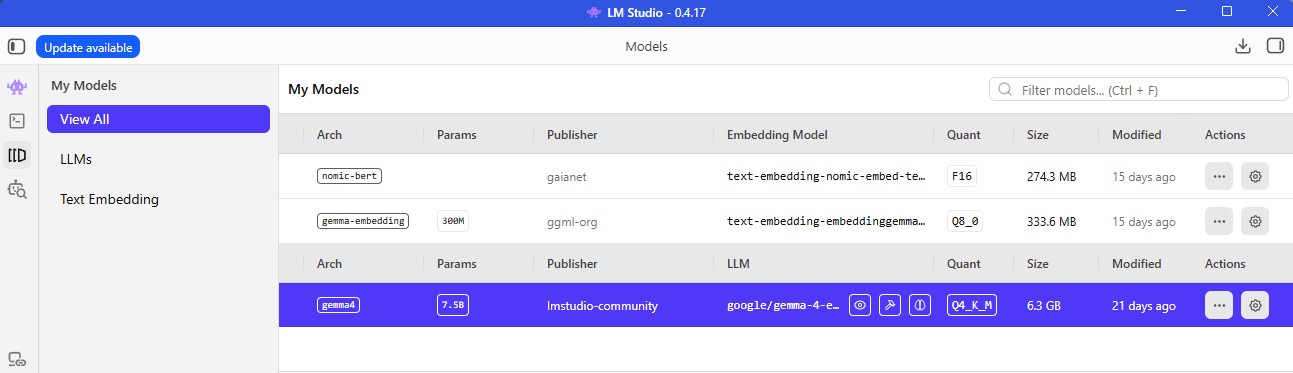
Besides model management, it provides an API server that exposes the loaded models via REST-based APIs. This allows AI frameworks such as Spring AI to interact with local models.
There are other applications, such as Ollama, providing similar capabilities, but with different focuses:
| LM Studio | Ollama | |
|---|---|---|
| User Interface | Graphical desktop application | Primarily command-line interface (CLI) |
| Model Discovery | Browse and download models from the GUI | Download models via CLI, without an interface to browse models. |
| Supported APIs | OpenAI-compatible and Anthropic-compatible | Native API, OpenAI-compatible, and Anthropic-compatible |
| Best fit | Non-technical users without CLI experience, model experimentation | Technical users, application integration |
In general, LM Studio offers a more user-friendly experience for exploring and experimenting with local models, while Ollama is optimized for command-line workflows.
3. Maven Dependency
LM Studio provides both OpenAI-compatible and Anthropic-compatible API endpoints.
To integrate with Spring AI, we could either pick the Spring AI OpenAI dependency or the Spring AI Anthropic dependency. However, Spring AI Anthropic does not support embedding models.
Therefore, we’ll adopt the Spring AI OpenAI dependency in this tutorial:
<dependency>
    <groupId>org.springframework.ai</groupId>
    <artifactId>spring-ai-starter-model-openai</artifactId>
    <version>2.0.0</version>
</dependency>
Note that Spring AI 2.0.0 is built on Spring Framework 7 and is intended for Spring Boot 4.
4. Configuration
Let’s configure our application.yml to adopt the local models in LM Studio:
spring:
  ai:
    openai:
      api-key: dummy
      base-url: http://localhost:1234/v1
      chat:
        model: google/gemma-4-e4b
      embedding:
        model: text-embedding-embeddinggemma-300m
There are several properties worth mentioning:
api-key: We don’t really need a real API key when connecting to the local model. Thus, we just need to fill in an arbitrary value.
base-url: We could find the base URL when we start the local server in LM Studio. If we use the Spring AI OpenAI dependency, remember to append /v1 to the base URL.
model: We only need to specify the model when multiple models are loaded in LM Studio. Otherwise, we can omit this model configuration.
5. Sample Endpoints
Now, let’s create two endpoints: One for the chat model and one for the embedding model.
The controller basically delegates the work to 2 services that work with the models:
@RequestMapping("/lm-studio")
public class LmStudioController {
    private final ChatService chatService;
    private final EmbeddingService embeddingService;

    public LmStudioController(ChatService chatService, EmbeddingService embeddingService) {
        this.chatService = chatService;
        this.embeddingService = embeddingService;
    }

    @PostMapping("/chat")
    @ResponseStatus(HttpStatus.OK)
    public String chat(@RequestBody String prompt) {
        return chatService.chat(prompt);
    }

    @PostMapping("/embeddings")
    @ResponseStatus(HttpStatus.OK)
    public EmbeddingResponse getEmbeddings(@RequestBody String text) {
        return embeddingService.getEmbeddings(text);
    }
}
The ChatService uses the ChatClient to send a prompt to the configured chat model:
@Service
public class ChatService {
    private final ChatClient chatClient;

    public ChatService(ChatClient.Builder builder) {
        this.chatClient = builder.build();
    }

    public String chat(String prompt) {
        return chatClient.prompt()
          .user(userMessage -> userMessage.text(prompt))
          .call()
          .content();
    }
}
Likewise, the EmbeddingService sends the text to the configured embedding model:
@Service
public class EmbeddingService {
    private final EmbeddingModel embeddingModel;

    public EmbeddingService(EmbeddingModel embeddingModel) {
        this.embeddingModel = embeddingModel;
    }

    public EmbeddingResponse getEmbeddings(String text) {
        EmbeddingRequest request = new EmbeddingRequest(List.of(text), null);
        return embeddingModel.call(request);
    }
}
6. Test Run
Before starting our Spring Boot application, make sure the LM Studio local server is running with both the chat model and embedding model loaded:
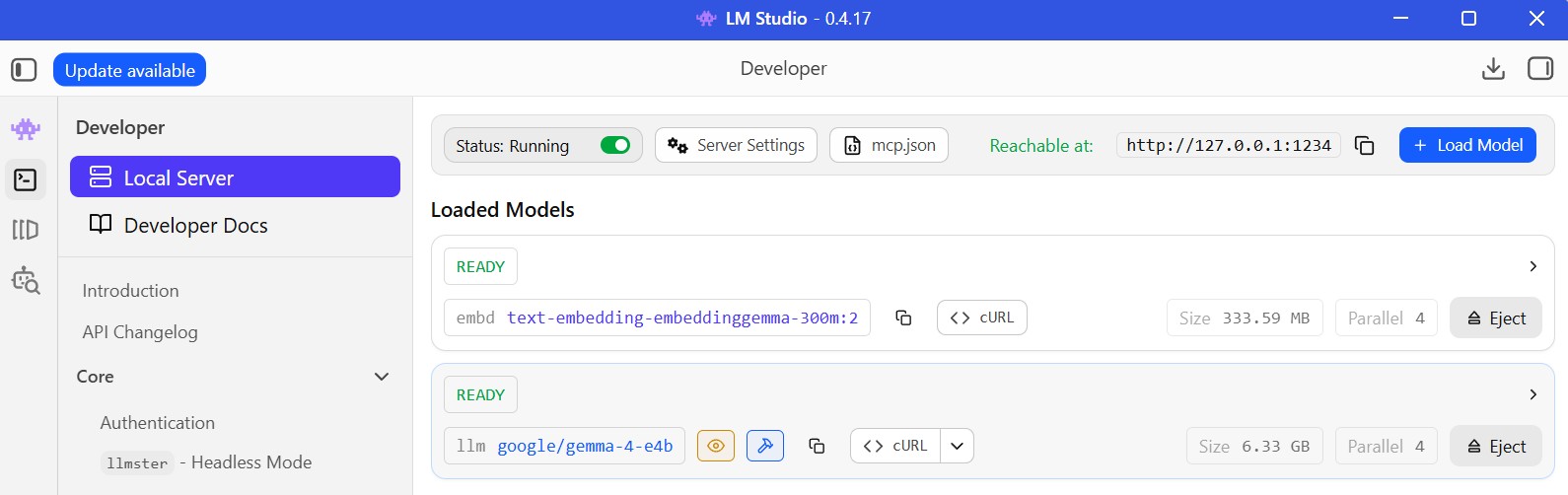
Now, let’s verify both the chat and embedding endpoints by initiating HTTP requests via curl.
First, we send a request to the chat endpoint:
curl -X POST http://localhost:8080/lm-studio/chat
  -d "Tell me who you are"
The request is processed by the chat model currently loaded in LM Studio. In this example, we’ve loaded Google’s Gemma 4 model, so the endpoint returns the following response:
I am Gemma 4, a Large Language Model developed by Google DeepMind.Next, we use the chat model response as the request payload for the embedding endpoint:
curl -X POST http://localhost:8080/lm-studio/embeddings
  -d "I am Gemma 4, a Large Language Model developed by Google DeepMind."
The endpoint returns the embedding response. Since the full response is large, we’ll only show the model name and the first few elements:
{
  "metadata": {
    "model": "text-embedding-embeddinggemma-300m:2"
  },
  "result": {
    "index": 0,
    "output": [
      -0.07699633,
      -0.030751443,
      0.019093497,
      ...
    ]
  }
}
These results confirm that Spring AI successfully invokes the locally hosted chat model and the embedding model via LM Studio’s OpenAI-compatible API.
7. Conclusion
In this article, we learned how to integrate Spring AI with LM Studio to use a locally hosted chat model and embedding model. We configured Spring AI to work with the open-source models via LM Studio’s OpenAI-compatible API.
LM Studio is a perfect choice for running AI models without relying on a cloud provider. This approach keeps your data within the local environment and enables it to operate without an internet connection. These make it ideal for privacy-sensitive applications.