Select Text From the Autocomplete Input using Selenium
Last updated: January 7, 2026


Mocking is an essential part of unit testing, and the Mockito library makes it easy to write clean and intuitive unit tests for your Java code.
Get started with mocking and improve your application tests using our Mockito guide:
Handling concurrency in an application can be a tricky process with many potential pitfalls. A solid grasp of the fundamentals will go a long way to help minimize these issues.
Get started with understanding multi-threaded applications with our Java Concurrency guide:
Spring 5 added support for reactive programming with the Spring WebFlux module, which has been improved upon ever since. Get started with the Reactor project basics and reactive programming in Spring Boot:
Since its introduction in Java 8, the Stream API has become a staple of Java development. The basic operations like iterating, filtering, mapping sequences of elements are deceptively simple to use.
But these can also be overused and fall into some common pitfalls.
To get a better understanding on how Streams work and how to combine them with other language features, check out our guide to Java Streams:
Explore Spring Boot 3 and Spring 6 in-depth through building a full REST API with the framework:
Yes, Spring Security can be complex, from the more advanced functionality within the Core to the deep OAuth support in the framework.
I built the security material as two full courses - Core and OAuth, to get practical with these more complex scenarios. We explore when and how to use each feature and code through it on the backing project.
You can explore the course here:
All Access is finally out, with all of my Spring courses. Learn JUnit is out as well, and Learn Maven is coming fast. And, of course, quite a bit more affordable. Finally.
>> GET THE COURSE
Spring Data JPA is a great way to handle the complexity of JPA with the powerful simplicity of Spring Boot.
Get started with Spring Data JPA through the guided reference course:
Refactor Java code safely — and automatically — with OpenRewrite.
Refactoring big codebases by hand is slow, risky, and easy to put off. That’s where OpenRewrite comes in. The open-source framework for large-scale, automated code transformations helps teams modernize safely and consistently.
Each month, the creators and maintainers of OpenRewrite at Moderne run live, hands-on training sessions — one for newcomers and one for experienced users. You’ll see how recipes work, how to apply them across projects, and how to modernize code with confidence.
Join the next session, bring your questions, and learn how to automate the kind of work that usually eats your sprint time.
1. Overview
Modern web applications often contain a search bar that returns dynamic suggestions based on user input. Writing end-to-end (E2E) tests requires more than inputting text in a search bar. It also involves waiting for the suggestion dropdown to pop up and selecting an item from the dropdown.
In this tutorial, we’ll explore how to use Selenium to interact with an autocomplete-enabled search bar on a website.
2. Test Scenario
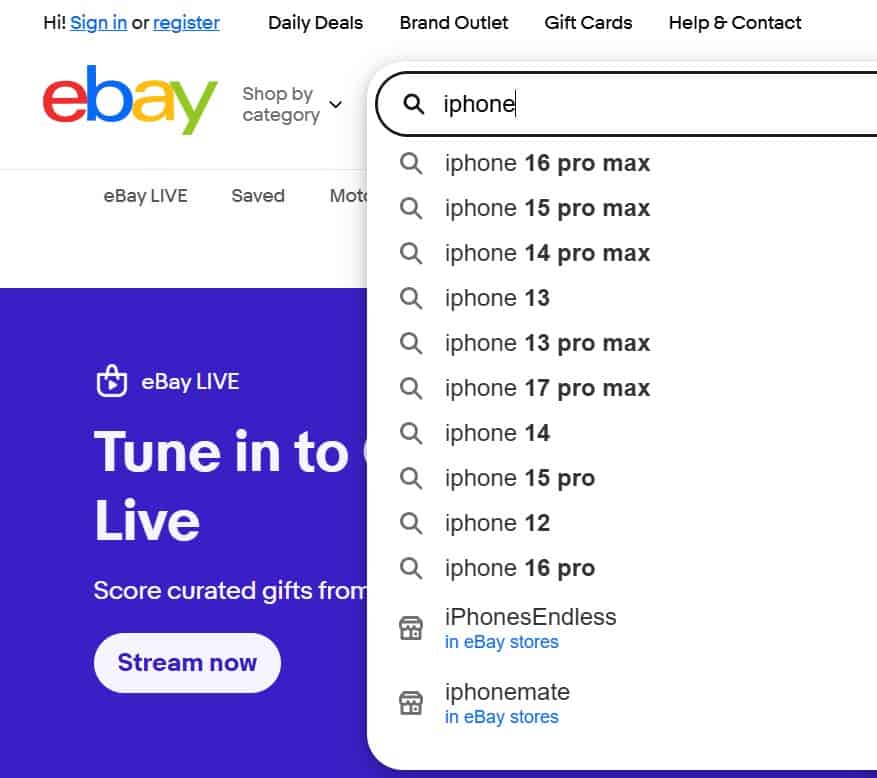
Let’s set up a test scenario that could illustrate how we select an autocomplete item from the search:
- Navigate to the eBay website
- Find the search bar at the top page
- Type “iphone” into the search input field
- When the autocomplete suggestions pop up, select the second item from the list
3. Test Setup
To start with writing a test with Selenium, we have to add the selenium-java dependency to our pom.xml:
<dependency>
    <groupId>org.seleniumhq.selenium</groupId>
    <artifactId>selenium-java</artifactId>
    <version>4.38.0</version>
</dependency>
Besides the core Selenium dependency, we also need the WebDriver to drive a browser. Let’s add the webdrivermanager dependency as well:
<dependency>
    <groupId>io.github.bonigarcia</groupId>
    <artifactId>webdrivermanager</artifactId>
    <version>6.3.3</version>
</dependency>
This manager package is a popular Java library that includes various browser WebDriver such as Chrome, Edge, and Firefox.
In our test, we’ll use JUnit to manage the lifecycle of the Selenium WebDriver. A Chrome browser will be initialized and cleaned up in each test:
private WebDriver driver;

@BeforeEach
void setup() {
    driver = new ChromeDriver();
}

@AfterEach
void teardown() {
    driver.quit();
}
4. Test Implementation
Below is our test method to perform the test scenario. We define two constants, XPATH_INPUT and XPATH_AUTOCOMPLETE_ITEMS, to represent the XPath of the search bar element and the autocomplete suggestion dropdown items:
private static final String XPATH_INPUT = "//div[@id='gh-search-box']//input";
private static final String XPATH_AUTOCOMPLETE_ITEMS = "//ul[@id='ebay-autocomplete']/li";

@Test
void whenUserNavigatesToEBays_thenSelectThe2ndAutoCompleteItemFromSearchInput() throws Exception {
    driver.navigate().to("https://www.ebay.com");

    WebElement inputElement = driver.findElement(By.xpath(XPATH_INPUT));
    String text = "iphone";
    for (char c : text.toCharArray()) {
        inputElement.sendKeys(Character.toString(c));
        Thread.sleep(50);
    }

    WebDriverWait wait = new WebDriverWait(driver, Duration.ofSeconds(3));
    List<WebElement> autoCompleteElements = wait.until(
      ExpectedConditions.visibilityOfAllElementsLocatedBy(
        By.xpath(XPATH_AUTOCOMPLETE_ITEMS)
      )
    );

    assertThat(autoCompleteElements.size()).isGreaterThanOrEqualTo(2);

    WebElement secondItem = autoCompleteElements.get(1);
    secondItem.click();
}
This implementation first opens a Chrome browser and navigates to the eBay website, then locates the search bar by the XPath of the corresponding HTML element.
Next, we input the keyword “iphone” character by character, mimicking the human input. Note that we could not send the whole keyword in one go on eBay:
inputElement.sendKeys(text)Sending the entire keyword will cause the suggestion dropdown menu not to appear.
The keyword input will trigger a request to eBay to call their API to get the suggestions. It may take a bit of time for the server to return the suggestions response. Thus, we use WebDriverWait to wait for the autocomplete dropdown to appear. Once the element appears, we select the second suggestion from the dropdown.
5. Conclusion
In this article, we demonstrated how to use Selenium to write an E2E test to simulate human inputs to an autocomplete search bar and an explicit wait to select one of the suggestions returned. This approach ensures the reliable selection of suggestion items.