Mocking is an essential part of unit testing, and the Mockito library makes it easy to write clean and intuitive unit tests for your Java code.
Get started with mocking and improve your application tests using our Mockito guide:
Handling concurrency in an application can be a tricky process with many potential pitfalls. A solid grasp of the fundamentals will go a long way to help minimize these issues.
Get started with understanding multi-threaded applications with our Java Concurrency guide:
Spring 5 added support for reactive programming with the Spring WebFlux module, which has been improved upon ever since. Get started with the Reactor project basics and reactive programming in Spring Boot:
Since its introduction in Java 8, the Stream API has become a staple of Java development. The basic operations like iterating, filtering, mapping sequences of elements are deceptively simple to use.
But these can also be overused and fall into some common pitfalls.
To get a better understanding on how Streams work and how to combine them with other language features, check out our guide to Java Streams:
Explore Spring Boot 3 and Spring 6 in-depth through building a full REST API with the framework:
Yes, Spring Security can be complex, from the more advanced functionality within the Core to the deep OAuth support in the framework.
I built the security material as two full courses - Core and OAuth, to get practical with these more complex scenarios. We explore when and how to use each feature and code through it on the backing project.
You can explore the course here:
All Access is finally out, with all of my Spring courses. Learn JUnit is out as well, and Learn Maven is coming fast. And, of course, quite a bit more affordable. Finally.
>> GET THE COURSE
Spring Data JPA is a great way to handle the complexity of JPA with the powerful simplicity of Spring Boot.
Get started with Spring Data JPA through the guided reference course:
Refactor Java code safely — and automatically — with OpenRewrite.
Refactoring big codebases by hand is slow, risky, and easy to put off. That’s where OpenRewrite comes in. The open-source framework for large-scale, automated code transformations helps teams modernize safely and consistently.
Each month, the creators and maintainers of OpenRewrite at Moderne run live, hands-on training sessions — one for newcomers and one for experienced users. You’ll see how recipes work, how to apply them across projects, and how to modernize code with confidence.
Join the next session, bring your questions, and learn how to automate the kind of work that usually eats your sprint time.
1. Introduction
Code formatting refers to structuring code cleanly and consistently using proper indentation, spacing, and alignment. Formatting does not change how the code works; it only improves readability and maintainability. Auto-formatting applies these rules automatically, saving time and eliminating manual adjustments. It also ensures consistency across files and teams and reduces unnecessary review comments, letting us focus on writing logic instead of fixing code formatting.
In this tutorial, we’ll cover how to auto-format code in Visual Studio Code, including popular setup options, built-in features, and tips for a smooth workflow.
2. Auto-Format Code on Save
Auto-format on save is one of the most efficient ways to maintain clean code. When enabled, VS Code formats the file automatically whenever we press Ctrl+S or Cmd+S. This feature is particularly useful in team projects, where a consistent code style across different contributors is important.
To ensure proper formatting, we must confirm that the correct language mode is selected in the bottom-right corner of the editor. Incorrect language detection can prevent formatting from working as expected.
Additionally, setting the default formatter for each language avoids confusion and ensures that VS Code applies the correct formatting rules. Auto-format on save can also be combined with linters to automatically correct style and syntax issues, making it a cornerstone for a modern, efficient workflow.
To enable this feature, we open Settings, search for Format On Save, and turn it on:
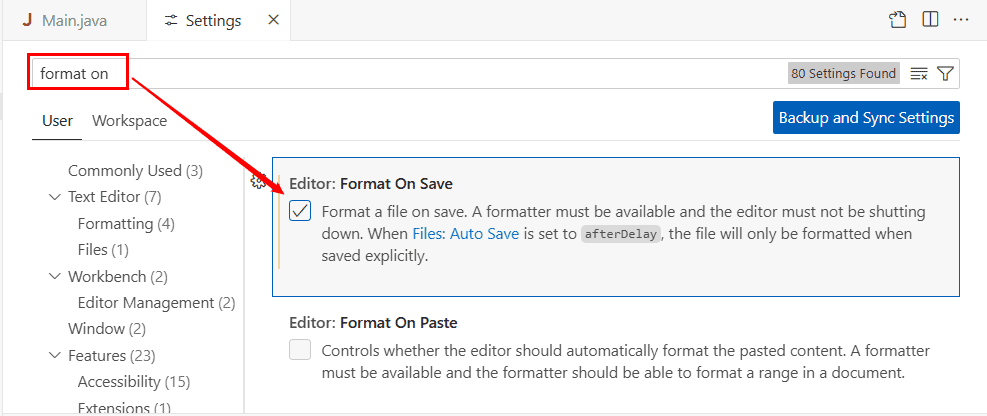
Alternatively, we can add the following setting in settings.json:
"editor.formatOnSave": true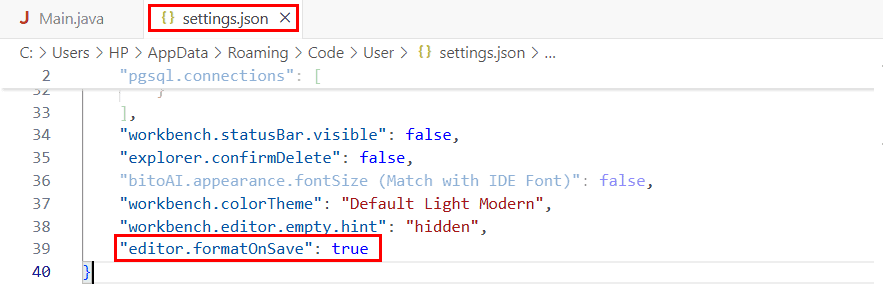
If auto-format on save keeps files clean after saving, we can take it a step further by formatting code as we type.
3. Auto-Format Code While Typing
VS Code can automatically format code as we type, which is especially useful when writing long functions or nested structures. When we close a code block or type certain characters like brackets or semicolons, VS Code immediately adjusts the indentation and aligns the code correctly. This keeps the code readable as we write. It also prevents formatting issues before they appear, so we don’t have to fix alignment later.
Format while typing works best when a proper formatter is available for the language. Some languages support basic formatting by default, while others rely on extensions like Prettier.
We can enable this by turning on the formatOnType feature in the settings.json file:
"editor.formatOnType": true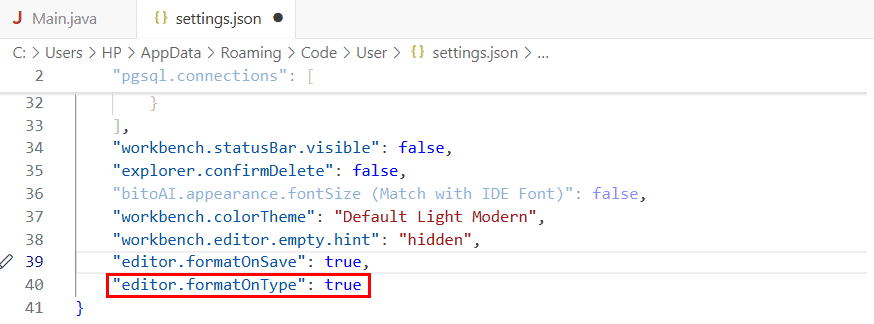
However, some developers find format-on-type “jumpy”, as automatic adjustments can occasionally disrupt typing flow. For this reason, many experienced developers prefer to leave it off and rely solely on auto-format on save for cleaner workflow control.
Despite this, when configured properly with a supported formatter, format-on-type can reduce rework, speed up development, and maintain a consistent code structure without extra effort.
4. Auto-Format on Paste
Another useful but often overlooked feature is auto-format on paste. When enabled, VS Code automatically formats pasted code to match the surrounding style. This is especially helpful when copying code snippets from documentation, tutorials, or other projects.
To enable this option, we can open Settings, search for Format on Paste in the search bar, and enable the corresponding checkbox:
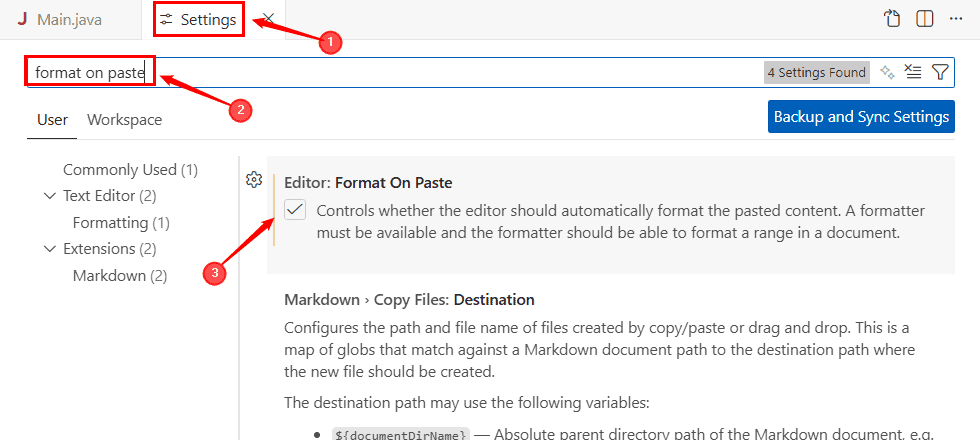
Alternatively, we can add the following setting to the settings.json file:
"editor.formatOnPaste": trueOnce enabled, whatever we paste in VS Code will seamlessly integrate into the existing file structure, which eliminates the need for manual formatting afterward.
When combined with format-on-save, it significantly improves day-to-day editing efficiency.
5. Manual Formatting Code in Visual Studio Code
While auto-formatting should be the primary workflow, knowing how to format manually remains useful. VS Code provides several ways to do this, including shortcuts, commands, and menu options.
Keyboard shortcuts are the fastest way to format code. On Windows and most Linux distributions, the commonly supported shortcut is Shift+Alt+F. Some Linux environments may also use Ctrl+Shift+I, as shortcuts can vary by distribution and desktop setup. On macOS, the shortcut is Shift+Option+F. Pressing these shortcuts formats the entire file instantly:

VS Code also lets us format code using the right-click context menu. We simply right-click anywhere inside the editor and select Format Document. VS Code immediately formats the entire file based on the active formatting rules:

This option is helpful when we prefer using the mouse or want a quick reminder of formatting features without memorizing shortcuts.
The Command Palette lets us format code through simple commands. We open it using Ctrl+Shift+P on Windows/Linux or Cmd+Shift+P on macOS. After that, we type Format Document to format the whole file. If we highlight specific lines first, we can choose Format Selection to format only that part:
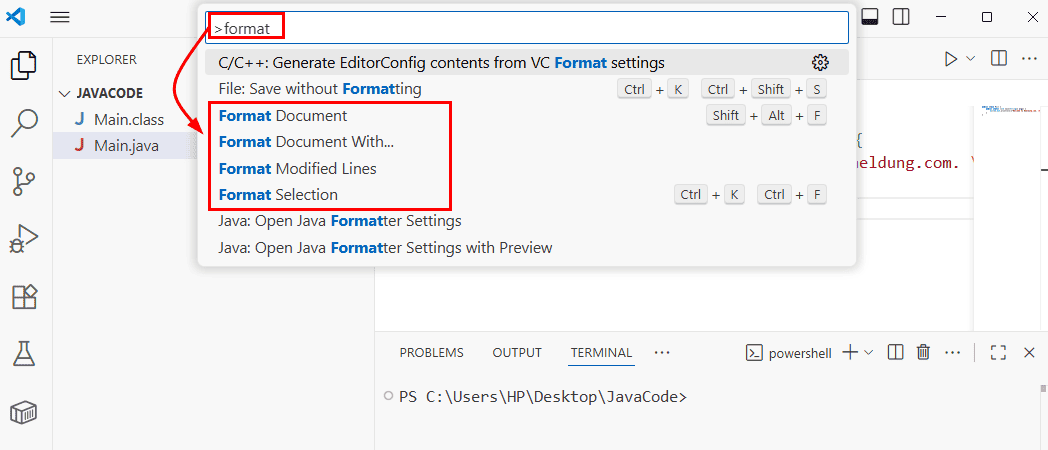
Manual formatting is particularly helpful when working with special cases or small selections. However, for daily workflows, automated formatting is more efficient and consistent.
6. Conclusion
In this article, we explored how VS Code simplifies code formatting for developers. We discussed modern setups, including auto-format on save and format-on-type, as well as manual formatting methods for special cases.
Using these features effectively allows us to maintain clean, readable, and consistent code with minimal effort. This enables us to focus on building logic instead of fixing formatting issues.