Mocking is an essential part of unit testing, and the Mockito library makes it easy to write clean and intuitive unit tests for your Java code.
Get started with mocking and improve your application tests using our Mockito guide:
Handling concurrency in an application can be a tricky process with many potential pitfalls. A solid grasp of the fundamentals will go a long way to help minimize these issues.
Get started with understanding multi-threaded applications with our Java Concurrency guide:
Spring 5 added support for reactive programming with the Spring WebFlux module, which has been improved upon ever since. Get started with the Reactor project basics and reactive programming in Spring Boot:
Since its introduction in Java 8, the Stream API has become a staple of Java development. The basic operations like iterating, filtering, mapping sequences of elements are deceptively simple to use.
But these can also be overused and fall into some common pitfalls.
To get a better understanding on how Streams work and how to combine them with other language features, check out our guide to Java Streams:
Explore Spring Boot 3 and Spring 6 in-depth through building a full REST API with the framework:
Yes, Spring Security can be complex, from the more advanced functionality within the Core to the deep OAuth support in the framework.
I built the security material as two full courses - Core and OAuth, to get practical with these more complex scenarios. We explore when and how to use each feature and code through it on the backing project.
You can explore the course here:
All Access is finally out, with all of my Spring courses. Learn JUnit is out as well, and Learn Maven is coming fast. And, of course, quite a bit more affordable. Finally.
>> GET THE COURSE
Spring Data JPA is a great way to handle the complexity of JPA with the powerful simplicity of Spring Boot.
Get started with Spring Data JPA through the guided reference course:
Refactor Java code safely — and automatically — with OpenRewrite.
Refactoring big codebases by hand is slow, risky, and easy to put off. That’s where OpenRewrite comes in. The open-source framework for large-scale, automated code transformations helps teams modernize safely and consistently.
Each month, the creators and maintainers of OpenRewrite at Moderne run live, hands-on training sessions — one for newcomers and one for experienced users. You’ll see how recipes work, how to apply them across projects, and how to modernize code with confidence.
Join the next session, bring your questions, and learn how to automate the kind of work that usually eats your sprint time.
1. Introduction
It’s hard to imagine doing web application automation without needing to click on anything or submit a form. Although these actions appear to be simple, there are nuances to be aware of.
In this tutorial, we’ll look into how Selenium handles click() and submit(), and which one we should choose when working with forms.
2. Prerequisites and Setup
First, let’s set up a simple Selenium test.
To that end, we assume basic familiarity with several concepts:
- Java development environment
- initializing a Maven project
- running tests
For the example code, we use a quickstart Maven project and add Selenium WebDriver, WebDriver Manager, and JUnit packages to the pom.xml file:
<dependencies>
  <dependency>
    <groupId>org.seleniumhq.selenium</groupId>
    <artifactId>selenium-java</artifactId>
    <version>4.46.0</version>
  </dependency>
  <dependency>
      <groupId>io.github.bonigarcia</groupId>
      <artifactId>webdrivermanager</artifactId>
      <version>6.3.0</version>
  </dependency>
  <dependency>
    <groupId>org.junit.jupiter</groupId>
    <artifactId>junit-jupiter</artifactId>
    <version>5.11.0</version>
    <scope>test</scope>
  </dependency>
</dependencies>
Let’s leverage WebDriver Manager to automatically download and set up the correct version of the browser driver we use in the tests. Furthermore, we employ JUnit to annotate and organize the sample code.
Next, we create a sample test file in the /test/java directory of the project. Let’s name it ContactTest.java and add setup code to get started:
public class ContactTest {

    private WebDriver driver;

    @BeforeEach
    void setup() {
        WebDriverManager.chromedriver().setup();
        driver = new ChromeDriver();
    }

    @AfterEach
    void teardown() {
        if (driver != null) {
            driver.quit();
        }
    }

    // add tests here
}
Here in the setup and teardown functions, we initialize the Chrome driver before and quit the driver after each test.
3. How Selenium Works
Selenium WebDriver executes commands by forwarding them to the respective browser driver (e.g., chromedriver for Chrome, or geckodriver for Firefox). In essence, it’s a messenger sending HTTP requests.
On the other hand, browsers guard sensitive actions, also known as activation behavior, like click() and submit(). The goal is, for example, to prevent a malicious script from triggering a click multiple times in an attempt to exploit user actions. This security measure is implemented with the isTrusted flag. All events have this flag to differentiate between human and script interactions. Events dispatched directly by JavaScript (such as those via dispatchEvent()) have isTrusted set to false, whereas WebDriver user interaction commands such as click() generate trusted browser events.
Since Selenium uses the WebDriver protocol, it has elevated privileges, including triggering a click multiple times without getting blocked. Essentially, events Selenium triggers have their isTrusted flag set to true when the browser system processes them.
4. Exploring click()
Just like when operating manually, we can call click() on any clickable element.
4.1. Implementation Details
By design, it mimics human behavior. Therefore, the element needs to be enabled, visible, and have a non-zero size for a click to work.
When Selenium sends the click message, the browser driver executes a series of actions:
- ensures the element is clickable
- scrolls to make the element visible
- calculates the element’s central coordinates for dispatching the events
- dispatches mouse down and mouse up events
- dispatches a click event
Let’s look at the click() implementation in the Selenium WebDriver code:
@Override
public void click() {
  execute(DriverCommand.CLICK_ELEMENT(id));
}
According to the documentation, click() can throw several exceptions:
- NoSuchElementException when the element is missing
- ElementNotInteractableException when the element is hidden, disabled, or has zero size
- ElementClickInterceptedException when another element obscures the target
- StaleElementReferenceException when a reference is no longer valid
For a more controlled click, we can use the Selenium Actions API:
new Actions(driver).moveToElement(submitButton).click().perform();
Nonetheless, unlike the regular click(), it doesn’t throw an exception when another element obscures the target element. Notably, Actions always performs a click at the specified coordinates regardless of whether the click ends up on a different element.
4.2. Example
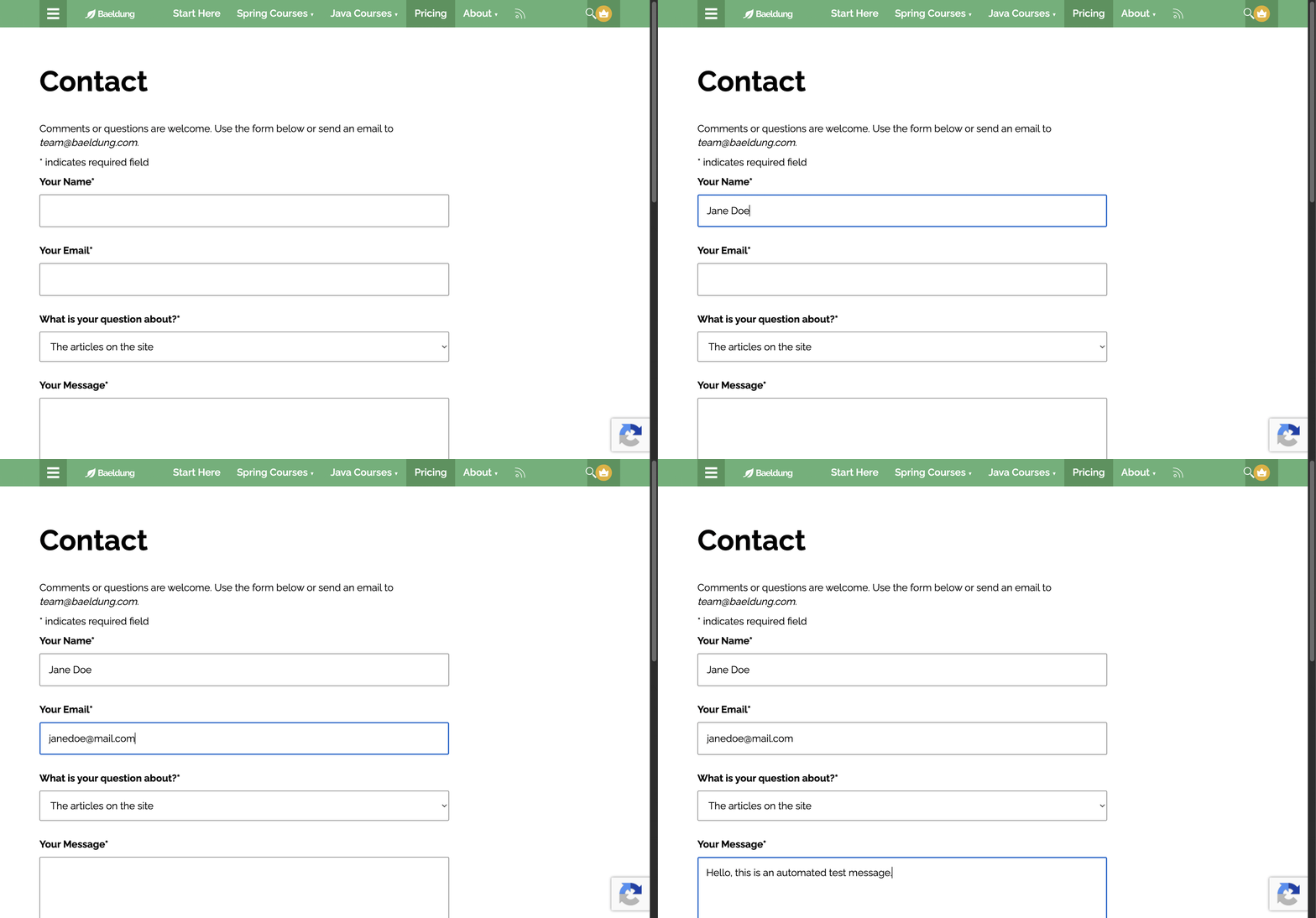
To see click() in action, we implement and run a simple test that fills a form, then clicks the submit button:
@Test
void submitFormWithClick() throws InterruptedException {
    try {
        WebDriverWait wait = new WebDriverWait(driver, Duration.ofSeconds(10));

        driver.get("https://www.baeldung.com/contact");

        WebElement nameField = wait.until(
            ExpectedConditions.presenceOfElementLocated(By.name("your-name"))
        );
        nameField.sendKeys("Jane Doe");
        TimeUnit.SECONDS.sleep(1);

        WebElement emailField = driver.findElement(By.name("your-email"));
        emailField.sendKeys("[email protected]");
        TimeUnit.SECONDS.sleep(1);

        WebElement messageField = driver.findElement(By.name("your-message"));
        messageField.sendKeys("Hello, this is an automated test message.");
        TimeUnit.SECONDS.sleep(1);

        WebElement submitButton = wait.until(
          ExpectedConditions.elementToBeClickable(By.cssSelector("input[type='submit']"))
        );
        submitButton.click();
        TimeUnit.SECONDS.sleep(2);
    } catch (Exception e) {
        e.printStackTrace();
    }
}
In this case, we use TimeUnit.SECONDS.sleep(1) to follow along the test execution. After filling the form, the page scrolls down to show the submit button before clicking it:
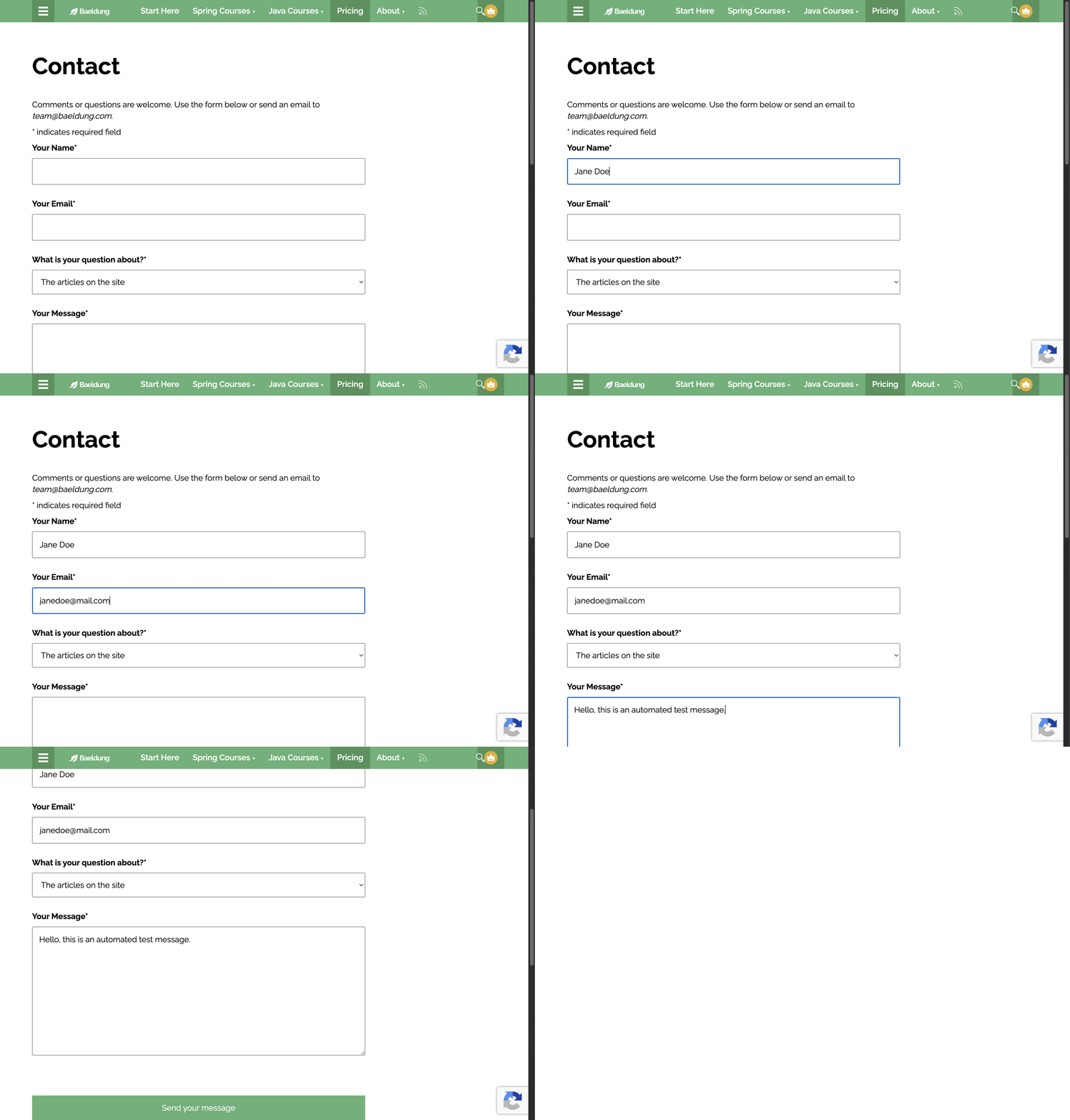
Unfortunately, the submit button doesn’t have a click animation to demonstrate UI effects.
5. Exploring submit()
As expected, submit() is more limited than click() as its only purpose is to submit a form.
5.1. Implementation Details
We can call submit() on the form element to trigger the form submit functionality. In addition, we can call submit() on any element within the form. In the latter case, the parent form element is found automatically, and Selenium calls submit on the form.
When no form exists, the function should throw a NoSuchElementException. In reality, it often throws a different exception — UnsupportedOperationException. Why that happens is fairly obvious when we look at the submit() implementation:
@Override
public void submit() {
  try {
    execute(DriverCommand.SUBMIT_ELEMENT(id));
  } catch (JavascriptException ex) {
    String message = "To submit an element, it must be nested inside a form element";
    throw new UnsupportedOperationException(message);
  }
}
The code looks similar to the click() code. However, when calling submit(), there’s no visual feedback, since we’re directly executing submit on the form. No submit or button click events trigger. As a result, any additional functionality relying on those event handlers is completely bypassed.
Furthermore, the submit button or another form element on which we called submit() doesn’t need to be visible or clickable.
5.2. Example
Let’s add another test by copying the previous test, renaming it, changing click() to submit(), and running the result:
@Test
void submitFormWithSubmit() throws InterruptedException {
    try {
        WebDriverWait wait = new WebDriverWait(driver, Duration.ofSeconds(10));

        driver.get("https://www.baeldung.com/contact");

        WebElement nameField = wait.until(
            ExpectedConditions.presenceOfElementLocated(By.name("your-name"))
        );
        nameField.sendKeys("Jane Doe");
        TimeUnit.SECONDS.sleep(1);

        WebElement emailField = driver.findElement(By.name("your-email"));
        emailField.sendKeys("[email protected]");
        TimeUnit.SECONDS.sleep(1);

        WebElement messageField = driver.findElement(By.name("your-message"));
        messageField.sendKeys("Hello, this is an automated test message.");
        TimeUnit.SECONDS.sleep(1);

        WebElement submitButton = wait.until(
            ExpectedConditions.elementToBeClickable(By.cssSelector("input[type='submit']"))
        );
        submitButton.submit();
        TimeUnit.SECONDS.sleep(2);
    } catch (Exception e) {
        e.printStackTrace();
    }
}
As expected, the page didn’t scroll to show the submit button:
In essence, the submit() behavior doesn’t mimic normal user interaction at all. The end result is the same as if we called click() on the submit button. However, the interaction is purely programmatic.
6. submit() Deprecation
In modern Selenium (version 4 and later), submit() is discouraged, although it’s not yet obsolete and the code doesn’t flag it as deprecated. In fact, the official Selenium documentation advises against using submit(). The reason is the lack of support by browser drivers.
Earlier versions of Selenium used a dedicated endpoint for this. However, starting from Selenium 3, browser vendors handle the driver implementations. Some immediately started to strictly adhere to the new official W3C WebDriver Protocol, which has no submit() specification. That broke backward compatibility, forcing Selenium to implement a workaround.
Currently, instead of the old submit message, submit() sends a message to a different endpoint to execute a custom script. Because the browser drivers don’t handle this code, the event has the isTrusted flag set to false.
7. click() vs submit()
Obviously, since submit() is no longer recommended, we should use click() to submit forms. However, let’s ignore this fact for a moment and analyze the reasons why click() is a better choice.
At the core of the Selenium philosophy, and UI automation in general, lies the goal to automate what a real user would do as closely as possible. If a real user won’t be able to interact with the element to submit the form, then a passing test that programmatically achieves submitting hides a potential usability issue. On the other hand, click() achieves the core goal perfectly.
Moreover, modern web applications don’t always follow a traditional form structure and have a root <form> element. Unlike submit(), click() is more flexible and works with any UI structure.
Lastly, the security advantage. Because click() action has its isTrusted flag set to true, it’s reliable, correctly propagates a linked series of events, and runs no risk of getting flagged by security tools.
8. Conclusion
In this article, we looked at how Selenium operates under the hood. Also, we saw how click() and submit() work, and why we should use click().
Although there’s practically no scenario where we would want to use it with modern Selenium, submit() serves an educational goal of highlighting important nuances in automation implementation.