Connect to Database Through Intellij Data Sources and Drivers
Last updated: February 19, 2026


Mocking is an essential part of unit testing, and the Mockito library makes it easy to write clean and intuitive unit tests for your Java code.
Get started with mocking and improve your application tests using our Mockito guide:
Handling concurrency in an application can be a tricky process with many potential pitfalls. A solid grasp of the fundamentals will go a long way to help minimize these issues.
Get started with understanding multi-threaded applications with our Java Concurrency guide:
Spring 5 added support for reactive programming with the Spring WebFlux module, which has been improved upon ever since. Get started with the Reactor project basics and reactive programming in Spring Boot:
Since its introduction in Java 8, the Stream API has become a staple of Java development. The basic operations like iterating, filtering, mapping sequences of elements are deceptively simple to use.
But these can also be overused and fall into some common pitfalls.
To get a better understanding on how Streams work and how to combine them with other language features, check out our guide to Java Streams:
Explore Spring Boot 3 and Spring 6 in-depth through building a full REST API with the framework:
Yes, Spring Security can be complex, from the more advanced functionality within the Core to the deep OAuth support in the framework.
I built the security material as two full courses - Core and OAuth, to get practical with these more complex scenarios. We explore when and how to use each feature and code through it on the backing project.
You can explore the course here:
All Access is finally out, with all of my Spring courses. Learn JUnit is out as well, and Learn Maven is coming fast. And, of course, quite a bit more affordable. Finally.
>> GET THE COURSE
Spring Data JPA is a great way to handle the complexity of JPA with the powerful simplicity of Spring Boot.
Get started with Spring Data JPA through the guided reference course:
Refactor Java code safely — and automatically — with OpenRewrite.
Refactoring big codebases by hand is slow, risky, and easy to put off. That’s where OpenRewrite comes in. The open-source framework for large-scale, automated code transformations helps teams modernize safely and consistently.
Each month, the creators and maintainers of OpenRewrite at Moderne run live, hands-on training sessions — one for newcomers and one for experienced users. You’ll see how recipes work, how to apply them across projects, and how to modernize code with confidence.
Join the next session, bring your questions, and learn how to automate the kind of work that usually eats your sprint time.
1. Overview
Connecting to a database through IntelliJ IDEA involves configuring a data source and selecting the appropriate database driver.
In this tutorial, we’ll learn how to connect to a database through IntelliJ data sources and drivers.
2. Enable the Database Tools and SQL Plugin
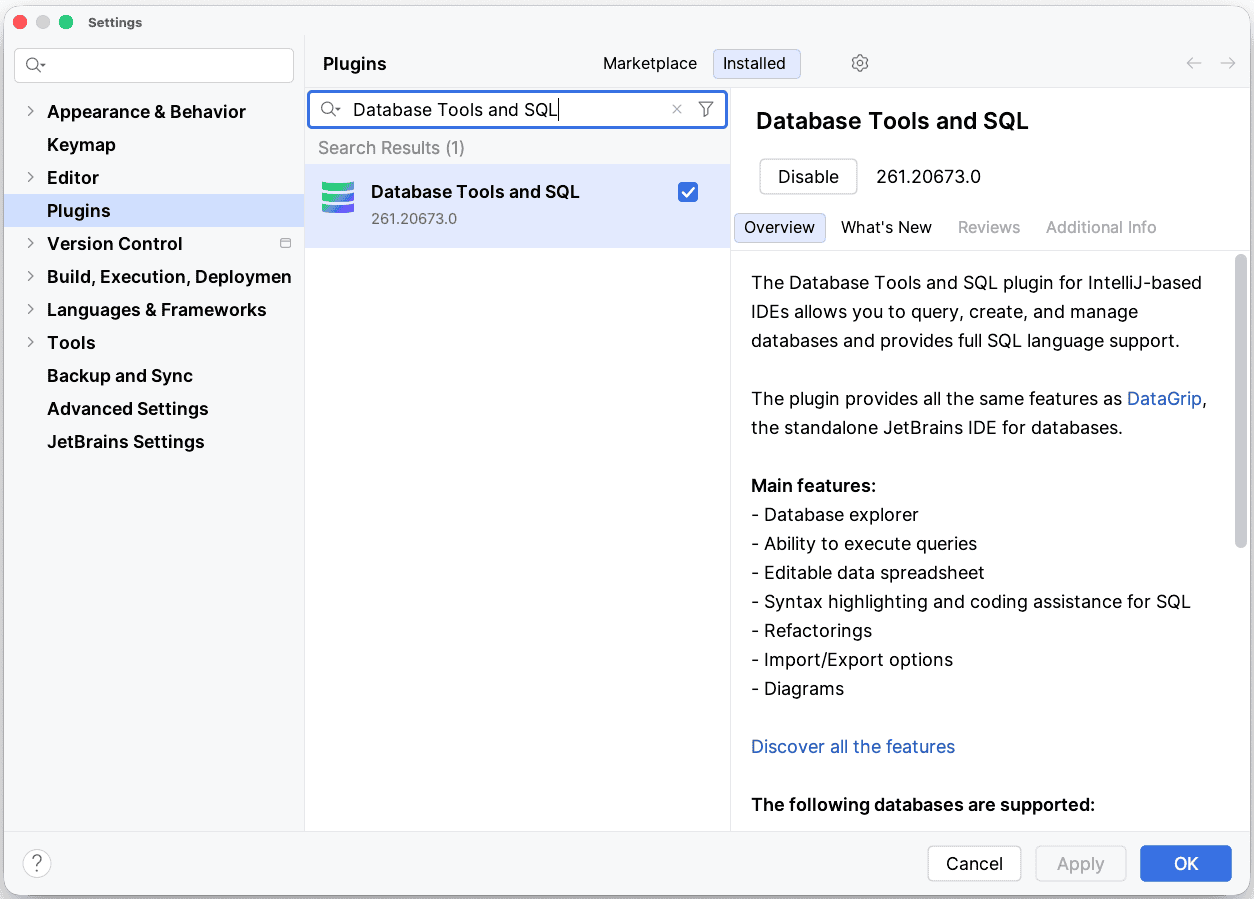
The Database Tools and SQL plugin is usually enabled by default in IntelliJ IDEA Ultimate. However, if we encounter a situation where it’s not enabled, we can follow these steps to ensure it’s enabled:
- First, let’s open IntelliJ IDEA and then navigate to “File” -> “Settings” (on Windows/Linux) or “IntelliJ IDEA” -> “Preferences” (on macOS)
- Once the Settings/Preferences dialog pops up, we can navigate to “Plugins”
- Now we need to look for the “Database Tools and SQL” plugin in the list of installed plugins
- If the “Database Tools and SQL” plugin is not already checked, we’ll need to check it
- If the plugin is not installed, we must click on the “Marketplace” tab and search for “Database Tools and SQL” to install it from there
- After enabling or installing the plugin, we may need to restart IntelliJ IDEA to apply the changes:
3. Configuring the Data Source
Let’s see how to use the database view in IntelliJ IDEA, which allows an easy data source configuration. For demonstration purposes, we’ll use the PostgreSQL database.
3.1. Open the Database Tool Window
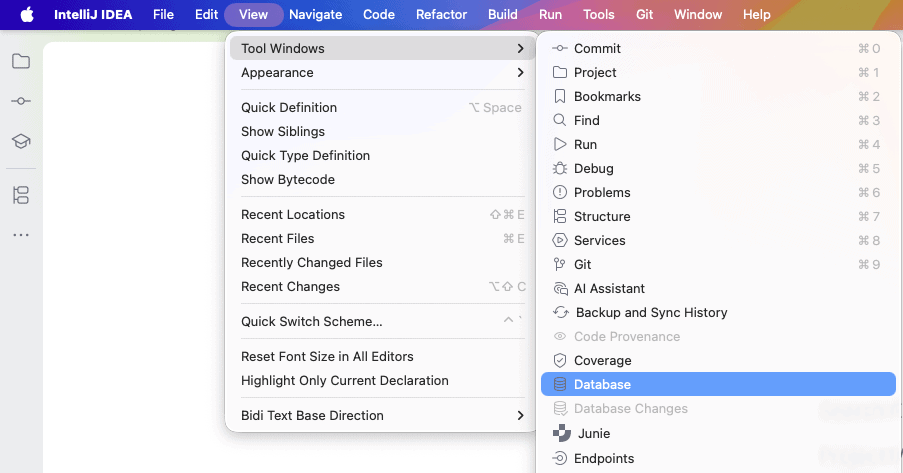
First, let’s open the “Database Tool Window”. To do so, we can simply navigate to the “View” menu and select “Tool Windows” -> “Database”:
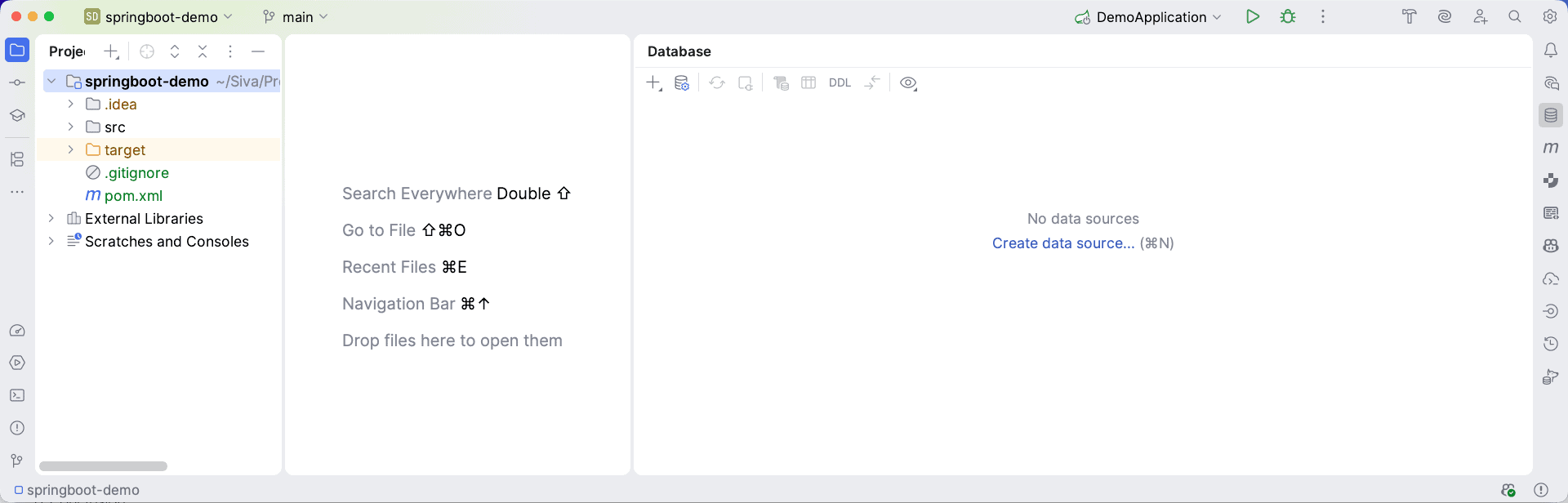
A new Database tool window will open and must be visible on IntelliJ IDEA:
3.2. Add a Data Source
Second, in the Database tool window:
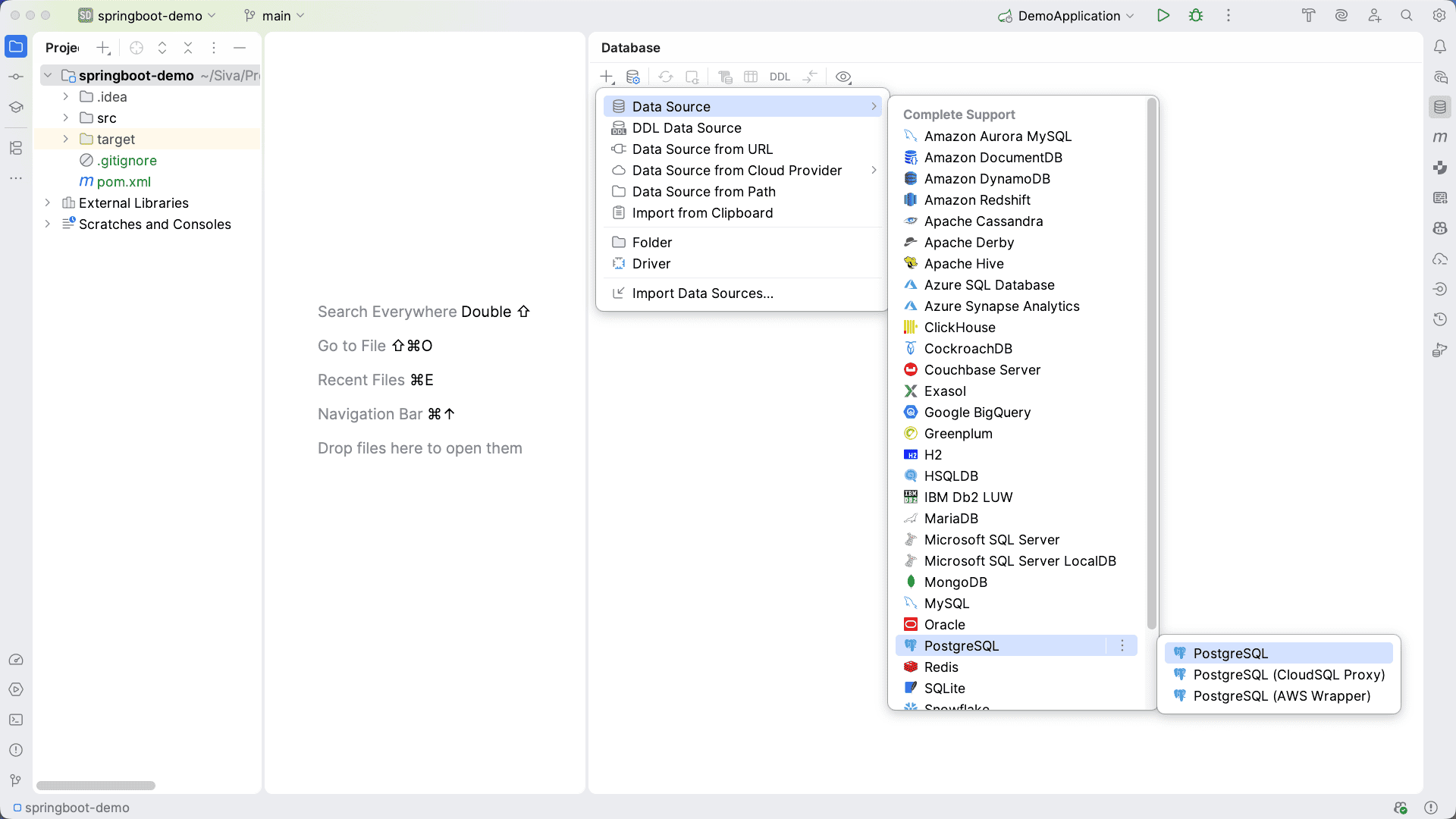
- Let’s click on the “+” icon and then on “Data Source”, or right-click in the window and choose “New” and then “Data Source”
- Next, we can select the appropriate database type from the list (e.g., MySQL, PostgreSQL, Oracle):
3.3. Configure Connection Details
After choosing a database, a new window “Data Sources and Drivers” pops up. We can now configure the connection details for our database:
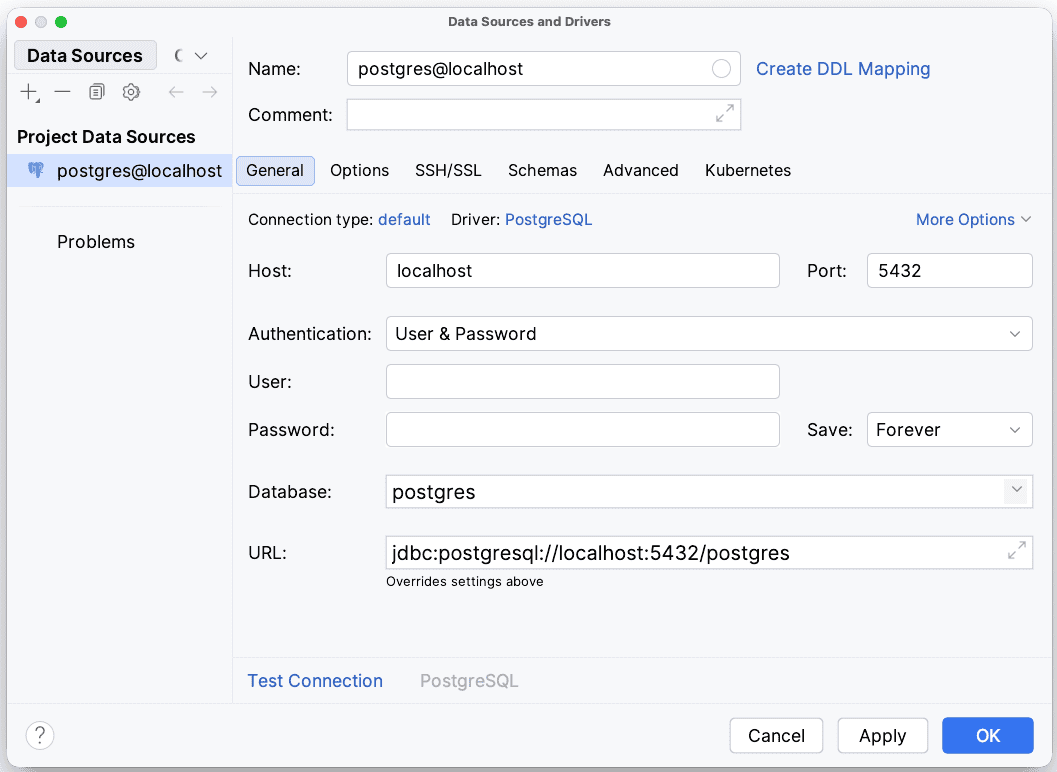
We need now to click on “Test Connection” to ensure that IntelliJ IDEA can successfully connect to the database. Once the connection is successfully established, the last step is to click on the “OK” button to save the data source configuration.
4. Configuring the Database Driver
In order to properly connect a database to IntelliJ IDEA, we typically need to download a JDBC driver. Luckily, in IntelliJ, we can simply click on the “Download” link next to the “Driver” field to download the appropriate database driver:
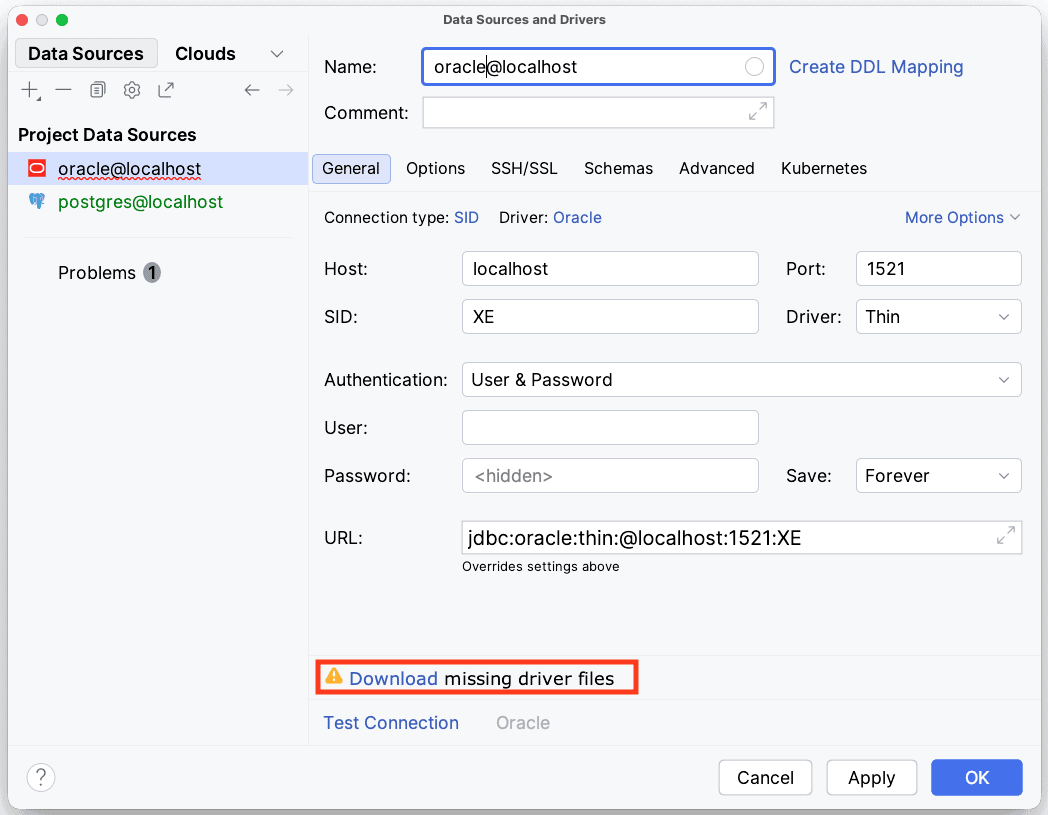
If the database driver is not bundled with IntelliJ IDEA, we’ll need to download it separately and configure the driver manually as follows:
First, we need to click on the “Drivers” tab of the “Data Sources and Drivers” window:
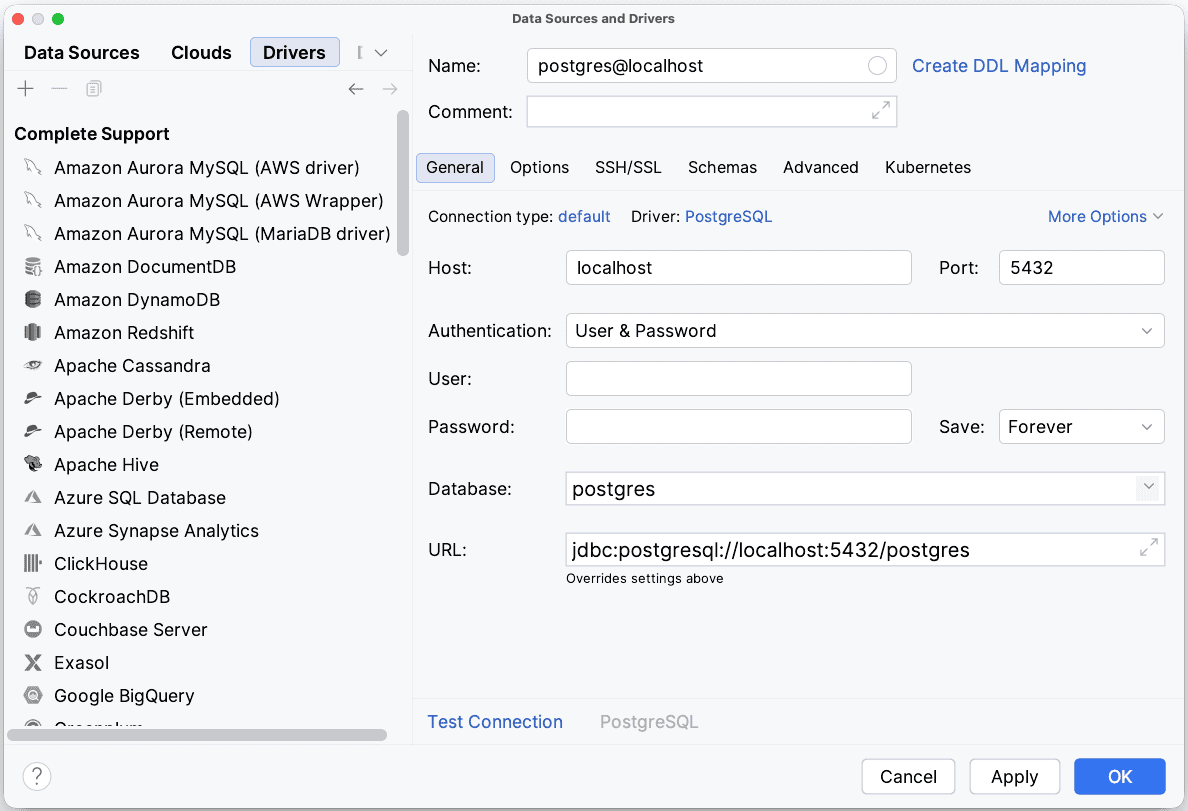
Second, let’s click on the “+” icon to add a new driver.
Finally, we can choose the appropriate driver we already downloaded for the database type and fill in the required details. The appropriate driver class information can usually be found in the documentation for our specific database:
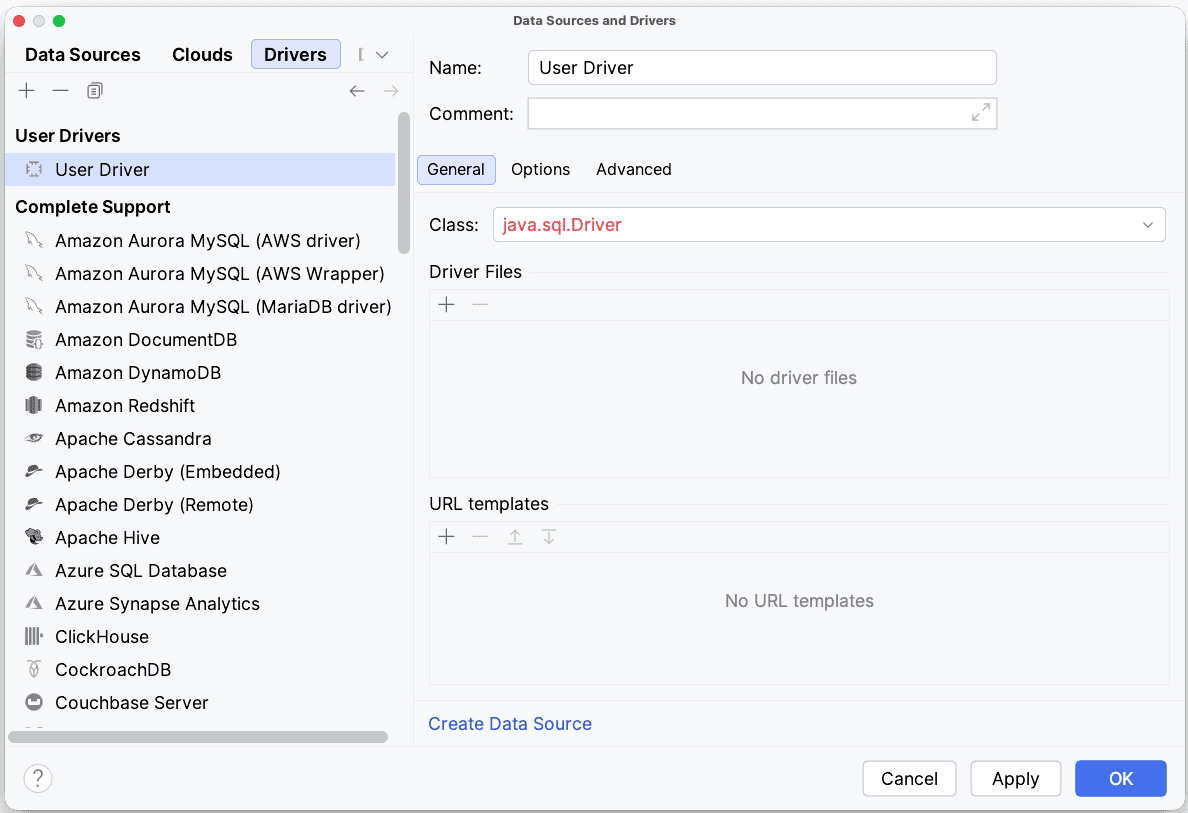
5. Connect and Explore the Database
At this step, we can find our newly added data source along with all created data sources in the Database tool window. Furthermore, a green dot appears next to the Data sources icons that have an active connection to a database.
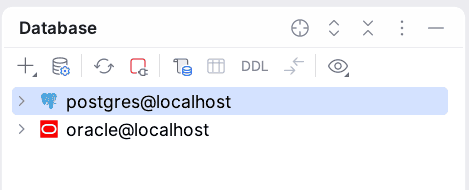
Once connected, we can explore the database structure, execute SQL queries, and perform other database-related tasks directly from IntelliJ IDEA.
6. Conclusion
In this tutorial, we learned how to connect to a database through IntelliJ data sources and drivers. Remember that the exact steps may vary slightly based on the database type and version, as well as the specific IntelliJ IDEA version.