Mocking is an essential part of unit testing, and the Mockito library makes it easy to write clean and intuitive unit tests for your Java code.
Get started with mocking and improve your application tests using our Mockito guide:
Handling concurrency in an application can be a tricky process with many potential pitfalls. A solid grasp of the fundamentals will go a long way to help minimize these issues.
Get started with understanding multi-threaded applications with our Java Concurrency guide:
Spring 5 added support for reactive programming with the Spring WebFlux module, which has been improved upon ever since. Get started with the Reactor project basics and reactive programming in Spring Boot:
Since its introduction in Java 8, the Stream API has become a staple of Java development. The basic operations like iterating, filtering, mapping sequences of elements are deceptively simple to use.
But these can also be overused and fall into some common pitfalls.
To get a better understanding on how Streams work and how to combine them with other language features, check out our guide to Java Streams:
Explore Spring Boot 3 and Spring 6 in-depth through building a full REST API with the framework:
Yes, Spring Security can be complex, from the more advanced functionality within the Core to the deep OAuth support in the framework.
I built the security material as two full courses - Core and OAuth, to get practical with these more complex scenarios. We explore when and how to use each feature and code through it on the backing project.
You can explore the course here:
All Access is finally out, with all of my Spring courses. Learn JUnit is out as well, and Learn Maven is coming fast. And, of course, quite a bit more affordable. Finally.
>> GET THE COURSE
Spring Data JPA is a great way to handle the complexity of JPA with the powerful simplicity of Spring Boot.
Get started with Spring Data JPA through the guided reference course:
Refactor Java code safely — and automatically — with OpenRewrite.
Refactoring big codebases by hand is slow, risky, and easy to put off. That’s where OpenRewrite comes in. The open-source framework for large-scale, automated code transformations helps teams modernize safely and consistently.
Each month, the creators and maintainers of OpenRewrite at Moderne run live, hands-on training sessions — one for newcomers and one for experienced users. You’ll see how recipes work, how to apply them across projects, and how to modernize code with confidence.
Join the next session, bring your questions, and learn how to automate the kind of work that usually eats your sprint time.
1. Introduction
When working on Java projects in Eclipse, maintaining a consistent code style is important for readability. However, strict formatting isn’t always ideal. Some projects require disabling automatic formatting entirely, while others need a way to preserve the layout of specific code blocks, such as complex SQL queries or mathematical matrices.
Eclipse offers precise control over its code formatter. We can manage formatting at a global level, or through dedicated formatters “off” tags.
In this tutorial, we’ll explore the different ways to disable and control the Eclipse code formatter so it fits our specific workflow.
2. Why Controlling Formatting in Eclipse Matters
While automatic formatting in Eclipse streamlines our workflow and maintains consistency, it can occasionally compromise readability in specialized scenarios. We often find that standard reformatting rules can unintentionally collapse multi-line SQL queries, misalign manual tables, or distort ASCII diagrams that were carefully crafted for documentation.
Beyond visual clarity, maintaining control over the formatter is essential for clean version control; it prevents formatting noise in our commits, ensuring that code reviews focus on logic changes rather than white-space adjustments. Managing these settings helps us keep our code clear and professional, even in complex projects.
3. Disabling Automatic Formatting Globally
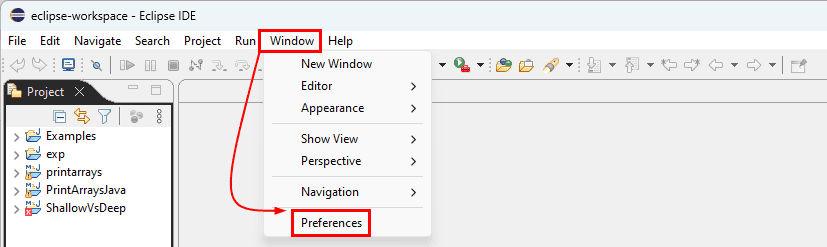
Eclipse enables us to disable formatting across the entire project. To do this, we hover over Window and select Preferences:
Next, we go to Java > Editor > Save Actions and uncheck Format source code to prevent Eclipse from reformatting files automatically when we save them:
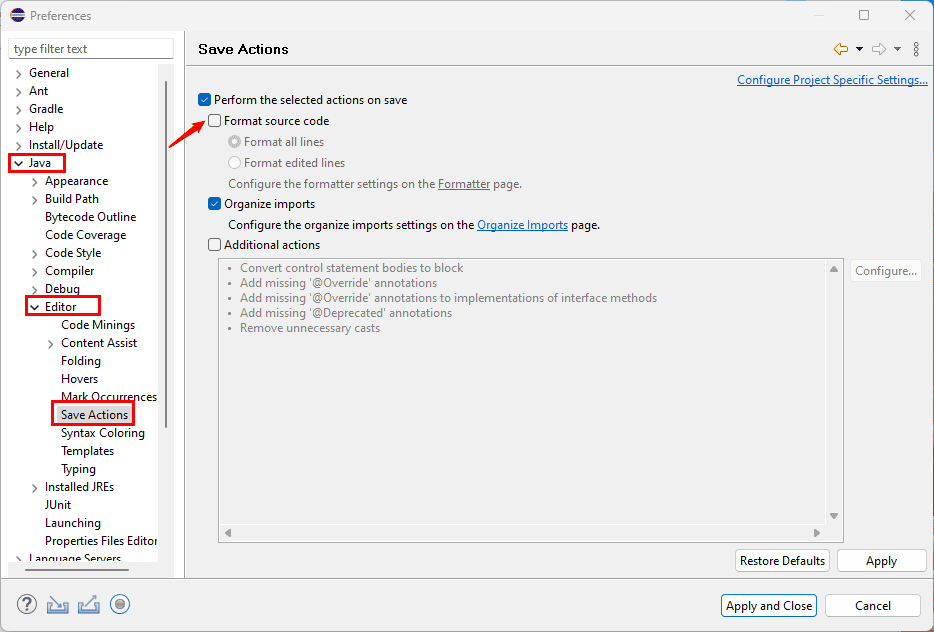
These settings provide global control and allow us to focus on writing clean code without unexpected changes.
4. Preserving Custom Formatting for Specific Sections
Sometimes, we want certain sections of our code to retain their unique layout while the rest follows standard project rules. Eclipse provides formatter on/off tags for these situations. These tags act as a shield, instructing the IDE to ignore specific blocks and keep our manual formatting intact.
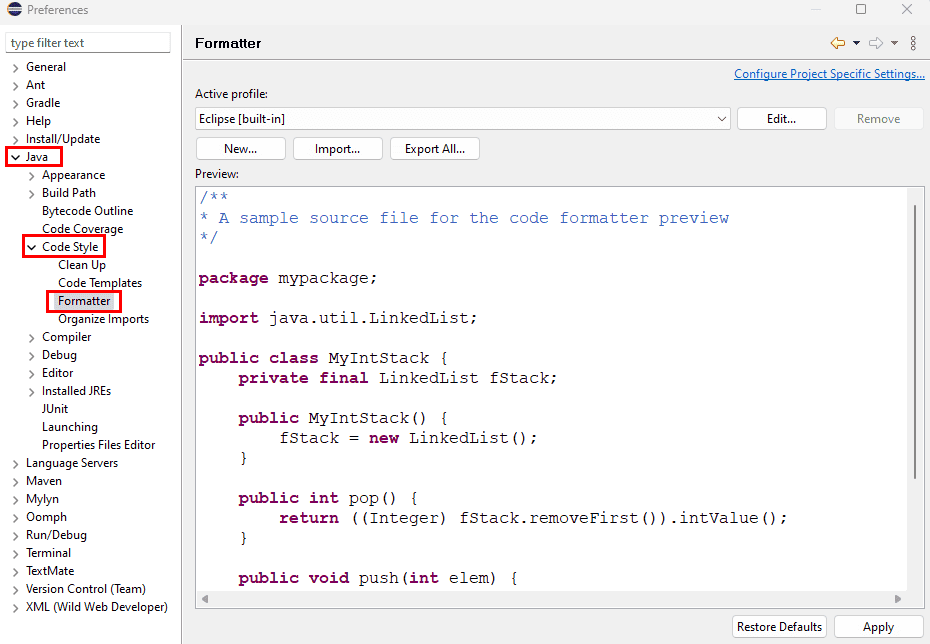
Before we can use them, we must ensure these tags are enabled in our preferences. To verify this, we navigate to Window > Preferences, then go to Java > Code Style > Formatter:
From here, we select our Active profile and click the Edit button:
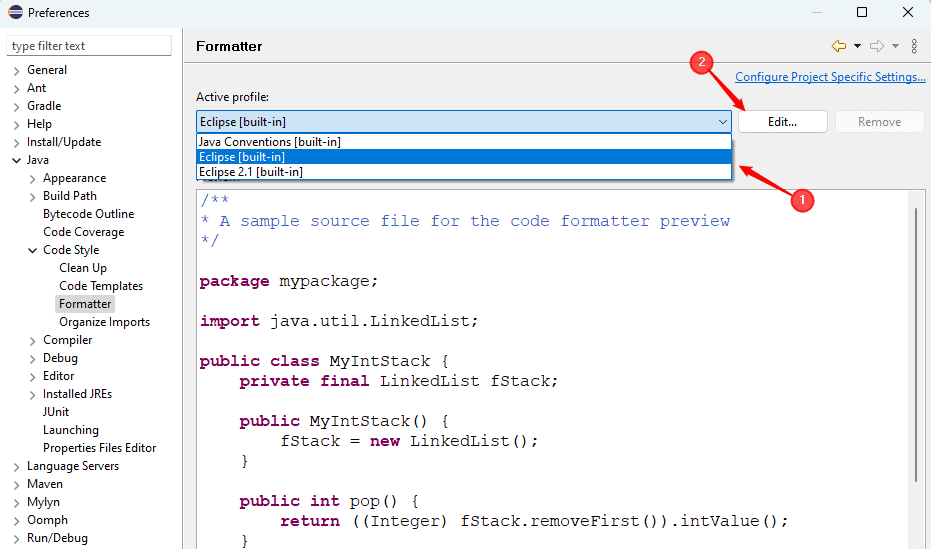
Under the Off/On Tags tab, we check the box to enable the tags. We can use the default @formatter:off and @formatter:on tags or customize them to match our team’s specific conventions:
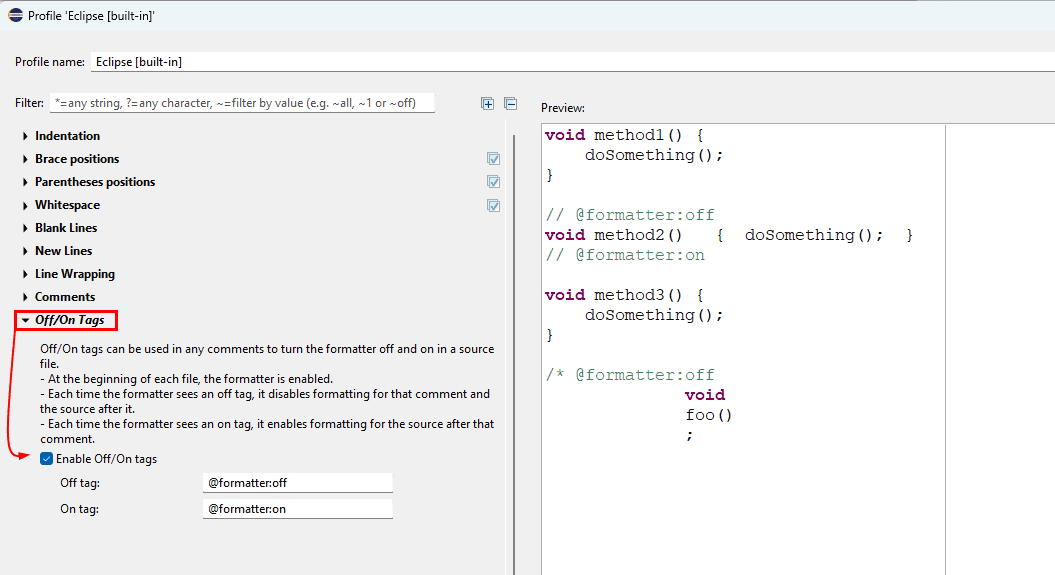
Once enabled, we can wrap our code to protect a specific block:
// @formatter:off
public void myCustomFormattedSection() {
//Code here keeps its formatting
}
// @formatter:on
Everything we place between these tags remains exactly as written. This method is ideal for scenarios where vertical alignment is critical, such as when we are defining a matrix or a grid.
For example, by wrapping a LAYOUT_GRID within these tags, we create a “protected zone” that prevents Eclipse from collapsing our rows into a single, unreadable line:
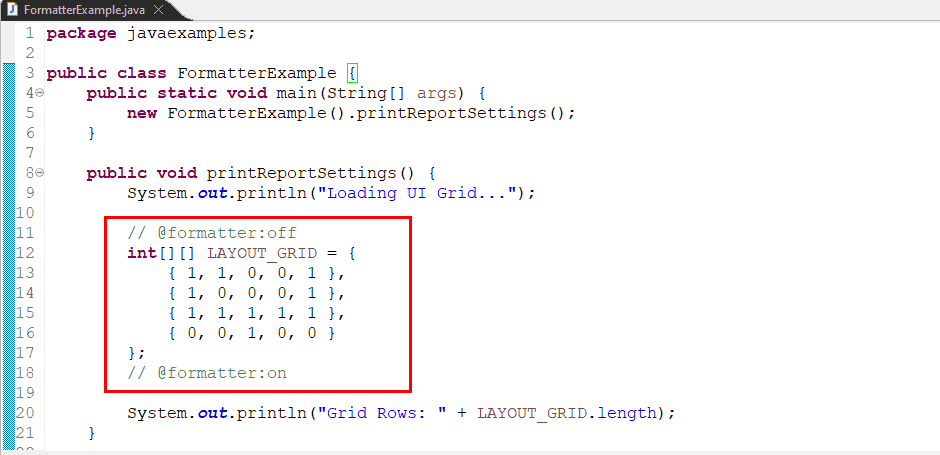
This ensures that the visual structure we intended remains preserved every time we save.
5. Practical Techniques to Fine-Tune Eclipse Formatting
We can further refine how Eclipse treats our code by using a few built-in hacks that don’t always require turning the formatter completely off.
5.1. Preserving Manual Line Breaks
One of the most helpful settings we can enable is Never join already wrapped lines. We find this under Java > Code Style > Formatter > Edit > Line Wrapping:
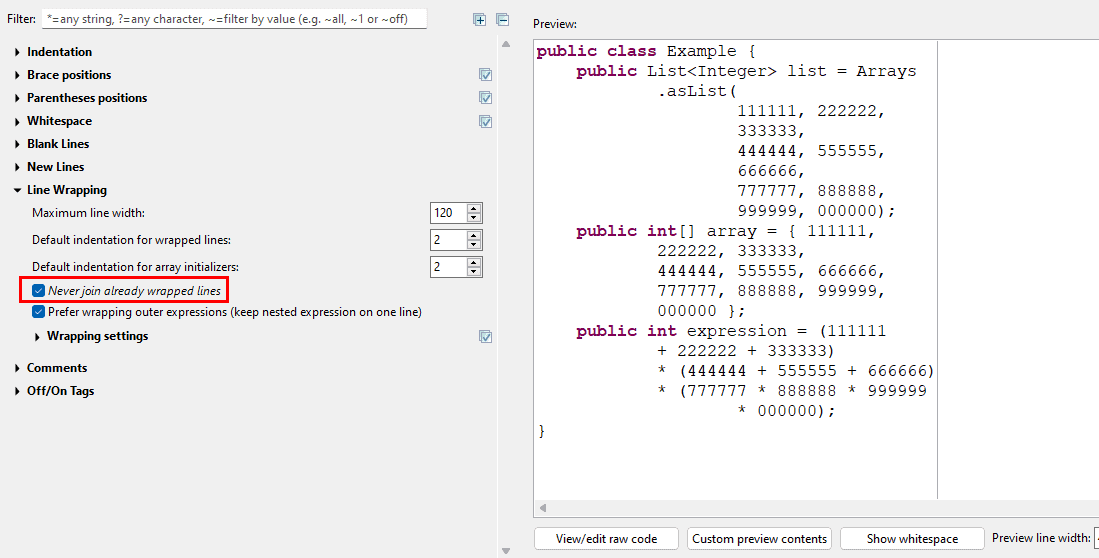
When we check this box, Eclipse still formats our code (like fixing indentation), but it respects the manual line breaks we’ve already created. This is a great middle ground that keeps our code consistent without squashing our logical groupings.
5.2. The Trailing Comment Trick
For structure-heavy code like matrices or arrays, we can use a trailing comment trick to force the formatter to keep our lines separate. We can add a line comment (//) at the end of each row to instruct Eclipse that the line is finished. This prevents it from merging the rows into a single, long line:
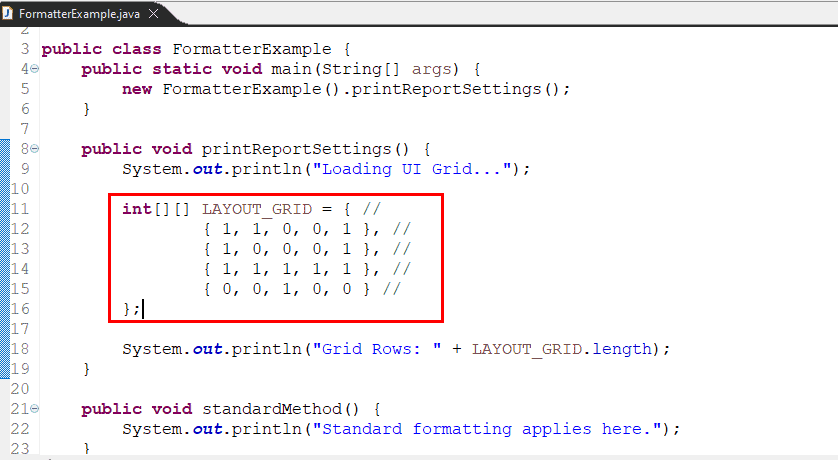
While this keeps our lines readable without using @formatter:off tags, we should use it carefully, as it can make the code look a bit cluttered with empty comments.
5.3. Customizing Tag Names
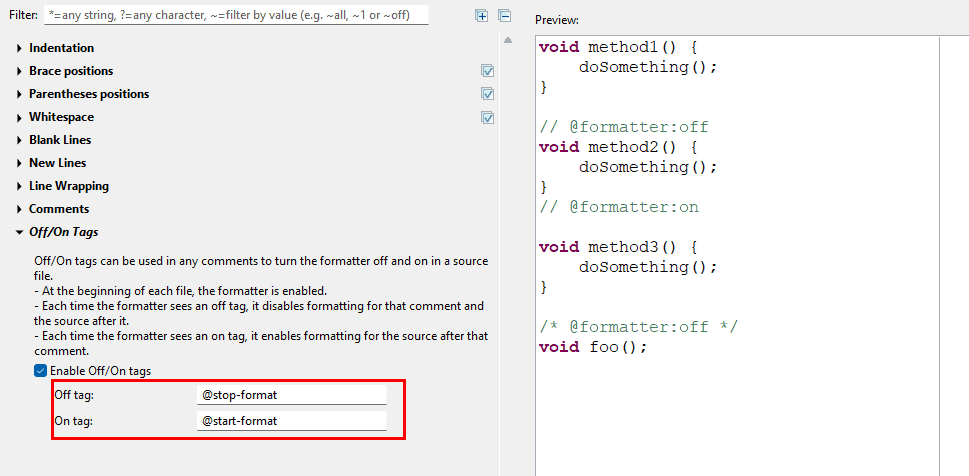
Finally, if we find that @formatter:off is too generic or doesn’t match our team’s style, we can rename these tags in the Off/On Tags settings. For instance, we might rename them to //@stop-format and //@start-format to make our intentions even clearer to other developers on the team:
6. Best Practices for Managing the Eclipse Formatter
To keep our workflow smooth and our codebase clean, we should follow these strategic practices:
- The @formatter:off must be used only when necessary, such as for complex matrices or multi-line queries. This way, our code doesn’t become cluttered with tags, and the majority of our file remains clean and standardized.
- Since these settings are IDE-specific, we make sure everyone on our team has Enable Off/On tags checked. This prevents one of us from unintentionally reformatting another’s carefully aligned protected zone.
- Finally, after updating our settings, we must perform a quick test by manually formatting a file with Ctrl+Shift+F. Doing this confirms that Eclipse follows our rules before committing changes to version control.
7. Conclusion
In this article, we explored how to manage and selectively disable the Eclipse code formatter to fit specific development needs.
We discussed disabling automatic formatting globally through Save Actions, using @formatter:off tags for precise block-level control, and applying advanced techniques like preserving manual line breaks and the trailing comment trick.
These controls allow us to handle complex code structures while keeping our Java code clean, readable, and professional.