


Learn through the super-clean Baeldung Pro experience:
>> Membership and Baeldung Pro.
No ads, dark-mode and 6 months free of IntelliJ Idea Ultimate to start with.
Last updated: November 29, 2024
Learn through the super-clean Baeldung Pro experience:
>> Membership and Baeldung Pro.
No ads, dark-mode and 6 months free of IntelliJ Idea Ultimate to start with.
A Docker registry stores and distributes Docker images, typically secured with TLS. However, we may need to work with a registry that doesn’t have TLS enabled, often called an insecure registry.
In this tutorial, we’ll learn how to configure Docker to pull images from insecure registries. First, we’ll configure Docker on Linux systems and then perform the pull and push. Next, we’ll perform the same tasks for Windows environments.
Docker has a built-in mechanism for interacting with insecure registries, but we need to configure the Docker daemon for this explicitly.
First, we need the domain name or IP address of the insecure registry we want to pull images from. Let’s assume that the registry is located at the local IP and port 192.168.15.8:5000.
To allow Docker to pull images from this insecure registry, we need to modify the Docker daemon configuration file. On most Linux distributions, this configuration file is located in /etc/docker/daemon.json. If the file doesn’t exist, we must create it.
In this file, we’ll add the following configuration to specify the insecure registry:
$ sudo nano /etc/docker/daemon.json

{
  "insecure-registries": [
     "192.168.15.8:5000"
  ]
}
If the configuration file already contains other settings, just add the insecure-registries key without removing the existing ones.
For the changes to take effect, let’s restart the Docker daemon with the following command:
$ sudo systemctl daemon-reloadAlso, we need to restart the Docker service:
$ sudo systemctl restart dockerOnce Docker has restarted, we can check that the configuration is working. By running the docker info command, we can see all the information related to the Docker configurations. This way, we can search for the Insecure Registries field, which should contain the newly configured information:
$ docker info
Client: Docker Engine - Community
 Version:    26.0.1
 Context:    default
...
 Insecure Registries:
  192.168.15.8:5000
  127.0.0.0/8
...When the configuration is complete, we can pull an image from the insecure registry. First, let’s find out which images the registry has:
$ curl http://192.168.15.8:5000/v2/_catalog
{"repositories":["baeldung-alpine"]}
The output shows that there’s an image named baeldung-alpine. To pull it, let’s run the following command:
$ docker pull 192.168.15.8:5000/baeldung-alpine
Using default tag: latest
latest: Pulling from baeldung-alpine
43c4264eed91: Pull complete
Digest: sha256:33735bd63cf84d7e388d9f6d297d348c523c044410f553bd878c6d7829612735
Status: Downloaded newer image for 192.168.15.8:5000/baeldung-alpine:latest
192.168.15.8:5000/baeldung-alpine:latest
Docker has fetched the image successfully. Now we can use the image locally at any time.
However, there are cases where we need to send a local image to an insecure registry. We should use the docker push command for this task.
Firstly, Docker requires images to be tagged with the registry address before they’re pushed:
$ docker tag ubuntu-with-curl:latest 192.168.15.8:5000/ubuntu-with-curlIn this case, the image to be pushed is ubuntu-with-curl:latest. Next, we’ll use the docker push command with the image name tagged:
$ docker push 192.168.15.8:5000/ubuntu-with-curl
Using default tag: latest
The push refers to repository [192.168.15.8:5000/ubuntu-with-curl]
eed26a6f3e28: Pushed
b15b682e901d: Pushed
latest: digest: sha256:e84b9ff551a31313f5e8d3c252ea63ba455ac1e9f87fe2bda3e4c78ab0c02b30 size: 741
Docker has uploaded the image layers to the registry. We can confirm this by making a new query to the catalog:
$ curl http://192.168.15.8:5000/v2/_catalog
{"repositories":["baeldung-alpine","ubuntu-with-curl"]}As with Linux, we can perform the same configuration of Docker in Windows environments. In this case, Docker Desktop on Windows provides a graphical interface for managing settings.
To do this, after opening Docker, go to Settings > Docker Engine. This section displays the JSON configuration for the Docker daemon. In this file, we’ll insert the insecure-registries configuration:
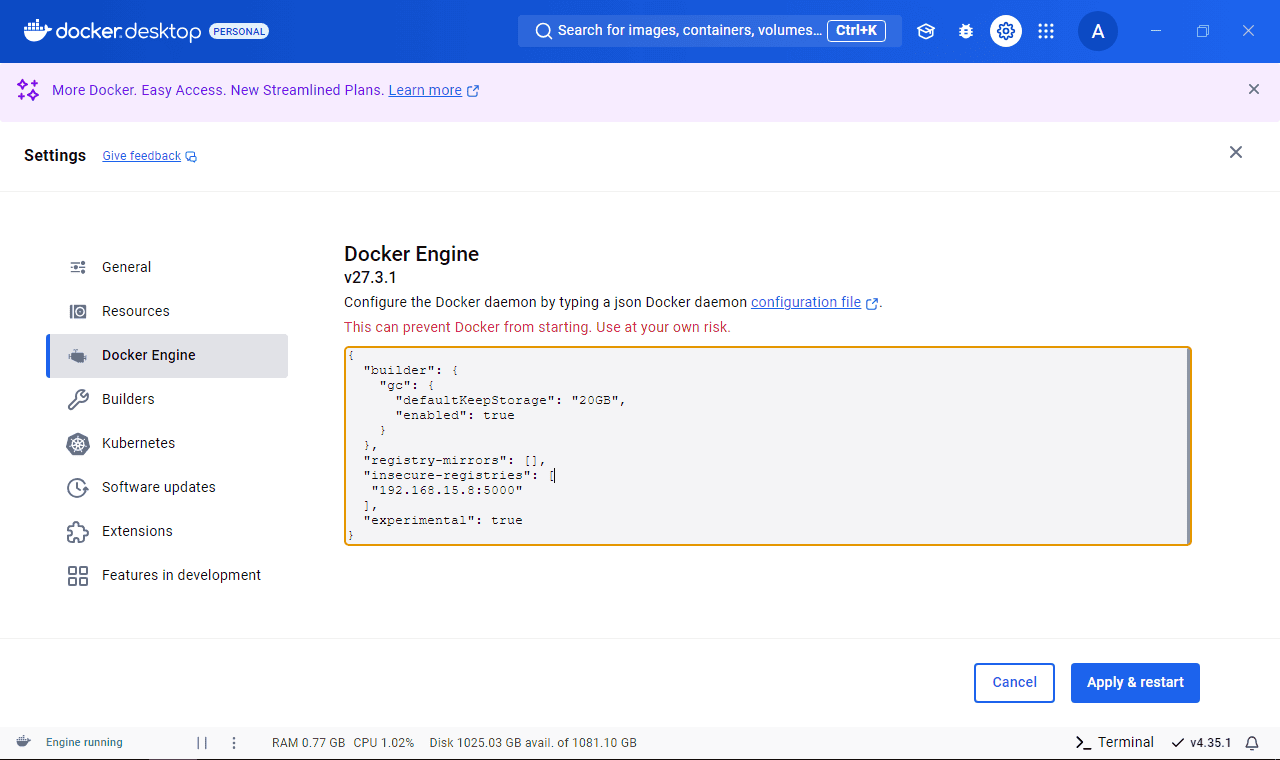
Remember that if the JSON contains other settings, we should only integrate that key without breaking the structure. Click Apply & Restart to save changes and restart the Docker daemon.
Once it’s restarted, using PowerShell, we’ll query the registry to see which images it has, checking the Content field:
> Invoke-WebRequest -Uri "http://192.168.15.8:5000/v2/_catalog"

StatusCode        : 200
StatusDescription : OK
Content           : {"repositories":["baeldung-alpine","ubuntu-with-curl"]}

RawContent        : HTTP/1.1 200 OK
                    Docker-Distribution-Api-Version: registry/2.0
                    X-Content-Type-Options: nosniff
                    Content-Length: 56
                    Content-Type: application/json; charset=utf-8
                    Date: Fri, 15 Nov 2024 21:47:44 GMT...
Forms             : {}
Headers           : {[Docker-Distribution-Api-Version, registry/2.0], [X-Content-Type-Options, nosniff],
                    [Content-Length, 56], [Content-Type, application/json; charset=utf-8]...}
Images            : {}
InputFields       : {}
Links             : {}
ParsedHtml        : System.__ComObject
RawContentLength : 56Once the registry has been configured, we can pull the desired image:
> docker pull 192.168.15.8:5000/baeldung-alpine
Using default tag: latest
latest: Pulling from baeldung-alpine
43c4264eed91: Download complete
Digest: sha256:33735bd63cf84d7e388d9f6d297d348c523c044410f553bd878c6d7829612735
Status: Downloaded newer image for 192.168.15.8:5000/baeldung-alpine:latest
192.168.15.8:5000/baeldung-alpine:latest
The process of pushing an image to a registry is the same, regardless of the operating system. So, we must first tag the image and then push it to the registry:
>docker tag alpine-with-curl 192.168.15.8:5000/alpine-with-curl
>docker push 192.168.15.8:5000/alpine-with-curl
Using default tag: latest
The push refers to repository [192.168.15.8:5000/alpine-with-curl]
da9db072f522: Pushed
latest: digest: sha256:029a752048e32e843bd6defe3841186fb8d19a28dae8ec287f433bb9d6d1ad85 size: 1022

i Info → Not all multiplatform-content is present and only the available single-platform image was pushed
      sha256:1e42bbe2508154c9126d48c2b8a75420c3544343bf86fd041fb7527e017a4b4a -> sha256:029a752048e32e843bd6defe3841186fb8d19a28dae8ec287f433bb9d6d1ad85
When running a new query, we see that the Docker has successfully pushed the image to the registry:
> Invoke-WebRequest -Uri "http://192.168.15.8:5000/v2/_catalog"

StatusCode      : 200
StatusDescription : OK
Content         : {"repositories":["alpine-with-curl","baeldung-alpine","ubuntu-with-curl"]}
...In this tutorial, we explored how to configure Docker to work with insecure registries in both Linux and Windows environments. We covered all the necessary steps, from configuring the Docker daemon to pulling and pushing images.