


Learn through the super-clean Baeldung Pro experience:
>> Membership and Baeldung Pro.
No ads, dark-mode and 6 months free of IntelliJ Idea Ultimate to start with.
Last updated: November 29, 2024
Learn through the super-clean Baeldung Pro experience:
>> Membership and Baeldung Pro.
No ads, dark-mode and 6 months free of IntelliJ Idea Ultimate to start with.
When working with Google Cloud Platform (GCP), managing permissions and access control is crucial for maintaining a secure environment. Service accounts are special accounts applications and services used to interact with GCP resources. Knowing which roles are assigned to a service account will help us understand its permissions and ensure that the principle of least privilege is followed.
In this tutorial, we’ll explore various methods for listing the roles associated with a GCP service account, including the GCP Console, the gcloud command-line tool, and the REST API.
Before diving into the methods, it’s important to understand the basics of service accounts and roles in GCP.
A service account is a special type of Google account intended to represent a non-human user that needs to authenticate and be authorized to access data in GCP APIs. Service accounts are commonly used by applications running on Compute Engine instances, Kubernetes Engine pods, or other services.
Roles in GCP are collections of permissions. They define what actions an account can perform on resources. Roles can be primitive (Owner, Editor, Viewer), predefined (specific to services), or custom.
Permissions are granted to service accounts by assigning roles to them. This relationship is managed through Identity and Access Management (IAM) policies.
There are several ways to list the roles associated with a service account, using the:
Let’s now discuss all of them, with their benefits and challenges.
The GCP Console provides a user-friendly interface for viewing and managing IAM policies.
Let’s first navigate to the to the IAM and Admin section:

On the IAM page, we’ll see a list of principals (users, groups, service accounts) with access to our project.
On the left side, we can also select the Service Accounts menu to list all service accounts. They typically have emails ending with @<project-id>.iam.gserviceaccount.com:
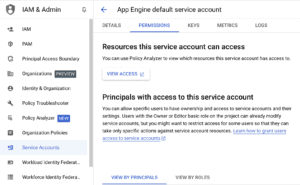
To view assigned roles in IAM, we can find the roles for each principal, such as users, groups, or service accounts, listed under the “Roles” column in the IAM interface. If we want to understand the specific permissions included in a role, we can click on the role name to expand it and view the details.
However, it’s important to note that the IAM page only displays roles assigned at the project level. If a service account or principal has roles assigned at other resource levels, such as on a specific Compute Engine instance, we will need to check the IAM policies for those individual resources separately.
The gcloud tool provides a powerful way to interact with GCP resources from the command line. To use it, we first need to install the Google Cloud SDK and then authenticate with our GCP account:
gcloud auth loginTo list roles assigned to a service account using gcloud, we can follow these steps.
First, we retrieve the IAM policies for the project by running the following command, replacing <PROJECT_ID> with the project ID:
gcloud projects get-iam-policy <PROJECT_ID> --format=json > policy.json
This command fetches the IAM policy for the specified project and saves it to a file named policy.json. Once we have the policy file, we can extract the roles for the service account using the jq tool, a JSON processor. If jq is not installed, we can install it using:
sudo apt-get install jq
Next, use the following command to filter roles assigned to the service account, replacing <SERVICE_ACCOUNT_EMAIL> with the email of the service account:
jq '.bindings[] | select(.members[]
  | contains("serviceAccount:<SERVICE_ACCOUNT_EMAIL>")) | .role' policy.json
Alternatively, we can use a one-liner gcloud command to list roles directly without saving the policy to a file:
gcloud projects get-iam-policy <PROJECT_ID> --flatten="bindings[].members"
  --format='table(bindings.role)'
  --filter="bindings.members:serviceAccount:<SERVICE_ACCOUNT_EMAIL>"
We need to replace <PROJECT_ID> and <SERVICE_ACCOUNT_EMAIL> as needed.
The result will be similar to the one below:
ROLE
roles/viewer
roles/storage.objectViewer
roles/logging.logWriter
It is important to note that, similar to the GCP Console, this method only displays roles assigned at the project level. Additional commands are required to fetch details for roles assigned at other resource levels, such as specific Compute Engine instances or buckets.
We can also use the GCP REST API to manage roles and permissions for programmatic access or automation.
First, we need to ensure that the Cloud Resource Manager API is enabled for our project to allow interaction with IAM policies via API requests. Then, we need to authenticate and obtain an access token. If we are using the Cloud SDK, we can retrieve the token with the following command:
gcloud auth print-access-token
In the next step, we use curl to send a request to the projects.getIamPolicy method:
curl -H "Authorization: Bearer $(gcloud auth print-access-token)"
  -H "Content-Type: application/json"
  https://cloudresourcemanager.googleapis.com/v1/projects/<PROJECT_ID>:getIamPolicy > policy.json
Once we have the JSON response, we can use jq to extract the roles assigned to a specific service account, the same as in the previous section:
jq '.bindings[] | select(.members[]
  | contains("serviceAccount:<SERVICE_ACCOUNT_EMAIL>")) | .role' policy.json
Using the REST API requires handling authentication tokens and manually parsing JSON responses. Additionally, this method retrieves roles assigned at the project level. We need to use different API endpoints to access roles assigned at other resource levels, such as specific Compute Engine instances or buckets.
Service accounts may have roles assigned at levels beyond the project, such as on individual resources like Compute Engine instances, Cloud Storage buckets, or Pub/Sub topics. We can use specific commands to view these assignments.
To list the roles assigned to a service account on a Cloud Storage bucket, we can follow these steps. First, we need to get the IAM policy for the bucket:
gsutil iam get gs://<BUCKET_NAME> > bucket_policy.json
Then, we can use the jq as above to list all the roles.
Compute Engine instances don’t directly support IAM roles at the instance level. Instead, they inherit permissions through the service accounts attached to them. To find the service account associated with an instance, use the following command:
gcloud compute instances describe <INSTANCE_NAME> --format="get(serviceAccounts)"
This command outputs the service accounts attached to the instance. These accounts inherit the permissions and roles assigned to them, allowing us to track their effective permissions at the instance level.
When we retrieve the roles, we’ll see role names like:
These are the role identifiers. To understand each role’s permissions, we can refer to the GCP IAM Roles Reference.
Now that we know how to list the roles associated with our GCP service account, let’s discuss common issues and ways to troubleshoot them.
To retrieve IAM policies, we must have the necessary permissions in place. At a minimum, we need the roles/viewer role or the specific resourcemanager.projects.getIamPolicy permission. Without these permissions, attempts to retrieve policies will fail.
If we encounter a PERMISSION_DENIED error when trying to retrieve IAM policies, it is essential to verify our account’s permissions. We can ask the project owner or an administrator to grant us the appropriate role or permission. It is also worth ensuring that our credentials are up to date and correctly authenticated, as expired tokens or misconfigured accounts can also lead to access issues.
If a service account isn’t found in the IAM policy, it typically means it does not have any roles assigned at the queried level (for example, project level). In this case, our first step should be to verify whether the service account exists. This can be done by listing all service accounts in the project using the following command:
gcloud iam service-accounts list
If the service account is confirmed to exist but is missing from the IAM policy, we should check for roles assigned at other resource levels. For example, the service account might have roles specific to a Compute Engine instance, a Cloud Storage bucket, or a Pub/Sub topic rather than roles at the project level. Verifying permissions at these resource levels can help identify the service account’s scope of access.
When roles are assigned at resource levels other than the project, we must retrieve IAM policies for those specific resources.
For example:
It is crucial to systematically check all relevant resources associated with the project to ensure we capture the complete picture of assigned roles. Missing roles at the project level do not necessarily mean the service account lacks access; it might simply be scoped to a specific resource within the project.
Proper documentation and an audit of all resource-level permissions can help avoid oversights and ensure that access is granted as intended.
Now that we know how to obtain the permissions let’s check some of the best practices to assign and document the roles:
In this article, we discuss how to list the roles associated with GCP service accounts. It is essential for maintaining a secure and well-organized cloud environment. By using the GCP Console, the gcloud command-line tool, or the REST API, we can effectively list and review the roles assigned to our service accounts.