


Learn through the super-clean Baeldung Pro experience:
>> Membership and Baeldung Pro.
No ads, dark-mode and 6 months free of IntelliJ Idea Ultimate to start with.
Last updated: November 6, 2024
Learn through the super-clean Baeldung Pro experience:
>> Membership and Baeldung Pro.
No ads, dark-mode and 6 months free of IntelliJ Idea Ultimate to start with.
Downloading large files from Google Drive using the command line can be challenging. Especially when dealing with size limitations and permission restrictions. Furthermore, standard tools like curl and wget may fail due to Google Drive’s download restrictions on large files.
To address these issues, we can use tools like gdown and the Google Drive API for seamless command-line downloads, managing larger files and folder structures more effectively.
In this tutorial, we’ll explore various methods to download large files from Google Drive. We’ll use gdown, OAuth token authentication, and Google Drive API keys for a smooth downloading experience.
The gdown tool provides a straightforward download of large files directly from Google Drive. In particular, we can use gdown to retrieve files or folders without encountering the limitations of traditional download methods.
We need to set up a virtual environment to use gdown in CLI. It’s important to note that a virtual environment helps manage dependencies for gdown and prevents conflict with Python packages.
First, let’s create a virtual environment named venv:
$ python3 -m venv venv
Next, we activate the virtual environment:
$ source venv/bin/activate
Finally, within the virtual environment, let’s install and update gdown using pip:
$ pip install gdown
$ pip install --upgrade gdown
The command installs gdown successfully. We can now use gdown to download large files from Google Drive.
Generally, we can use gdown to download both files or entire folders. Furthermore, to download a single, we need to obtain the file ID of the Google Drive link. gdown accepts the file ID of the shareable link which has the format:
https://drive.google.com/file/d/<file_id>/view?usp=sharing
Now, let’s download a file from Google Drive with the use of gdown:
$ gdown https://drive.google.com/file/d/1F-xvZEnQHGYVhe_5mUfPyy9vsgP5YNTo/view?usp=sharing
/home/kali/venv/lib/python3.12/site-packages/gdown/parse_url.py:48: UserWarning: You specified a Google Drive link that is not the correct link to download a file.
  You might want to try `--fuzzy` option or the following url: https://drive.google.com/uc?id=1F-xvZEnQHGYVhe_5mUfPyy9vsgP5YNTo
  warnings.warn(
Downloading...
From: https://drive.google.com/file/d/1F-xvZEnQHGYVhe_5mUfPyy9vsgP5YNTo/view?usp=sharing
To: /home/kali/view?usp=sharing
92.4kB [00:00, 1.16MB/s]
The command downloads the file and saves it as view?usp=sharing on the system
Alternatively, we can use gdown with only the file ID:
$ gdown 1F-xvZEnQHGYVhe_5mUfPyy9vsgP5YNTo
Downloading...
From: https://drive.google.com/uc?id=1F-xvZEnQHGYVhe_5mUfPyy9vsgP5YNTo
To: /home/kali/866F9B0C-26B4-4E19-A3BE-6D7287D61C5B.jpeg
100%|█████████████████████████████████████████████████████████████████████████████| 320k/320k [00:00<00:00, 910kB/s]
Again, this downloads the file and saves it as 866F9B0C-26B4-4E19-A3BE-6D7287D61C5B.jpeg on the system.
Additionally, to download a folder, we use the folder’s URL or ID in the format:
$ gdown --folder https://drive.google.com/drive/folders/<folder_id>
However, if we’re downloading a folder with more than 50 files, we add the –remaining-ok flag to handle larger folder structures smoothly:
$ gdown --folder --id <folder_id> --remaining-ok
For example, let’s download a folder from Google Drive:
$ gdown --folder https://drive.google.com/drive/folders/1moxIFBzE6LL1aJIcw4BpUYZaEREnvM0j?usp=sharing
Retrieving folder contents
Processing file 1V7Mu7Q9OovdVI_E8H2CQJFf8H6VHTSht5OXyH7l4OIE Cover Letter
Processing file 1HZbLUB-7MmO9y1qmDp_9qQd98IylLIkz DurojayeOlusegunCV.docx
...
100%|███████████████████████████████████████████████████████████████████████████| 24.8k/24.8k [00:00<00:00, 332kB/s]
Download completed
As seen, the gdown command offers a flexible and effective method for downloading large files or folders from Google Drive.
An OAuth token provides a secure way to authenticate and download files from Google Drive using the command line. Furthermore, we can access files without sharing links or adjusting permissions with an OAuth token.
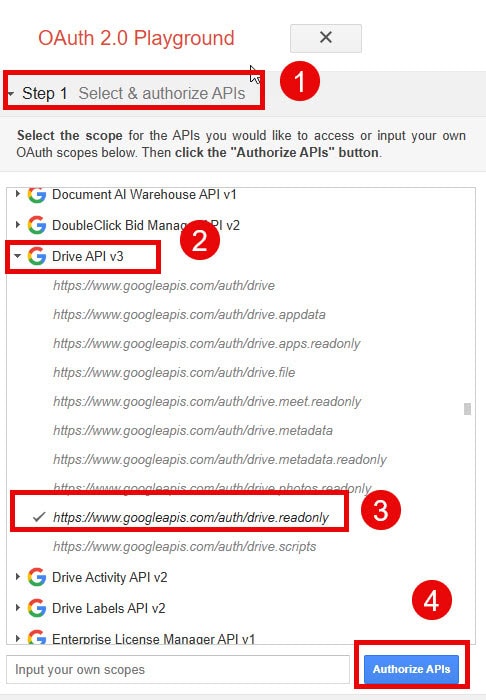
We start by generating an authentication token from OAuth 2.0 Playground. Next, under the Select the Scope section, we scroll down, expand the Drive API v3, and select https://www.googleapis.com/auth/drive.readonly. This gives a limit to access only read-only permissions. Then, we click on Authorize APIs to grant access:
Furthermore, after authorizing, we click on the Exchange authorization code for token to retrieve an access token:
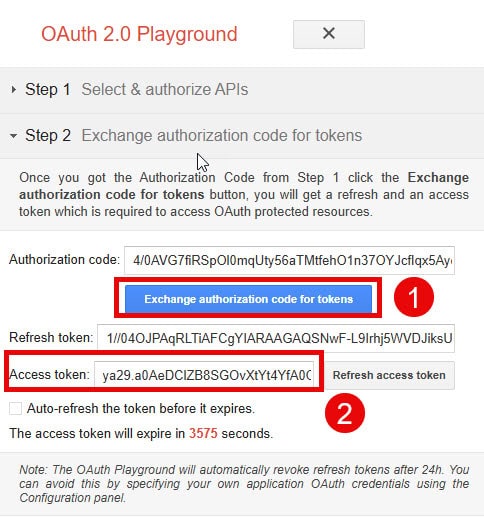
Finally, we copy the Access token which would be used in the download command.
Now that we have the OAuth token ready, we can download the file from Google Drive directly with the format using the curl command:
$ curl -H "Authorization: Bearer <access_token>" https://www.googleapis.com/drive/v3/files/<file_id>?alt=media -o <file_name>
Here, we need to replace the <access_token> with the OAuth token obtained in the previous step. Additionally, we also replace <file_id> with the ID of the file to be downloaded and <file_name> with the desired name to save the file.
For example, to put everything together, let’s download a large file from Google Drive:
$ curl -H "Authorization: Bearer ya29.a0AeDClZC1K7fMy3UmacelpeLTvxAsr9mFs67wLOD0TXIQ5nA-Wa0If4wur9tyUrZnCfR-TMbLkIaRH_AkpB7KdWponb_2rWVUxqxoAQYb2J2lloiULxgR4WvP7Sv-Hbyh9HGjCP83PmJSljzzigPg31TTK6OO5fRKW2cdcXi6aCgYKATISARMSFQHGX2MiA-E55yxSKaqhIn5QPCGikg0175" https://www.googleapis.com/drive/v3/files/1zOVDhBiB6bd8zvrm9Nqb2ZV-FP3YezK2?alt=media -o notebook_files
  % Total    % Received % Xferd  Average Speed   Time    Time     Time  Current
                                 Dload  Upload   Total   Spent    Left  Speed
100  5470  100  5470    0     0   2515      0  0:00:02  0:00:02 --:--:--  2514
The command initiates the download and saves the file as notebook_files in the current directory.
Google Drive API allows third-party applications and scripts to access Google Drive files programmatically. In particular, with Google Drive API, we can bypass download restrictions and streamline file retrieval especially large files.
We need to create an API key to be able to download files from Google Drive. First, we go to Google Cloud Console and sign in with the Google account associated with the Google Drive we want to access. Moving forward, we create a New Project:
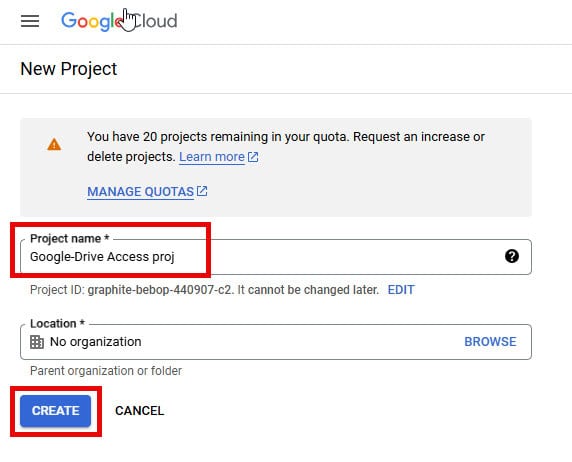
Next, once the project is created, we open the navigation menu and go to API & Services > Library. We find and select Google Drive API from the list of available APIs. Then, we click on Enable to enable the API.
Furthermore, in the Google Drive API section, we select Create Credentials. Then, we select the API key:
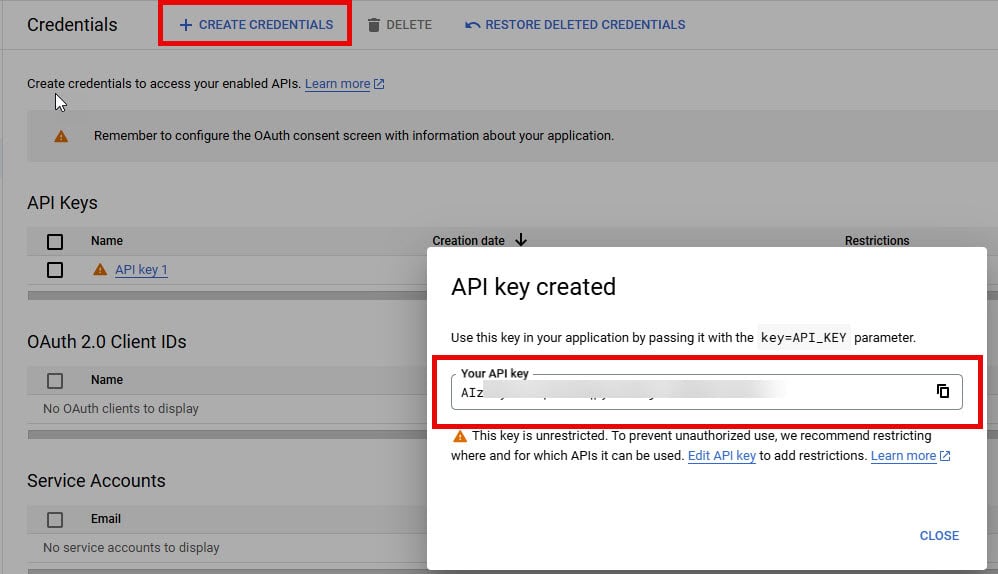
This displays the API key. Finally, we copy the generated API key, which we’ll use for download requests.
Now that we have the API key, we can download files directly from Google Drive using the file ID and API key. The URL format we use to download files from Google Drive using Google API is in the format:
https://www.googleapis.com/drive/v3/files/FILE_ID?alt=media&key=API_KEY
We need to replace FILE_ID and API_KEY with the ID of the file to be downloaded and the API_KEY we retrieved from the previous step respectively.
For example, let’s download a large CSV file from Google Drive with the link https://drive.google.com/file/d/1_wLooeYpELYkptRWezWAUrUU7uFNuirs/view?usp=drive_link:
$ curl -L -o download.csv "https://www.googleapis.com/drive/v3/files/1c4ssF4wVJTE0uM91IFSveQj8wqWhKSXI?alt=media&key=AIzaSyCjYtgkDrZuybLerivCKTfdD8iRiNxwfp4"
  % Total    % Received % Xferd  Average Speed   Time    Time     Time  Current
                                 Dload  Upload   Total   Spent    Left  Speed
100 26214  100 26214    0     0  20043      0  0:00:01  0:00:01 --:--:-- 20056
This command downloads the CSV file as download.csv in the current directory.
Alternatively, we can just visit the site https://www.googleapis.com/drive/v3/files/1c4ssF4wVJTE0uM91IFSveQj8wqWhKSXI?alt=media&key=AIzaSyCjYtgkDrZuybLerivCKTfdD8iRiNxwfp4 on the browser and the download will start immediately. Remember 1c4ssF4wVJTE0uM91IFSveQj8wqWhKSXI is our file ID and AIzaSyCjYtgkDrZuybLerivCKTfdD8iRiNxwfp4 is our API key we got in the previous step.
In this article, we’ve explored effective methods for downloading large files from Google Drive using command-line tools. With approaches like gdown, OAuth tokens, and Google Drive API keys, we can bypass restrictions and download files smoothly.
Furthermore, each of these methods provides unique advantages for efficient and secure access to Google Drive files directly from the command line.