


Learn through the super-clean Baeldung Pro experience:
>> Membership and Baeldung Pro.
No ads, dark-mode and 6 months free of IntelliJ Idea Ultimate to start with.
Last updated: July 26, 2024
Learn through the super-clean Baeldung Pro experience:
>> Membership and Baeldung Pro.
No ads, dark-mode and 6 months free of IntelliJ Idea Ultimate to start with.
Bluetooth technology has become an integral part of our daily lives, connecting various devices such as headphones, keyboards, mice, and smartphones. Monitoring the battery level of these devices ensures they remain operational and avoid unexpected disconnections. In Linux, checking the battery level of a connected Bluetooth device might not be as straightforward as in some other operating systems. Still, with the right tools and commands, it’s quite manageable.
In this tutorial, we’ll explore how to check the battery level of a connected Bluetooth device in Linux.
Keeping an eye on the battery levels of Bluetooth devices is crucial for several reasons:
Regular monitoring of battery levels is essential to ensure that Bluetooth devices remain reliable and operational when needed.
Before diving into checking the battery level of a Bluetooth device, let’s first open the terminal and check the status of Bluetooth on our Linux system using systemctl:
$ systemctl status bluetooth.service
● bluetooth.service - Bluetooth service
     Loaded: loaded (/usr/lib/systemd/system/bluetooth.service; enabled; preset: disabled)
     Active: active (running) since Fri 2024-07-19 06:50:00 +0545; 37min ago
       Docs: man:bluetoothd(8)
   Main PID: 1020 (bluetoothd)
     Status: "Running"
      Tasks: 1 (limit: 9185)
...
The command output shows that the Bluetooth service is active and running. If the Bluetooth service is inactive, we can start it using systemctl:
$ sudo systemctl start bluetooth.service
Confirming the Bluetooth service is active is a critical step before checking the battery level of any connected devices.
Using a Graphical User Interface (GUI) to check the battery level of a Bluetooth device can be more intuitive and user-friendly, especially for those who prefer not to use the command line. One popular GUI tool for managing Bluetooth devices on Linux is blueman.
blueman is a user-friendly graphical Bluetooth manager that integrates with the GNOME desktop environment. It includes a plugin for displaying the battery level of connected devices.
If blueman isn’t installed, we can install it using apt-get:
$ sudo apt-get install blueman
Now, let’s launch blueman from our applications menu or by executing the blueman-manager command in the terminal:
$ blueman-managerThen, we must search nearby Bluetooth devices and select the device to connect as indicated by the red rectangular box:
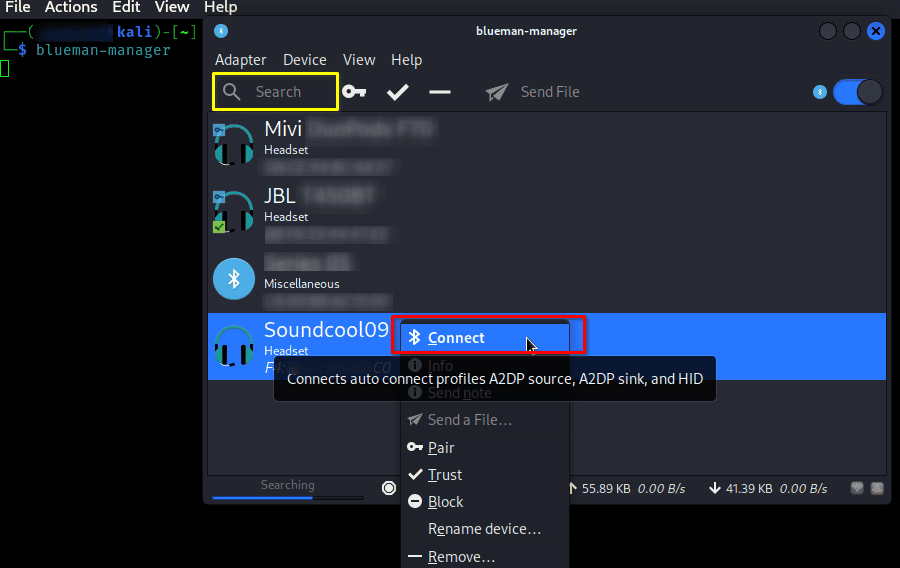
After connecting the Bluetooth device, we can check its battery level by just pointing the cursor at the battery icon:
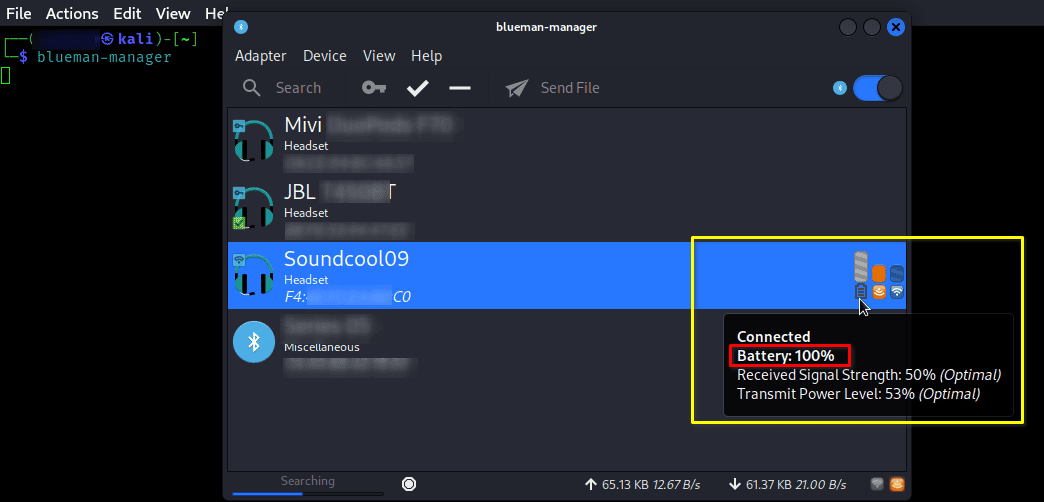
The picture indicates the Battery level of the Bluetooth headset is 100%.
Linux provides various command-line tools for checking the battery level of a connected Bluetooth device, with upower and bluetoothctl being two common options.
upower is a command-line utility that provides information about power devices attached to the system, including the battery status of connected Bluetooth devices.
Let’s begin with the installation of upower using apt-get:
$ sudo apt-get install upower
After we complete the installation, let’s list all power devices using upower along with the -e (enumerate) option:
$ upower -e
/org/freedesktop/UPower/devices/line_power_AC
/org/freedesktop/UPower/devices/battery_BAT0
/org/freedesktop/UPower/devices/headset_dev_F4_8E_FA_E2_A1_C0
/org/freedesktop/UPower/devices/DisplayDevice
The command output provides paths to the UPower-managed power devices, indicating different types of power sources and battery-powered components. Here’s a brief explanation of each device in the output:
We can use the upower command along with the -i option, followed by the device path (in this case, the connected Bluetooth device path is /org/freedesktop/UPower/devices/headset_dev_F4_8E_FA_E2_A1_C0), to get detailed information about a currently connected Bluetooth headset:
$ upower -i /org/freedesktop/UPower/devices/headset_dev_F4_8E_FA_E2_A1_C0
  native-path:          /org/bluez/hci0/dev_F4_8E_FA_E2_A1_C0
  model:                Soundcool09
  serial:               F4:8E:FA:E2:A1:C0
  power supply:         no
  updated:              Tue 16 Jul 2024 04:08:50 PM +0545 (1793 seconds ago)
  has history:          yes
  has statistics:       no
  headset
    warning-level:       none
    percentage:          100%
 ...
The command output shows that the Bluetooth headset (model: Soundcool09, serial: F4:8E:FA:E2:A1:C0) has a battery level of 100%.
bluetoothctl is a command-line utility provided by BlueZ, the official Linux Bluetooth protocol stack that allows users to control the Bluetooth device and manage connections.
Let’s launch bluetoothctl in the terminal:
$ bluetoothctl
Firstly, we’ll execute the power on command to turn on the Bluetooth adapter, then use the scan on command to initiate a scan to discover nearby Bluetooth devices:
$ bluetoothctl
Waiting to connect to bluetoothd...
[bluetooth]# Agent registered
[bluetooth]# power on
[bluetooth]# Changing power on succeeded

[bluetooth]# scan on
[bluetooth]# SetDiscoveryFilter success
[bluetooth]# Discovery started
[bluetooth]# [CHG] Controller 36:E1:2D:F4:A1:EB Discovering: yes
[bluetooth]# [NEW] Device F4:8E:FA:E2:A1:C0 Soundcool09
Once we find out the MAC Address of the Bluetooth device, we’ll use the connect command along with its MAC address to establish a connection:
[bluetooth]# connect F4:8E:FA:E2:A1:C0
Attempting to connect to F4:8E:FA:E2:A1:C0
[CHG] Device F4:8E:FA:E2:A1:C0 Connected: yes
[Soundcool09]# [CHG] Device F4:8E:FA:E2:A1:C0 Paired: yes
...
Once the Bluetooth device gets connected, let’s check its battery level using the info command and the MAC Address:
[Soundcool09]# info F4:8E:FA:E2:A1:C0
Device F4:8E:FA:E2:A1:C0 (public)
        Name: Soundcool09
        Alias: Soundcool09
        Class: 0x00240404 (2360324)
        Icon: audio-headset
        Paired: yes
        Bonded: yes
        Trusted: no
        Blocked: no
        Connected: yes
        LegacyPairing: no
...
        Modalias: bluetooth:v03E0p300Ad0100
        ManufacturerData.Key: 0x03e0 (992)
...
        RSSI: 0xffffffbf (-65)
        Battery Percentage: 0x64 (100)
[Soundcool09]# exit
The output of the info command for the device with MAC address F4:8E:FA:E2:A1:C0 (Soundcool09) shows it as an audio headset that is paired, bonded, and connected. The Battery Percentage: 0*64 (100) indicates the battery is fully charged. Further, to terminate the interactive session, we’ll use the exit command.
In this article, we explored both the CLI and GUI methods for checking the battery level of a connected Bluetooth device in Linux.
Whether we prefer command-line tools like bluetoothctl and upower, or graphical interfaces like blueman, Linux offers several ways to monitor a Bluetooth device’s battery level. By keeping an eye on our device’s battery level, we can ensure uninterrupted usage and avoid any inconvenient surprises.