


Learn through the super-clean Baeldung Pro experience:
>> Membership and Baeldung Pro.
No ads, dark-mode and 6 months free of IntelliJ Idea Ultimate to start with.
Last updated: September 3, 2025
Learn through the super-clean Baeldung Pro experience:
>> Membership and Baeldung Pro.
No ads, dark-mode and 6 months free of IntelliJ Idea Ultimate to start with.
Granularity, the foundation of MySQL’s security model, can occasionally result in access barriers, particularly when remote connections are involved. A frequent roadblock is the error message “Host ‘xxx.xx.xxx.xxx’ is not allowed to connect to this MySQL server.”
This usually happens when a remote host tries to connect, but the server rejects the connection.
In this tutorial, we’ll present a detailed troubleshooting guide and best practices regarding security and accessibility.
MySQL is set up to only accept connections from localhost (127.0.0.1) by default. The following error occurs when an external host that the MySQL server does not recognize tries to connect:
ERROR 1130 (HY000): Host 'xxx.xx.xxx.xxx' is not allowed to connect to this MySQL serverHere, ‘xxx.xx.xxx.xxx’ represents the IP address of the host attempting the connection.
Usually, a mix of network and configuration limitations intended to safeguard the MySQL server causes this error. For example, settings that bind MySQL to the localhost only, firewall and network rules that prevent access to the MySQL port, and user account configurations in the MySQL user table that limit access to specific hosts. The port in question is typically 3306, but it can also be another. In this tutorial, we’ll assume it’s 3306.
The server will also reject the connection if the user account lacks the authorization to connect from the remote host or if DNS resolution is unsuccessful and hostnames can’t be resolved. Although these settings improve security, we must change them to authorize remote access when necessary.
This step ensures that the MySQL user has the privileges to connect from the desired host.
First, let’s connect to the MySQL Server locally via the terminal or command prompt:
mysql -u root -pNext, let’s check existing users’ hosts:
SELECT Host, User FROM mysql.user WHERE User = 'your_username';We should grant access if the connecting client’s IP address or hostname isn’t in the Host column:
GRANT ALL PRIVILEGES ON *.* TO 'my_username'@'client_ip_address' IDENTIFIED BY 'my_password';(We’ll replace ‘my_username’, ‘client_ip_address’, and ‘my_password’ with the actual MySQL username, the IP address of the client, and their password.)
Let’s now apply the changes:
FLUSH PRIVILEGES;
To allow access from any host (less secure), we can use %:
GRANT ALL PRIVILEGES ON *.* TO 'my_username'@'%' IDENTIFIED BY 'my_password';
We must use this approach cautiously. Usually, it’s safe in controlled environments.
MySQL server’s configuration file my.ini may restrict connections to localhost by default.
To allow non-local connections, we edit the configuration file my.ini using the bind-address directive:
bind-address = 0.0.0.0
This setting instructs MySQL to listen on all IPv4 interfaces of the server. It doesn’t mean “any client IP.” Instead, the server will accept connections from any network interface. After editing the my.ini file, we should restart the MySQL service to apply changes.
In some installations, the bind-address directive may not appear by default in the configuration file (my.cnf or my.ini). We can manually add it under the [mysqld] section.
This configuration (0.0.0.0) is valid in MySQL 8.0 and is widely used in practice. However, we should consider binding to a specific IP or using firewall rules for tighter control. Whichever configuration we use, it must align with our organization’s security policies and access control strategy.
A firewall can block incoming connections to the MySQL port. To ensure that TCP port 3306 is open in a Windows system, let’s open the Advanced settings of Windows Defender Firewall:
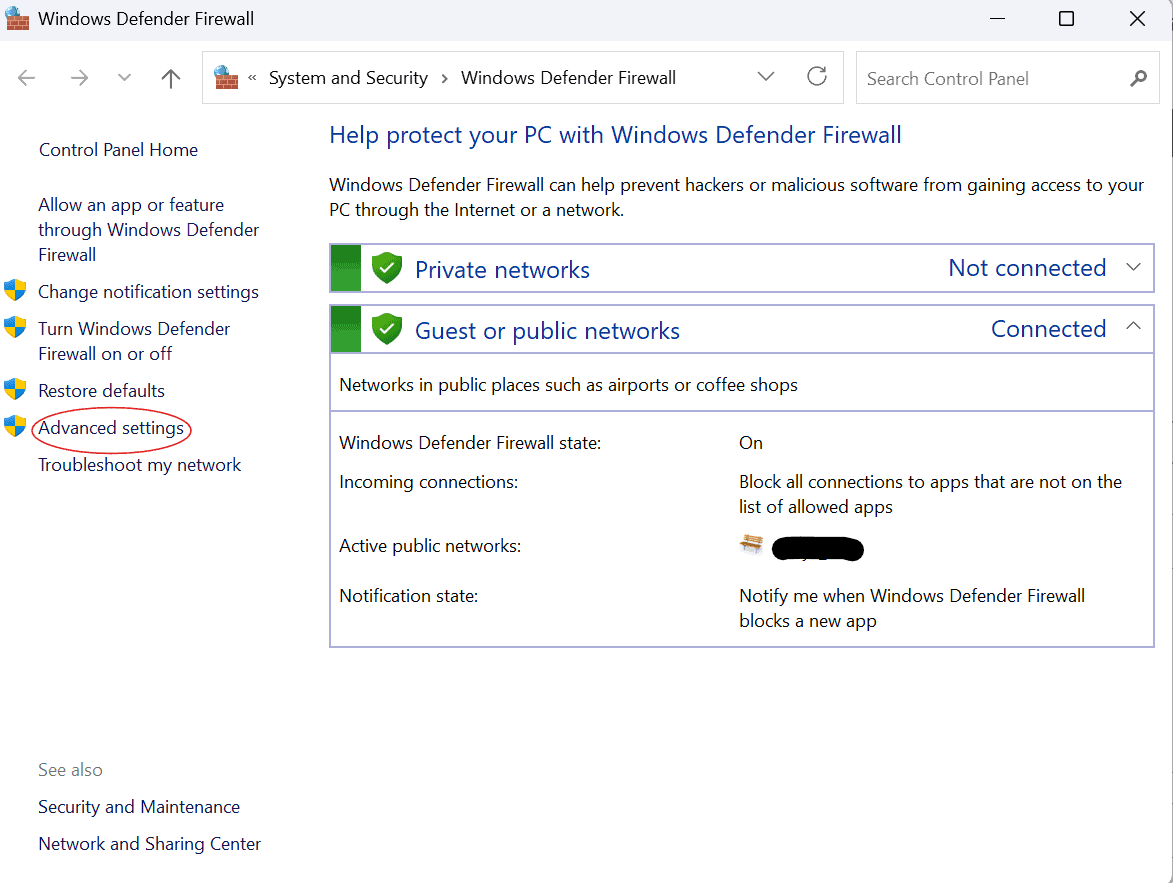
In the left pane, we click Advanced settings and create a New Inbound Rule.
In the New Inbound Rule Wizard, we select port 3306, choose Allow the connection, Select Profile (Domain, Private, Public), and specify where the rule should apply.
Next, we name the rule. It will allow TCP connections on port 3306.
If we’re using a cloud service (e.g., AWS or Azure), we should ensure that the security groups or network access control lists permit traffic on port 3306.
If the MySQL server can’t resolve the client’s hostname, it may deny the connection. To verify if hostname resolution is disabled, we run:
SHOW VARIABLES LIKE 'skip_name_resolve';If the result is “ON”, MySQL doesn’t resolve hostnames. In that case, it’s best to use IP addresses instead of hostnames when creating users or granting privileges. Here’s how we can grant access using a client’s IP:
GRANT ALL PRIVILEGES ON *.* TO 'my_username'@'client_ip_address' IDENTIFIED BY 'my_password';Using IP addresses can help avoid DNS resolution issues, especially when skip_name_resolve is enabled.
After making the above changes, let’s test the connection from a client machine:
mysql -u my_username -p -h my_server_ip_address(We’ll replace my_username and my_server_ip_address with the actual MySQL username and the IP address of the MySQL server in question.)
If the connection is successful, we’ve resolved the error. Otherwise, we should check MySQL logs for detailed error messages. We should also revisit each configuration step, especially user privileges, firewall rules, and bind-address settings, to ensure we did everything right.
Here’s a checklist of steps:
| Item | Description |
|---|---|
| The user has access from the host IP | Ensure the MySQL user is allowed to connect from the client IP |
| Accept connections from any IP address | Confirm the bind-address is set to allow external connections |
| Open the firewall port | Allow TCP traffic on port 3306 |
| DNS/hosts resolution works | Use IP addresses if hostname resolution is disabled |
| Test connectivity | Attempt to connect from the client machine |
To reduce exposure to unauthorized connections, we need to limit MySQL access to specific IP addresses instead of using wildcards.
To improve security, each user account should have a strong, unique password. We should routinely audit if any account has more permissions than necessary and remove the unnecessary ones. This ensures that users only have the access they truly need.
Lastly, we should enable SSL/TLS encryption for data in transit and bind the server to reliable IP addresses to secure the MySQL setup.
In this article, we discussed the “Host not allowed” error in MySQL. This error is a sign that settings aren’t set up correctly.
To ensure a secure and functional remote MySQL setup, we should check user privileges, enable remote access via bind-address, allow TCP traffic on port 3306 (or whichever port is used by MySQL), and check DNS resolution.