


Learn through the super-clean Baeldung Pro experience:
>> Membership and Baeldung Pro.
No ads, dark-mode and 6 months free of IntelliJ Idea Ultimate to start with.
Last updated: December 15, 2025
Learn through the super-clean Baeldung Pro experience:
>> Membership and Baeldung Pro.
No ads, dark-mode and 6 months free of IntelliJ Idea Ultimate to start with.
1. Introduction
When we need to transfer large worksheets into an SQL database, we can experience difficulties with data format compatibility, data inconsistencies, mapping and transformation issues, and data integrity violations. One technique to bridge the gap between these two systems is generating SQL INSERT scripts from Excel worksheets.
In this tutorial, we’ll explore diverse methods for generating SQL INSERT scripts from an Excel worksheet and best practices for ensuring a smooth execution process.
Let’s take a look at the common use cases for generating SQL Inserts from Excel:
For more context, SQL INSERT scripts are a series of SQL statements that add data to a database table. Each statement specifies the table, columns, and corresponding values.
Let’s consider a relevant example for the Baeldung Simple University database schema:

Let’s say we need to migrate some historical data for twenty students from an Excel sheet into the Simple University database schema:

For this scenario, we require an SQL script that adds a row to the Student table for each row corresponding to a student.
In any scenario or use case, before creating INSERT statements, we’ll first need to:
These steps help to mitigate potential errors during the transformation process.
Before generating SQL scripts for any scenario or use case, we must format the Excel worksheet to ensure compatibility with the database structure.
First, our first row should have column headers matching database table names to guide accurate SQL data insertion.
Next, we ensure each column matches the expected data type: numbers in numeric fields, consistent date formatting (for example, YYYY-MM-DD), and text within defined length limits.
Finally, we should remove blank rows or columns if we can, as they disrupt the SQL generation process.
Overall, each row must contain valid data for the corresponding columns.
The data cleaning and validation step ensures that the SQL scripts accurately represent the intended dataset.
First, we remove duplicate rows to prevent redundancy and errors unless required.
Second, we escape special characters in text fields, replacing single quotes with two for SQL compatibility.
Finally, in cases where our dataset includes foreign key references, we verify that the referenced data exists in the target database to avoid integrity violations during data insertion.
Our Excel sheet has already been adequately formatted and validated; therefore, we can generate the required SQL Insert scripts.
After thorough data preparation, we can convert our data into SQL scripts using one or several methods to generate SQL INSERT scripts.
For example, we could manually write the SQL INSERT statements for each record:
INSERT INTO students (id, name, national_id, birth_date, enrollment_date, graduation_date, gpa)
VALUES (10, 'Alice Johnson', '5832043130', '2000-01-15', '2018-09-01', '2022-06-15', 3.75);

INSERT INTO students (id, name, national_id, birth_date, enrollment_date, graduation_date, gpa)
VALUES (11, 'Bob Smith', '4448883118', '1999-05-20', '2017-09-01', '2021-06-15', 2.82);

INSERT INTO students (id, name, national_id, birth_date, enrollment_date, graduation_date, gpa)
VALUES (12, 'Charlie Brown', '1023871400', '2001-03-12', '2019-09-01', '2023-06-15', 3.82);
While straightforward, this approach is time-consuming and error-prone, especially when handling large datasets of thousands and millions. Also, it requires manual handling of special characters and data types, which can be challenging and tedious.
Excel formulas provide a more automated way to generate SQL scripts. As is typical with Excel worksheets, we can write a formula to concatenate data and structure it into an SQL syntax.
In a new column of our worksheet, we can type the formula in an empty column for the first row:
="INSERT INTO students (id, name, national_id, birth_date, enrollment_date, graduation_date, gpa) VALUES (" & A2 & ", '" & B2 & "', '" & C2 & "', '" & D2 & "', '" & E2 & "', '" & F2 & "', " & G2 & ");"The formula is entered into the corresponding cell for row one:

Then, we can drag the formula down in Excel to generate multiple INSERT statements for each row in the dataset:
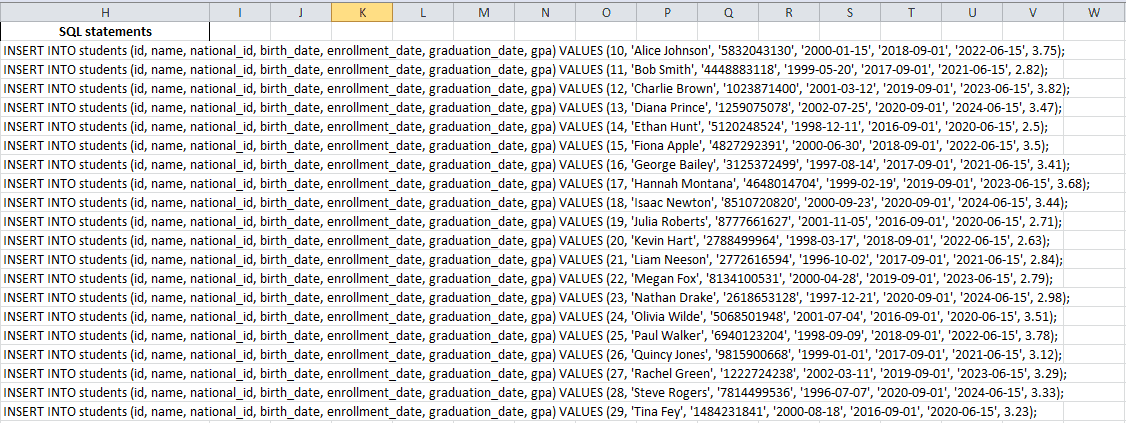
After generating the SQL commands for all the rows, we can copy and paste them into our relational database management system tool for execution or an SQL editor to insert records into the database.
VBA is a functional tool for automating Excel tasks.
So, instead of writing and copying the formulas per row, we can use VBA to generate the required SQL script for us. With our dataset, we can create a VBA script that can programmatically create SQL statements for all rows:
Step 1: Open the VBA editor by pressing Alt + F11
Step 2: Insert a new module and add the script:
Sub GenerateSQL()
    Dim ws As Worksheet
    Dim rowCount As Long
    Dim sql As String
    Dim outputFile As String
    Dim i As Long
    Dim id As Variant,
        name As String,
        national_id As String,
        birth_date As String,
        enrollment_date As String,
        graduation_date As String,
        gpa As Variant

    Set ws = ThisWorkbook.Sheets(1)

    rowCount = ws.Cells(ws.Rows.Count, 1).End(xlUp).Row

    outputFile = "C:\Users\USER\Downloads\InsertScripts.sql"

    Open outputFile For Output As #1

    For i = 2 To rowCount

        id = ws.Cells(i, 1).Value
        name = ws.Cells(i, 2).Value
        national_id = ws.Cells(i, 3).Value
        birth_date = ws.Cells(i, 4).Value
        enrollment_date = ws.Cells(i, 5).Value
        graduation_date = ws.Cells(i, 6).Value
        gpa = ws.Cells(i, 7).Value

        If IsEmpty(id) Or IsEmpty(name) Then GoTo SkipRow

        name = Replace(name, "'", "''")

        sql = "INSERT INTO Student (id,name, national_id, birth_date, enrollment_date, graduation_date, gpa)
               VALUES (" & _id & ",
                      '" & name & "',
                      '" & national_id & "',
                      '" & birth_date & "',
                      '" & enrollment_date & "',
                      '" & graduation_date & "',
                      " & gpa & ");"

        Print #1, sql
SkipRow:
    Next i
    Close #1
    MsgBox "SQL scripts generated successfully!"
End Sub
First, the script sets the worksheet to our specified sheet and determines the last row with data in column A (which it assumes contains IDs).
Second, it defines the output file path and opens the file for output.
Third, it loops through the rows starting from row two (since row one represents headers), reads the cell values, skips rows with missing or invalid IDs, and replaces single quotes in text fields with two quotes to prevent SQL syntax errors. Finally, it constructs the SQL statement, writes it to the InsertScripts.sql file, and closes it.
The script is added to the code section window in VBA:

We should take note of two sections:
Step 3: Click the run icon on the top section of the VBA editor
The SQL scripts are generated successfully:

The .sql file generated contains the INSERT statements for all rows in the worksheet:

Furthermore, on a MacBook, the VBA scripts function similarly. However, we must ensure that macros are enabled in Excel for Mac and that they have the necessary permissions to write to a specified directory. Additionally, the file path syntax may differ.
There are also several third-party tools that can convert Excel data into SQL scripts. Tools like Excel to SQL Converter and DBConvert provide user-friendly interfaces and advanced features.
Use Excel’s validation to catch errors early and test with a small data subset before bulk inserts. The database should also be backed up beforehand to prevent accidental data loss. For large datasets, use transactions to enable rollbacks and maintain data consistency.
Always test the scripts in the staging or development environment before executing them in production to identify potential issues without risking our live database. Finally, document the SQL script process, covering data preparation, validation, and import to ensure consistency and repeatability.
In this article, we highlighted different use cases where generating SQL INSERT scripts is necessary. We also considered crucial preliminary steps, including data formatting, cleaning, and validation.
Furthermore, we explored the manual method, Excel formulas, VBA editor, and third-party tools as different means of generating SQL INSERT scripts from our worksheet. Finally, we reviewed best practices and tips to achieve optimal results throughout the process.