


Learn through the super-clean Baeldung Pro experience:
>> Membership and Baeldung Pro.
No ads, dark-mode and 6 months free of IntelliJ Idea Ultimate to start with.
Last updated: December 26, 2024
Learn through the super-clean Baeldung Pro experience:
>> Membership and Baeldung Pro.
No ads, dark-mode and 6 months free of IntelliJ Idea Ultimate to start with.
In SQL, databases are operated in two different modes: single-user and multi-user. Single-user mode is typically used for administrative tasks such as renaming a database, restoring backups, or resolving issues. On the other hand, multi-user mode is the default operational state that allows multiple users and connections to access the database. As a database administrator, switching between these two modes is a common task.
In this tutorial, we’ll see how we can set a database from single-user mode to multi-user mode in three major database management systems: SQL Server, PostgreSQL, and MySQL.
To illustrate, we’ve used the Baeldung University database schema.
In SQL Server, we have two methods to set the database from single-user to multi-user mode: Using the ALTER DATABASE command, and the object explorer, which is a graphical approach. Let’s discuss both methods.
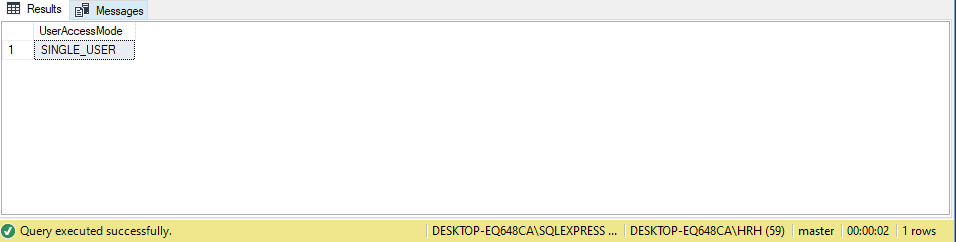
Before altering the database, let’s first check the mode of the University database. To achieve this, we can execute this query:
SELECT DATABASEPROPERTYEX('University', 'UserAccess') AS UserAccessMode;In this output, we can see that the University database is currently in SINGLE_USER mode.
Now, to convert the database to multi-user, we run this query:
ALTER DATABASE University SET MULTI_USER;To verify, let’s again check the mode of the University database using this query:
SELECT DATABASEPROPERTYEX('University', 'UserAccess') AS UserAccessMode;The command produces the following results:
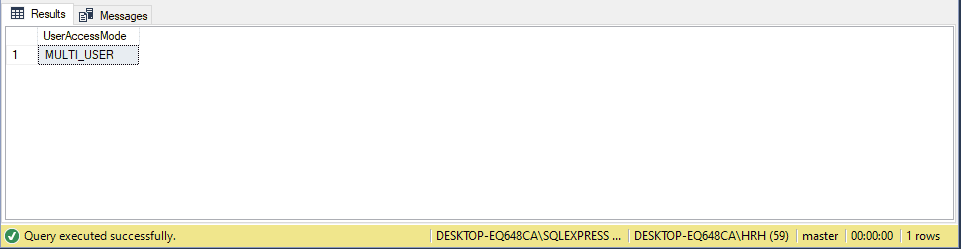
Consequently, we can see that the database has been set to MULTI-USER mode.
In SQL Server, we can also set the database to multi-user mode by following a graphical approach. Let’s see this method in the instructions below.
In SQL Server Management Studio (SSMS), we first expand the Databases folder and locate the University database. Then, right-click on the database and select Properties from the context menu:

Next, we select Options from the left-hand menu and scroll to the State menu. Afterward, we locate the Restrict Access option and select MULTI_USER from the dropdown list. Then, click OK to apply the changes:

The database is now set to accept multiple connections.
In PostgreSQL, there’s no direct support for single-user mode like in SQL Server. However, we can achieve similar behavior at the database level by using connection restrictions.
For instance, to get single-user mode, we restrict the database to allow only one connection for administrative tasks, and, afterward, we revert the database to accept multiple connections again. Let’s see how we can set and revert the connection mode for the University database.
Before restricting access, let’s terminate all active connections. For this purpose, we use the pg_terminate_backend function:
SELECT pg_terminate_backend(pid)
postgres-# FROM pg_stat_activity
postgres-# WHERE datname = 'University' AND pid <> pg_backend_pid();
 pg_terminate_backend
----------------------
(0 rows)
This terminates all active connections except the current session.
After terminating the connections, we limit the database to allow only one connection using the CONNECTION LIMIT property:
ALTER DATABASE University WITH CONNECTION LIMIT 1;
ALTER DATABASE
Once we are done with the administrative tasks, we revert the database to allow multiple connections again by setting the CONNECTION LIMIT value to -1:
ALTER DATABASE University WITH CONNECTION LIMIT -1;
ALTER DATABASE
The database will now accept numerous connections.
In MySQL, similar to PostgreSQL, there’s no dedicated support for single-user mode. Instead, we achieve the desired results by terminating and limiting the connections to the database.
First, to terminate all active connections, we can list all active sessions by executing this query:
SHOW PROCESSLIST;Below, we see the active sessions:

In this output, we see three active sessions to the University database and only the root user with Id 10 is actively executing a query.
Now, if we want to terminate the sessions, we can use this syntax:
KILL <session_id>;
Above, we replace the <session_id> with the particular session ID.
After terminating the connections, we limit the database to only one connection by setting the max_connections variable to 1:
SET GLOBAL max_connections = 1;Now, after performing administrative tasks, we revert the database to allow multiple connections by resetting the max_connections variable:
SET GLOBAL max_connections = 151;Typically, the max_connections variable’s default value is 151 for most cases, but it may vary.
In this article, we learned how to set a database from single-user mode to multi-user mode in SQL Server, PostgreSQL, and MySQL.
In SQL Server, we can use the ALTER DATABASE command, and Object Explorer in Management Studio for a graphical approach. Meanwhile, in PostgreSQL and MySQL, we can achieve similar functionality by terminating and limiting database access.