


Learn through the super-clean Baeldung Pro experience:
>> Membership and Baeldung Pro.
No ads, dark-mode and 6 months free of IntelliJ Idea Ultimate to start with.
Learn through the super-clean Baeldung Pro experience:
>> Membership and Baeldung Pro.
No ads, dark-mode and 6 months free of IntelliJ Idea Ultimate to start with.
We often use Jenkins, an open-source automation server, to automate the process of creating, testing, and deploying software. Additionally, we can use it to streamline and organize task execution into efficient batches.
By default, Jenkins uses the server time zone in which it’s installed. However, there are situations where we may want to switch to a different time zone for various purposes.
In this tutorial, we’ll demonstrate several methods for changing the Jenkins time zone, both for individual users and for all users.
We may need to change the time zone in Jenkins when teams are distributed across multiple regions and require jobs to be scheduled or logs to be viewed in their local time. Furthermore, when integrating Jenkins with other systems for data synchronization and analysis, we set both systems to the same specified time zone to ensure consistency.
By changing time zones, we also make sure that scheduled builds, tests, and deployments happen at the right times for our developer teams around the world.
To better understand the changes we’ll be making, let’s create a sample test job in Jenkins. We can do this by going to the Jenkins dashboard and clicking New Item.
Let’s view our sample Jenkins job:
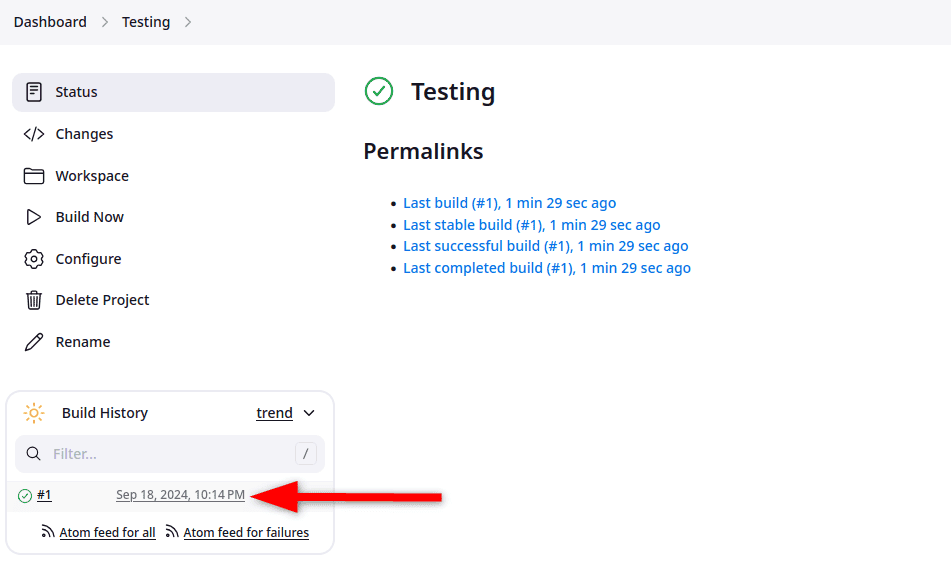
In the build history of our sample job, we should see the time listed according to the current server’s time zone (likely UTC or another default). We need to change this to our specified time zone.
We can configure the Jenkins Java Virtual Machine (JVM) to use a specific time zone by setting the user.timezone property. We can do that by editing the service configuration on the machine where Jenkins is running.
In our case, we’re running Jenkins on Ubuntu Linux, so we need to edit the Jenkins configuration file and add the specified JVM parameter value. However, if Jenkins is running on Windows, we need to edit the Jenkins YAML file located in the installation directory.
Additionally, we can only perform this method if we have administrative privileges on the Jenkins server.
Let’s edit the Jenkins systemd configuration file using the systemctl edit command:
$ sudo systemctl edit jenkinsNext, we need to add the time zone properties to the configuration to ensure Jenkins uses the desired time zone.
Let’s add the JAVA_OPTS parameter to the configuration:
[Service]
Environment="JAVA_OPTS=-Dorg.apache.commons.jelly.tags.fmt.timeZone=Asia/Karachi"
We can replace Asia/Karachi with any other specific time zone, such as Europe/London for UK time.
Let’s see how we can add the previous parameter into the configuration file:

Now, after adding these properties, we need to save and close the file editor.
Alternatively, if the previous method doesn’t work, we can set the user.timezone parameter in JAVA_OPTS instead:
[Service]
Environment="JAVA_OPTS=-Duser.timezone=America/New_York"
After making the required changes, we can now restart Jenkins with the systemctl command:
$ sudo systemctl restart jenkinsAfter the restart, we log back into Jenkins, go to our job, and check the time in the build history:
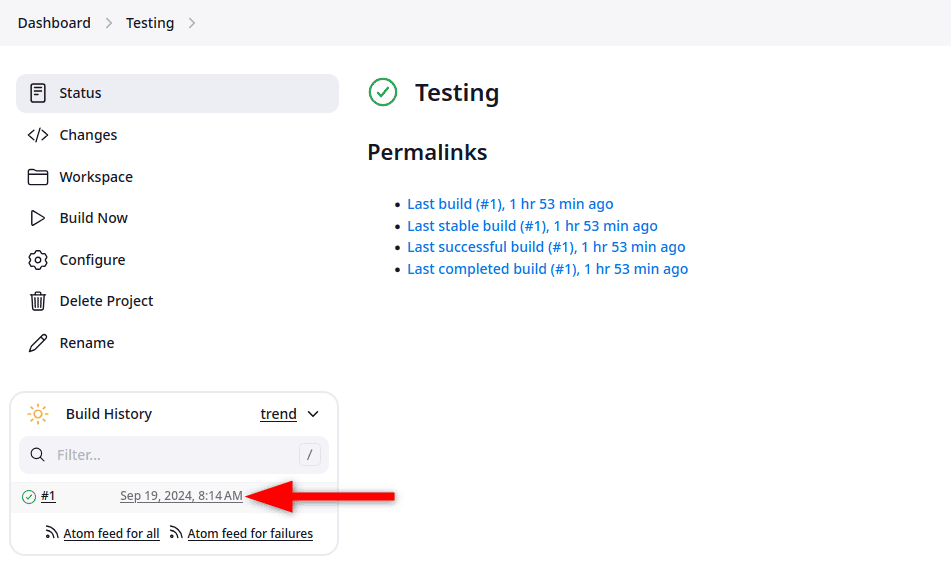
It should now reflect the new time zone specified in the configuration file. Furthermore, we can use this method if we want Jenkins to use a different time zone without changing the system’s time zone.
We can also set the time zone directly from the Jenkins Script Console (Groovy) without needing to restart Jenkins. Furthermore, we can do this temporarily or make it permanent using post-initialization scripts.
To begin, let’s log into Jenkins with administrator rights. Next, we go to the Manage Jenkins section and click on the Script Console option:
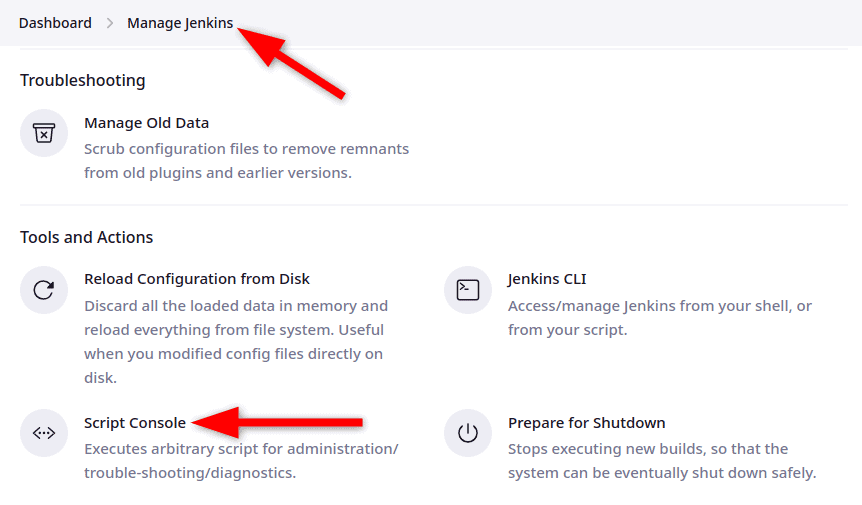
In the Script Console, we can set Jenkins’ system property by running a simple script:
System.setProperty('org.apache.commons.jelly.tags.fmt.timeZone', 'Asia/Karachi')This script temporarily sets the time zone to our specified time zone, such as Asia/Karachi. However, when Jenkins is restarted, these time zone settings will be reset.
If we don’t have administrative access to change system properties, we can set a time zone specific to our user account in Jenkins. This setting will only apply to our account and will display the specified time zone for us, but not for other users.
First, we log into Jenkins and click on our user profile in the top-right corner. Then, we need to select Configure and scroll down to the User Defined Time Zone option. By default, this option is specified to use the system time zone.
We can then choose our preferred time zone from the dropdown list. For example, we can select Asia/Karachi from the list and click Save:

After saving, we return to the Jenkins dashboard and check the build history of our job. The time should now be displayed in our selected time zone.
In this article, we explored several methods to change time zones in Jenkins. These methods include editing the Jenkins configuration file, using the Jenkins Script Console, and changing user-specific time zone settings.
If we have administrative access and want to change the entire Jenkins server’s time zone without altering the system’s time zone, we need to add system properties to the Jenkins configuration.
However, for temporary changes, we can use the Jenkins Script Console to insert the appropriate code. Moreover, if we don’t have admin privileges, we can adjust our user’s time zone under user-specific settings.