


Learn through the super-clean Baeldung Pro experience:
>> Membership and Baeldung Pro.
No ads, dark-mode and 6 months free of IntelliJ Idea Ultimate to start with.
Learn through the super-clean Baeldung Pro experience:
>> Membership and Baeldung Pro.
No ads, dark-mode and 6 months free of IntelliJ Idea Ultimate to start with.
GitHub Actions is a tool that enables us to automate tasks within a software development workflow directly on GitHub. It’s excellent at automating the build, test, and deployment process, which is often referred to as continuous integration and continuous delivery (CICD).
GitHub Actions workflows define jobs, which are further broken down into steps. These steps involve running scripts using pre-built actions. Furthermore, jobs run directly on the runner’s machine environment. Containerized jobs or steps, however, add a layer of isolation. Each job or step runs within its own Docker Container, ensuring it has all the necessary tools without affecting the runner.
In this tutorial, we’ll explore possible ways to use Docker with GitHub Actions. All commands have been tested on Ubuntu 22.04.
There are several advantages to using Docker containers in GitHub Actions workflows:
Overall, Docker containers in GitHub Actions provide a way to achieve consistent, isolated, and reusable workflows.
Docker in GitHub Actions is achievable in two ways:
Regardless of which method we use, we get isolated environments. Notably, a Linux runner must be used for a GitHub Action workflow to use Docker containers.
For this tutorial, let’s create a GitHub repository named docker-github-actions:

Then, we clone the repository to a local machine with git preinstalled:
$ git clone https://github.com/<username>/docker-github-actions.gitUsing the terminal, let’s navigate to the project path and create a .github/workflows directory:
$ cd docker-github-actions
$ mkdir -p .github/workflows
GitHub Actions workflows reside in the project repository under .github/workflows. It’s crucial to store all workflow definition files within this directory so that GitHub Actions can recognize and process them.
After we’ve successfully created the workflows directory, let’s define a workflow that runs a complete GitHub Actions job in a container.
This method involves defining a container to run all the job steps within it. We define a job using the jobs keyword in the GitHub workflow YAML file. Then, within this job definition, we specify that we want to use a container by adding the container keyword.
However, including the container keyword in a job doesn’t explicitly mean the job steps run in a container. To run job steps inside a container, we specify both the host machine and the container image:
jobs:
  container-test-job:
    runs-on: ubuntu-latest
    container: node:18
The example above defines the host machine as ubuntu-latest and the container image as node:18 using the runs-on and container keywords, respectively. If the container image registry requires authentication, we can use the credentials keyword in the workflow file to provide a map containing the username and password:
container:
  image: ghcr.io/owner/image
  credentials:
     username: ${{ github.actor }}
     password: ${{ secrets.github_token }}
Additionally, GitHub Actions enable us to define environment variables and ports exposed on the container using the env and ports keywords, respectively:
container:
  image: python:3.9
  env:
     TEST_VAR: "This is a test environment variable"
   ports:
      - 8000:8000
Also, GitHub Actions enable mounting volumes onto the container. As usual, we can link directories on the host machine with paths in the container or share data between services and other steps in a job using the volumes keyword:
volumes:
  - my_docker_volume:/volume_mount
  - /data/my_data
  - /source/directory:/destination/directory
As seen in the example above, a semicolon (:) separates the source path from the destination path in the container.
For demonstration purposes, let’s create an example workflow that runs a job using a container image based on Node.js version 17.6.0. The job steps verify the presence and version of both Node.js and npm within the container environment.
To do this, we begin by creating a container-job.yaml file in the workflows directory and enter the workflow configuration:
on: push
jobs:
    container-job:
        runs-on: ubuntu-latest
        container: node:17.6.0
        steps:
            - run: node --version
            - run: npm --version
Next, we add and push the configuration to the remote repository using git:
$ git add .
$ git commit -m "Run Node 17"
$ git push
Now, there’s a new workflow run with a commit message Run Node 17 in GitHub Actions:

In this workflow run, we see the container-job job with a green checkmark, meaning it was successful:
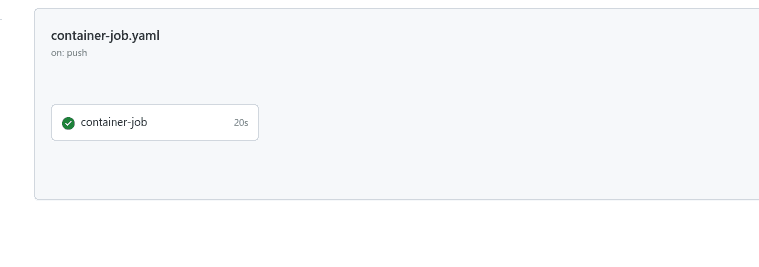
Selecting this job, we observe the container initialization process and the steps ran inside the container:

As seen above, the steps are executed within the container as they display the expected Node.js (17.6.0) and npm versions.
The Dockerfile method involves GitHub Actions creating a container image based on the provided Dockerfile, and then spawning a container from that image.
To define inputs and code for execution within the container, we create two files:
GitHub Actions enables us to employ the completed Docker container action in a subsequent step via the uses keyword.
To begin with, let’s create a Dockerfile in the project directory. After that, we insert the Docker container image configuration:
FROM alpine:3.10

COPY entrypoint.sh /entrypoint.sh

ENTRYPOINT ["/entrypoint.sh"]
This Dockerfile creates an image based on Alpine Linux, copies the entrypoint.sh script into the container, and configures the container to run that script upon startup.
Now, let’s create a custom action that runs a greeting logic in the container defined in the Dockerfile.
To do this, we create an action.yml file in the project directory. Then, we enter the logic configuration within action.yml:
# action.yml
name: 'Hello Baeldung'
description: 'Greet Baeldung and record the time'
inputs:
  who-to-greet:  # id of input
    description: 'Who to greet'
    required: true
    default: 'Baeldung'
outputs:
  time: # id of output
    description: 'The time we greeted Baeldung'
runs:
  using: 'docker'
  image: 'Dockerfile'
  args:
    - ${{ inputs.who-to-greet }}
The above metadata tells GitHub Actions how to run the code. It defines the who-to-greet input and time output. Then, it instructs GitHub Actions to build an image from the Dockerfile and run commands in a new container using this image.
Let’s create a shell script that uses the input variable, who-to-greet, as declared in the previous step, to print “Hello <who-to-greet>” in the logs.
Next, the script captures the current time and stores it as an output variable that future actions in the job can use.
As declared earlier in the Dockerfile, let’s create the entrypoint.sh file. Then, we input the action code script within it:
#!/bin/sh -l

echo "Hello $1"
time=$(date)
echo "time=$time" >> $GITHUB_OUTPUT
Once saved, the file has to be made an executable:
$ chmod u+x entrypoint.shThis way, we ensure entrypoint.sh can be run.
Since we’ve implemented the Docker container action and action code, let’s set up a GitHub workflow to use them.
Let’s set up the workflow configuration in .github/workflows/step-action.yml:
on: [push]

jobs:
  hello_baeldung_job:
    runs-on: ubuntu-latest
    name: A job to say hello to Baeldung
    steps:
      - name: Checkout
        uses: actions/checkout@v4
      - name: Hello Baeldung action step
        uses: ./ # Uses an Docker container action in the root directory
        id: hello
        with:
          who-to-greet: 'Baeldung'
      - name: Get the output time
        run: echo "The time was ${{ steps.hello.outputs.time }}"
In the workflow above, the Hello Baeldung action step uses the Docker container action in the root directory created in the previous steps.
Now, we can push all the created actions, code, and workflow to the remote repository:
$ git add .
$ git commit -m "Docker container step action"
$ git push
Once pushed, the repository displays a new workflow run with a commit message Docker container step action. Then, under Jobs, the job titled A job to say hello to Baeldung can be seen to have completed successfully, as indicated by the green check mark:

Selecting the job, we can see the Hello Baeldung action step that prints Hello Baeldung:

As seen above, the workflow builds the Docker image and creates a container to execute the step action in a single, automated sequence.
While it’s a common method to build a Docker container action from scratch and then use it in a step, there are also publicly available Docker container actions available on the GitHub marketplace. For this tutorial, we demonstrate addnab/docker-run-action.
To demonstrate, we create a workflow that executes a step on an nginx Docker container image made available through addnab/docker-run-action.
Let’s create the workflow configuration in github/workflows/public-action.yml:
name: Run step in Docker

on: [push]

jobs:
    container-job:
        runs-on: ubuntu-latest
        steps:
            - name: Checkout code
              uses: actions/checkout@v2

            - name: Run step in container
              uses: addnab/docker-run-action@v3
              with:
                image: nginx:latest
                run: |
                  echo "This step is using a Public Docker Container Action "
This workflow checks out the code and then executes an echo command within a container based on the nginx:latest image.
Since we already have the workflow, let’s add and push it up to the remote repository:
$ git add .
$ git commit -m "Public Docker container action"
$ git push
Again, in the Actions tab in the repository, a new workflow named Run step in Docker appears as specified in the configuration. Selecting the job, we can see the echo output in the logs:

Hence, the step has run on the Docker container.
In this article, we’ve learned how to use Docker in GitHub Actions, either by running an entire job in a container or referring to a configured action in a job step.
In conclusion, Docker in GitHub Actions offers a flexible toolkit for efficient workflows. Whether we require a fully containerized job or reusable Docker container actions for streamlined execution, the GitHub Actions feature enables us to improve the development process.