


Learn through the super-clean Baeldung Pro experience:
>> Membership and Baeldung Pro.
No ads, dark-mode and 6 months free of IntelliJ Idea Ultimate to start with.
Learn through the super-clean Baeldung Pro experience:
>> Membership and Baeldung Pro.
No ads, dark-mode and 6 months free of IntelliJ Idea Ultimate to start with.
Each job in the GitLab pipeline, except the trigger job, requires the script tag to execute shell commands. In most cases, if a shell command works fine outside the GitLab CI, it’d run fine as part of the pipeline. However, in some scenarios, cURL commands that work fine in a shell environment outside the GitLab pipeline could otherwise fail in the GitLab environment.
In this tutorial, we’ll learn how to use cURL commands in the .gitlab-ci.yml configuration file.
cURL commands often need a colon to send the key-value pairs in headers and request body. In this section, let’s learn some issues that we may encounter because of how the command string gets interpreted by the GitLab runner.
First, let’s verify our cURL command in a local terminal:
$ curl -X POST "https://jsonplaceholder.typicode.com/posts" \
-H "Content-Type: application/json" \
-d '{"title": "foo", "body": "bar", "userId": 1}'
It works as expected:
{
    "title": "foo",
    "body": "bar",
    "userId": 1,
    "id": 101
}
Next, let’s add our cURL command under the script tag of curl_job GitLab job in the .gitlab-ci.yml file of a GitLab repository:
$ cat .gitlab-ci.yml
curl_job:
  script:
    - curl -X POST "https://jsonplaceholder.typicode.com/posts" -H "Content-Type: application/json" -d '{"title": "foo", "body": "bar", "userId": 1}'
Lastly, let’s run the pipeline for our project and see if it runs as expected:

Unfortunately, our pipeline failed to execute. When GitLab discovered the presence of the “: ” string, it expected key-value pairs around it.
Let’s fix the error in our .gitlab-ci.yml file by removing the whitespace after colon (:):
$ cat .gitlab-ci.yml
curl_job:
  script:
    - curl -X POST "https://jsonplaceholder.typicode.com/posts" -H "Content-Type:application/json" -d '{"title":"foo", "body":"bar", "userId":1}'
Now, let’s verify that the pipeline runs correctly after our fix:
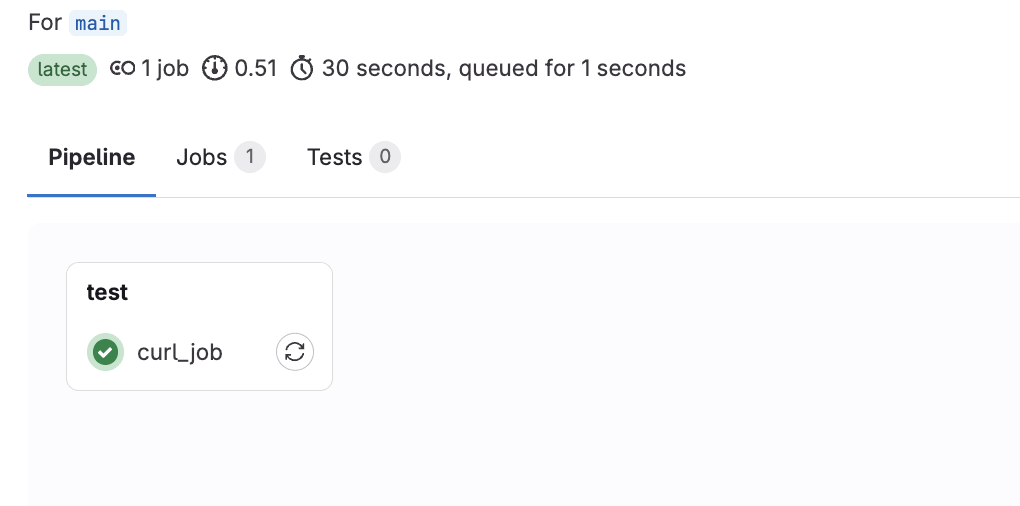
Although our fix seems to have worked in this case, it’s important to note that the request body or header could contain a valid “: ” string, so our naive fix won’t work in those scenarios.
Next, let’s update the request body in our cURL command to simulate this failure scenario:
$ cat .gitlab-ci.yml
curl_job:
  script:
    - curl -X POST "https://jsonplaceholder.typicode.com/posts" -H "Content-Type:application/json" -d '{"title":"foo", "body":"foo: bar", "userId":1}'
Lastly, let’s run our GitLab pipeline with the latest .gitlab-ci.yml configuration file:

GitLab couldn’t create the pipeline as it interpreted the jobs:curl_job:script config was malformed.
A more sophisticated fix for our issue involves GitLab CI/CD variables. We can define GitLab CI/CD variables to hold strings containing “: ” and reuse those variables under the script tag of GitLab jobs.
Let’s define the REQUEST_BODY CI/CD variable for the curl_job GitLab job in .gitlab-ci.yml:
$ cat .gitlab-ci.yml
curl_job:
  variables:
    REQUEST_BODY: '{"title":"foo", "body":"foo: bar", "userId":1}'
  script:
    - curl -X POST "https://jsonplaceholder.typicode.com/posts" -H "Content-Type:application/json" -d "$REQUEST_BODY"
When defining the REQUEST_BODY variable, we enclosed the string within single quotes to preserve the double quotes. Further, when referencing the variable, we enclosed it within double quotes to ensure that the entire content is treated as a single argument.
Now, let’s run our pipeline corresponding to the latest .gitlab-ci.yml CI/CD configuration and check the logs for the job:
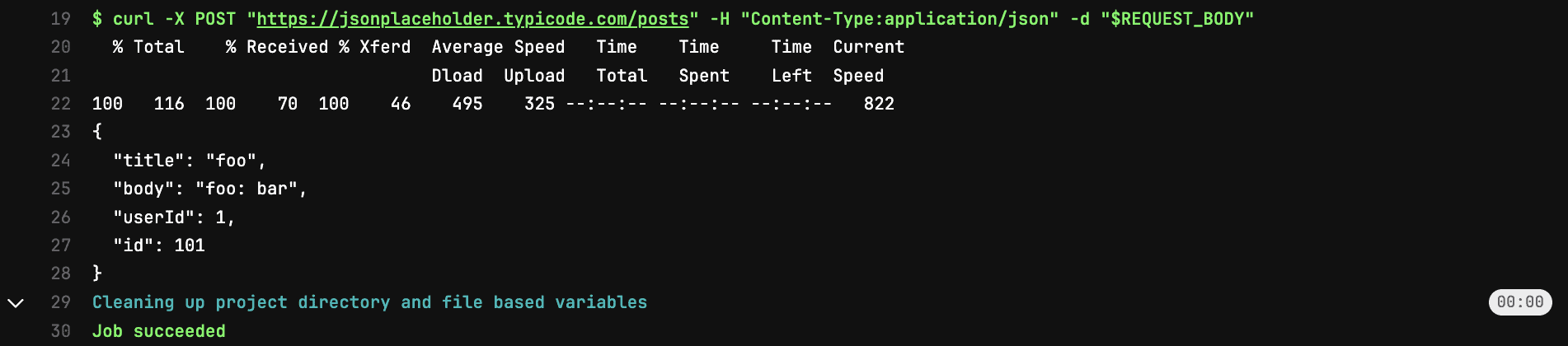
Perfect! It looks like we’ve nailed this one.
In this section, we’ll use multi-line YAML scalars to add cURL commands for our GitLab job.
We can use the folded block scalar (>) to add the entire cURL command. Besides solving the issue of colon interpretation, it improves readability by giving the flexibility to split a long command over multiple lines.
Let’s update the .gitlab-ci.yml configuration file using this approach:
$ cat .gitlab-ci.yml
curl_job:
  variables:
    REQUEST_BODY: '{"title":"foo", "body":"foo: bar", "userId":1}'
  script: >
    curl --silent -X POST "https://jsonplaceholder.typicode.com/posts"
    -H "Content-Type: application/json"
    -d "${REQUEST_BODY}"
We could split the long cURL command over multiple lines without side effects as all the line breaks become single-space. Further, it’s important to note that we must not add leading white spaces for the continuing lines and keep them at the same indentation level as the starting line of the command.
Now, let’s verify the job logs by running a pipeline for the latest .gitlab-ci.yml CI configuration file:

Great! The job succeeded.
Alternatively, we can use the literal block scalar (|) in the .gitlab-ci.yml file to facilitate the shell-like line continuation for commands using the \ character.
$ cat .gitlab-ci.yml
curl_job:
  script: |
    curl -X POST "https://jsonplaceholder.typicode.com/posts" \
      -H "Content-Type: application/json" \
      -d '{"title": "foo", "body": "foo: bar", "userId": 1}'
As we’ve added \ explicitly, we can add indentations on continuing lines without side effects. GitLab will interpret them as part of the same command.
Now, let’s confirm that our job runs fine in the GitLab CI/CD pipeline:

Fantastic! It worked as expected.
In this article, we explored the nuances of using the cURL commands in .gitlab-ci.yml. Additionally, we learned how to use GitLab CI/CD variables, and multi-line YAML scalar blocks to solve the problem.
As always, the code for these examples is available over on GitHub.