


Learn through the super-clean Baeldung Pro experience:
>> Membership and Baeldung Pro.
No ads, dark-mode and 6 months free of IntelliJ Idea Ultimate to start with.
Last updated: September 7, 2025
Learn through the super-clean Baeldung Pro experience:
>> Membership and Baeldung Pro.
No ads, dark-mode and 6 months free of IntelliJ Idea Ultimate to start with.
Roles and permissions are essential to securing Microsoft Azure SQL Server databases. Providing users with the appropriate level of access is crucial for compliance and security as businesses grow.
To query and examine the server-level, database-level, and custom roles that Azure SQL Database offers, we can use the Azure Portal, the Azure Active Directory integration, or custom T-SQL statements.
In this tutorial, we’ll present the different types of roles, how to view user permissions, and the best practices for auditing access in Azure SQL Server.
Roles are predefined or user-defined security groupings. We can assign users to roles rather than giving them permissions on a case-by-case basis.
We differentiate between server-level and database-level roles:
| Roles | Command | Description |
|---|---|---|
| Server | sysadmin | full control over the SQL Server instance. |
| serveradmin | manage server-wide configurations | |
| securityadmin | manage logins and permissions | |
| setupadmin, processadmin, diskadmin, dbcreator, bulkadmin | specialized roles | |
| Database | db_owner | full database control |
| db_datareader / db_datawriter | read or write data in all user tables | |
| db_ddladmin | execute DDL commands (e.g., create/alter tables) | |
| db_securityadmin | manage database-level permissions | |
| db_backupoperator | manage database backups | |
| public | default role, everyone belongs to this role |
Additionally, organizations can establish custom roles to comply with the least privilege principle. With user-defined custom roles, administrators can customize permissions to meet particular job functions or operational requirements.
This ensures that users only have access to the resources they need for their tasks, reducing the possibility of unintentional or malicious data exposure.
Azure SQL supports querying system views to retrieve roles and permissions.
Here’s an SQL query that retrieves a list of database roles and their members from the current SQL Server database:
SELECT dp.name AS DatabaseRole,
mp.name AS MemberName,
mp.type_desc AS MemberType
FROM sys.database_role_members drm
JOIN sys.database_principals dp ON drm.role_principal_id = dp.principal_id
JOIN sys.database_principals mp ON drm.member_principal_id = mp.principal_id
ORDER BY dp.name;
The sys.database_role_members view maps database roles to their members, showing which users belong to which roles. The sys.database_role_principals view contains information about all database-level security principals, including users, roles, and application roles.
Here’s what the output typically looks like:
| DatabaseRole | MemberName | MemberType |
|---|---|---|
| db_datareader | app_user | SQL_USER |
| db_datawriter | app_user | SQL_USER |
| db_owner | admin_user | SQL_USER |
| db_owner | dbo | DATABASE_ROLE |
| db_ddladmin | dev_user | SQL_USER |
The actual output depends on our database’s current role assignments. We’ll see all users and roles that are members of other roles, sorted by the role name.
This query is a great way to get a clear snapshot of role memberships. It’s particularly useful when auditing permissions and managing access.
Getting server-level role memberships in SQL Server is useful for auditing administrative privileges and understanding access control at the instance level.
Here’s an SQL query that retrieves a list of server roles and their members:
SELECT spr.name AS ServerRole,
spm.name AS MemberName
FROM sys.server_role_members srm
JOIN sys.server_principals spr ON srm.role_principal_id = spr.principal_id
JOIN sys.server_principals spm ON srm.member_principal_id = spm.principal_id
ORDER BY spr.name;
The sys.server_role_members view shows the relationships between server-level roles and their members. The sys.server_principals view lists all server-level security principals, such as logins and server roles, providing metadata about each.
Here’s what the output typically looks like:
| ServerRole | MemberName |
|---|---|
| sysadmin | sa |
| sysadmin | SandipAdmin |
| securityadmin | AuditUser |
| serveradminDBA_TeamLead | DBA_TeamLead |
| setupadmin | InstallerLogin |
The actual output will reflect the logins configured on the SQL Server instance and their assigned server roles. These roles govern various capabilities, such as managing logins, configuring server settings, or executing high-level tasks.
In contrast to the query showing role memberships, we’ll now focus on explicit permissions granted directly to users or roles.
When auditing who has access to what, and under whose authority, a detailed view of explicit database-level permissions comes in handy:
SELECT dp1.name AS Grantee,
dp2.name AS Grantor,
perm.permission_name,
perm.state_desc,
obj.name AS ObjectName
FROM sys.database_permissions perm
JOIN sys.database_principals dp1 ON perm.grantee_principal_id = dp1.principal_id
JOIN sys.database_principals dp2 ON perm.grantor_principal_id = dp2.principal_id
LEFT JOIN sys.objects obj ON perm.major_id = obj.object_id
ORDER BY dp1.name, perm.permission_name;
This query serves as an excellent tool to demonstrate granular access control within relational databases.
The following table provide details about the output columns in the query.
| Column | Description |
|---|---|
| Grantee | The principal (user/role) receiving the permission |
| Grantor | The principal who granted the permission |
| permission_name | The specific permission granted (SELECT, EXECUTE, INSERT) |
| state_desc | The state of the permission (GRANT, DENY, REVOKE) |
| ObjectName | The name of the object (table, view, procedure, etc.) the permission applies to |
Here’s how the output typically looks like:
| Grantee | Grantor | permission_name | state_desc | ObjectName |
|---|---|---|---|---|
| app_user | dbo | SELECT | GRANT | Customers |
| dev_user | dbo | EXECUTE | GRANT | usp_GetOrders |
| audit_user | dbo | VIEW DEFINITION | GRANT | Orders |
| guest | dbo | SELECT | DENY | SensitiveData |
Furthermore, this highlight security best practices in enterprise data environments, and clarify the distinctions between role based vs explicit permission assignments.
The Azure Portal provides a graphical interface for viewing and managing user roles:
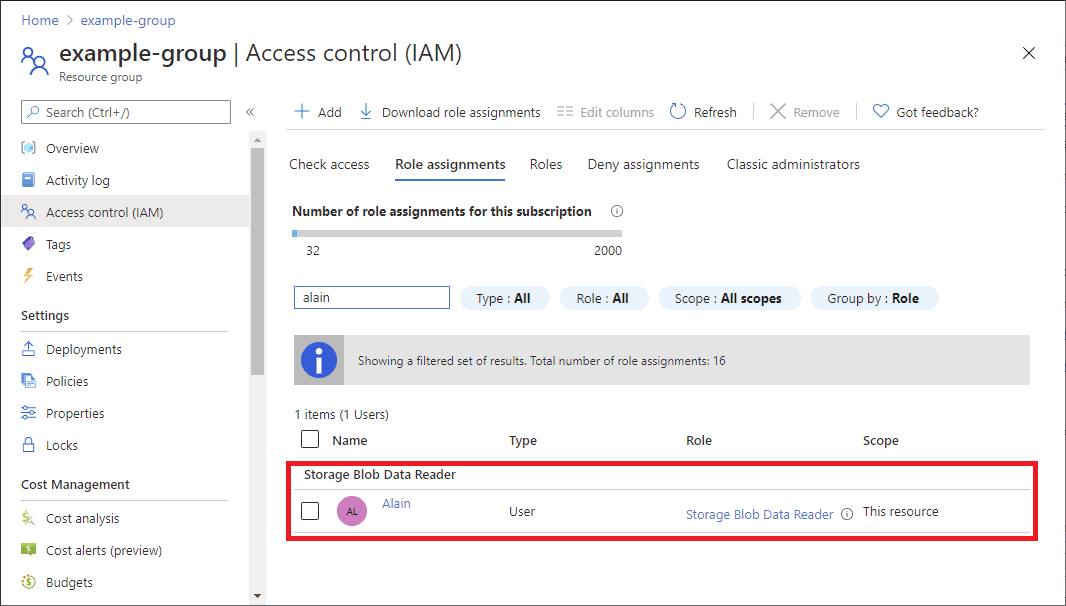 The steps to get there are:
If the SQL Server is integrated with Azure AD, permissions can also be reviewed through the Azure Active Directory portal. Further, we’ll navigate to enterprise applications, then select users and groups to audit group-based assignments across multiple users.
This is especially useful when auditing group-based assignments across multiple users.
To ensure secure and scalable access management, it’s essential to follow the principle of least privilege. This is done by assigning only the permissions that are strictly necessary.
For routine audits, we need to use Azure Automation or SQL queries. As a result of these audits, we can detect excessive or out-of-date permissions, ensure adherence to internal policies, and identify potential security threats before they become a problem.
We should also implement role-based access control through Azure AD groups for better scalability, and enable logging via Azure Monitor and SQL Auditing to effectively track access changes.
In this article, we discussed about how Azure SQL Server roles and permissions ensures secure and legal database access. T-SQL queries, the Azure Portal, and Azure AD help administrators keep track of who has access and what they can do with it.
The ability to manage roles and permissions in Azure SQL Server is essential for preserving data security, operational integrity, and regulatory compliance.
When onboarding new users, distributing access among teams, or getting ready for an audit, knowing who can do what and why is crucial.